EMPOWERING BUDTENDER TO ELEVATE THE SUBSCRIPTION EXPERIENCE
Provide your team with the knowledge and skills to expertly guide customers through every part of their subscription journey. This training covers essential steps from enrollment and plan management to applying special offers and handling transactions. With clear, practical guidance, budtenders will feel confident managing subscriptions, ensuring every customer interaction is smooth, informed, and engaging
Table of Contents
Customer Experience- Enrollment
For any new members that are not already a part of your Springbig loyalty/texting program, please have them first start by signing up to join your program through the join form link/QR code (settings –> account –> sharing links).
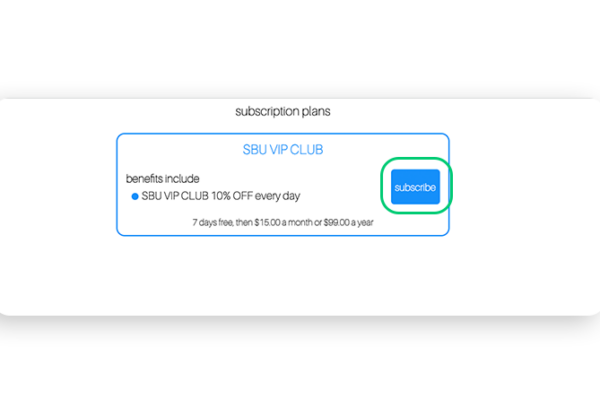
Step 1. Have your member navigate to their customer wallet, scan the subscriptions sharing link QR code, or navigate to your subscriptions join link embedded in your website/socials.
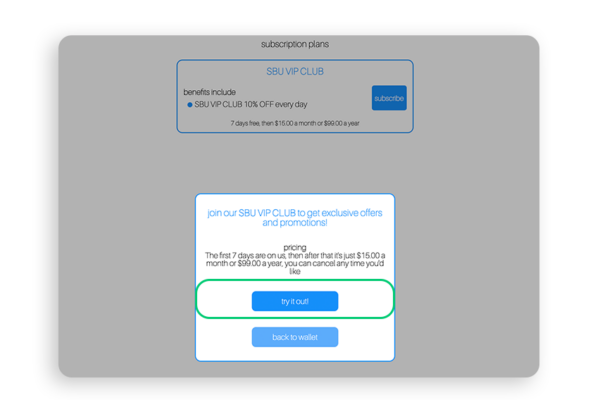
Step 2. Once brought to the customer wallet, the member is prompted to join the subscriptions program.
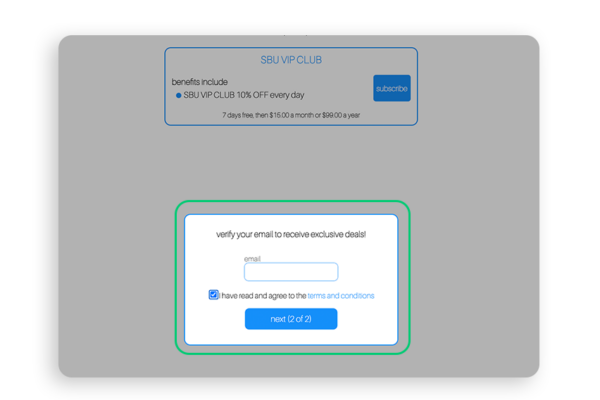
Step 3. Once selected, the member is then prompted to enter in their first and last name, phone number and email address if they are a new customer, or just their email address if they are an existing customer.
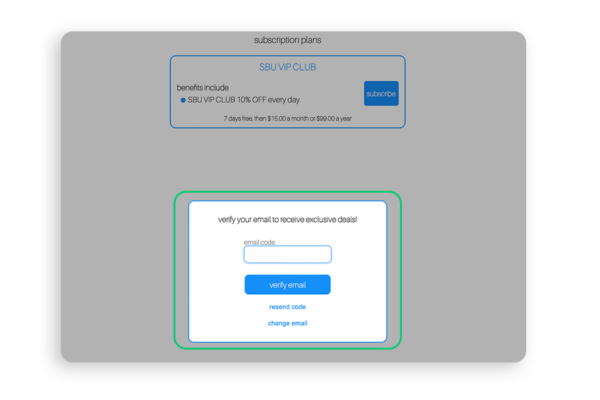
Step 4. Once entered, a verification code that is sent to the member’s email. This ensures that the email address on file is real and accurate.
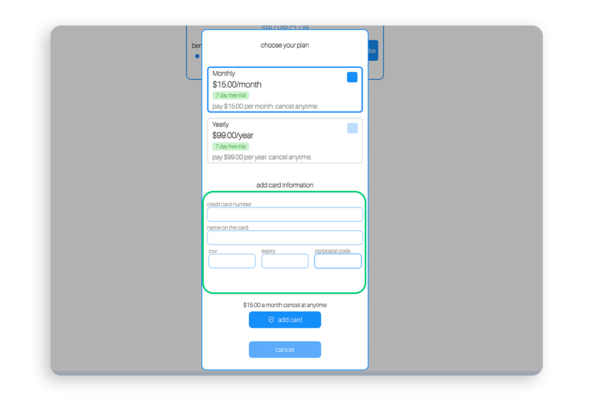
Step 5. Once the member’s email is verified, they are brought to the subscriptions selection page, where the member can select their subscription tier (if applicable), enter in their credit card information and subscribe.
Step 6. Once the member hits add card and the credit card is successfully charged, they are now a part of the subscriptions program.
SUBSCRIPTIONS CUSTOMER EXPERIENCE- PLAN MANAGEMENT
Editing the Subscribers Email Address
Members will be able to update or cancel their subscription at any time!
To update the member’s email or credit card, or cancel the subscription, members must first access their member wallet and navigate to the subscriptions page.
The member’s wallet can be accessed via the login link, if saved on their home screen, or via a campaign.
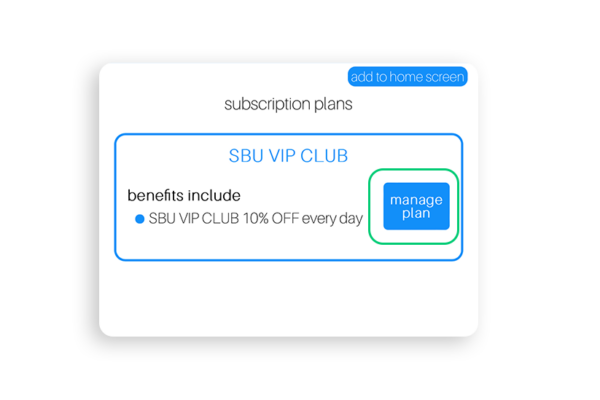
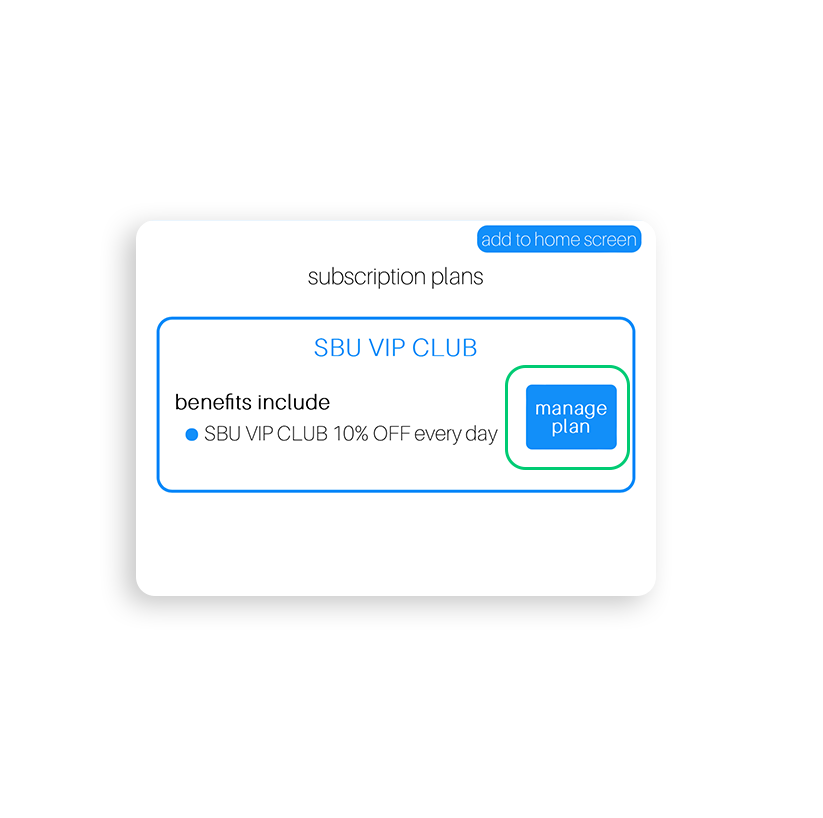
Step 1. Once on the subscriptions page in the wallet, select manage plan.
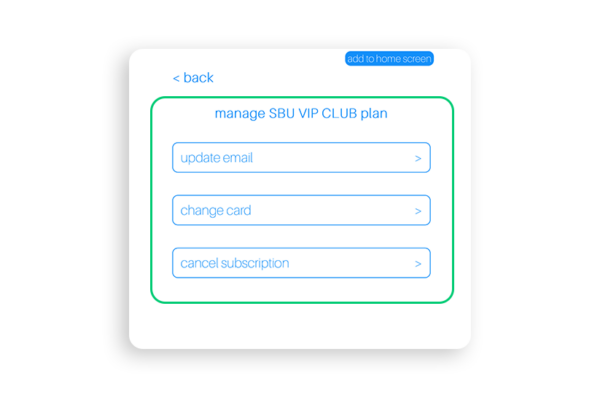
Step 2. Select update email to edit/update the member’s email.
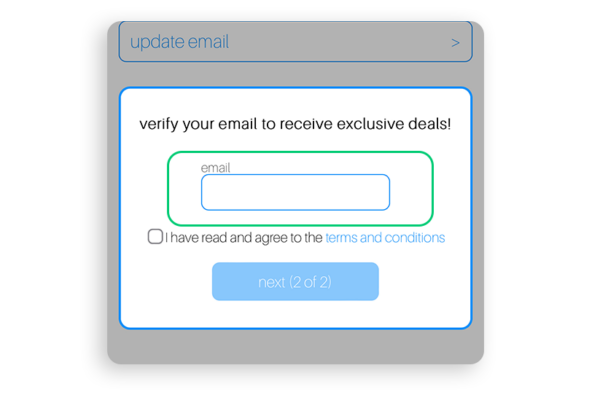
Step 3. Enter in the new/updated email address, agree to the terms and conditions, and select next.
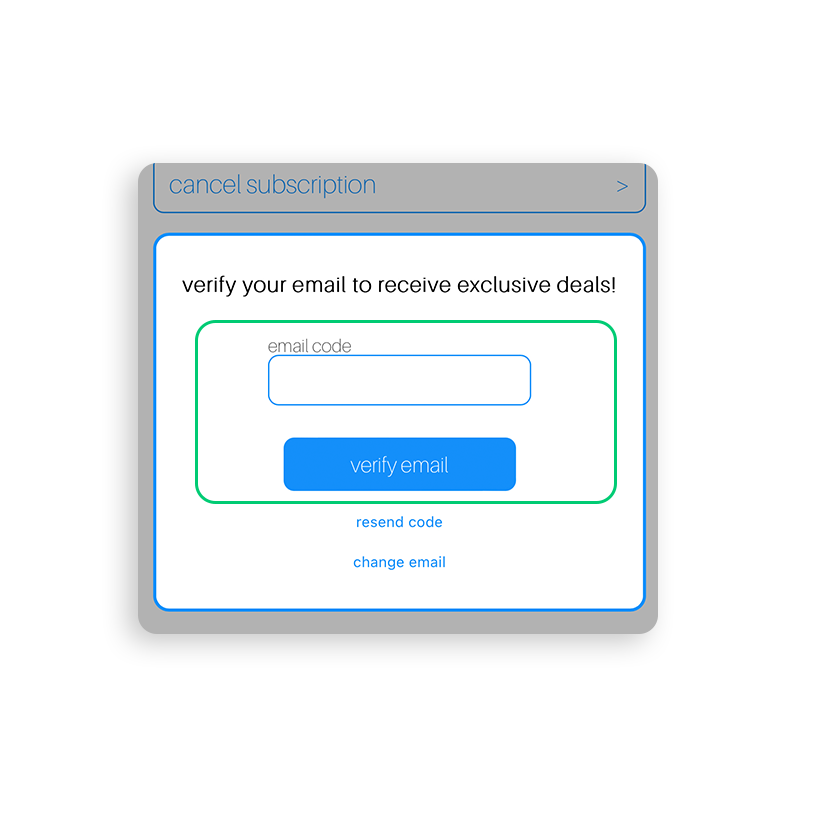
Step 4. Go to the email’s inbox to find the email verification code and enter it in to verify the new email.
Step 5. Once verified, the new email is then saved.
Changing the Credit Card on File
Step 1. Once on the subscriptions page in the wallet, select manage plan.
Step 2. Select change card to edit/update the member’s credit card information.
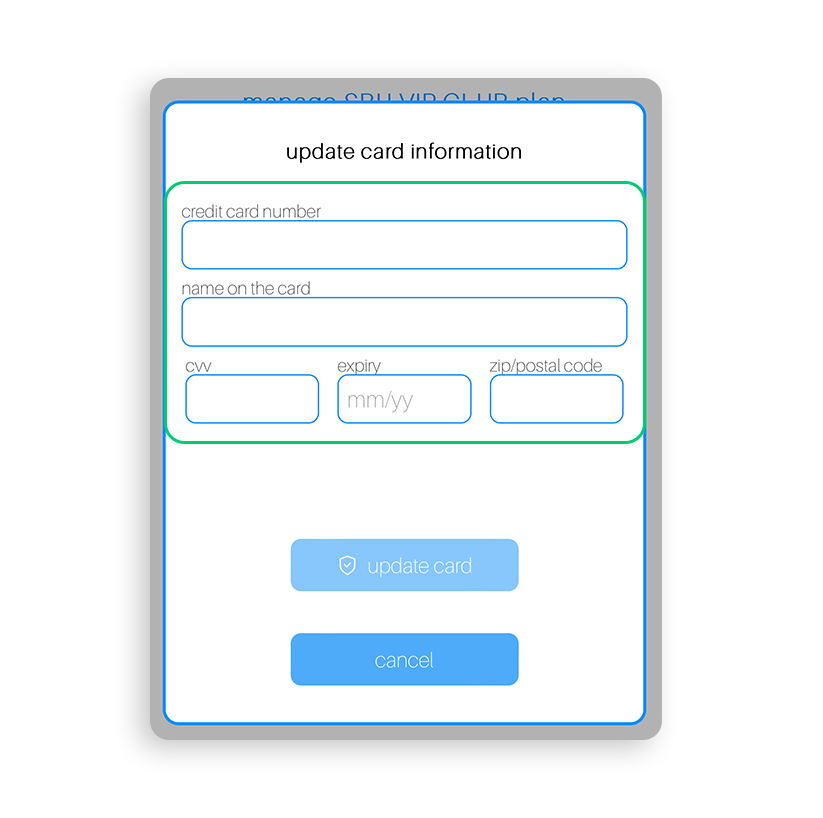
Step 3. Enter in the new/updated credit card number, name, CVV, expiration date and postal code.
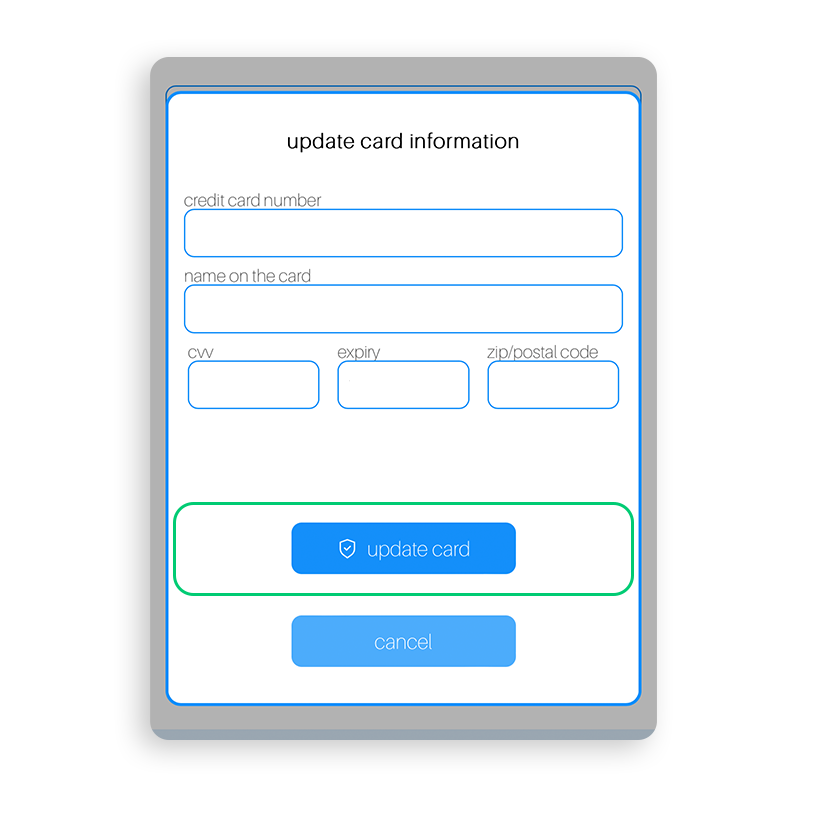
Step 4. Once the new credit card information is entered, select update card for the credit card change to take place.
Changing a Subscription Tier
The first step in changing a subscription tier is cancelling the existing plan. Once the existing plan is cancelled, the customer can then enroll in a new subscription tier. Below are the steps for cancelling a subscription plan, followed by the steps for enrolling in another tier.
Cancelling a Subscription Plan
Step 1. Once on the subscriptions page in the wallet, select manage plan.
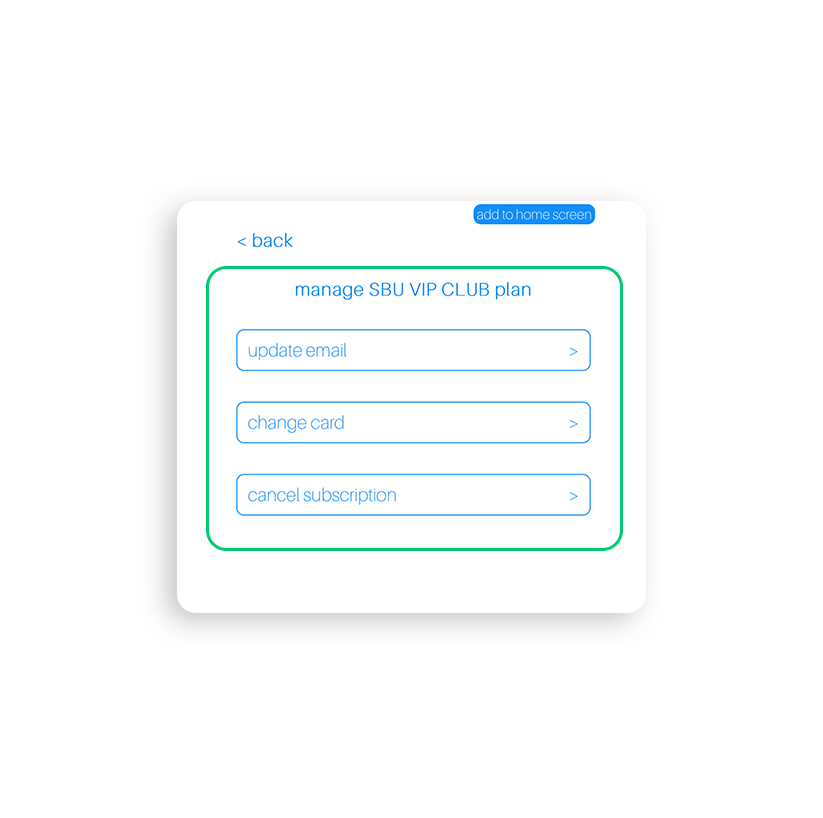
Step 2. Select cancel subscription to cancel the member’s current subscription plan.
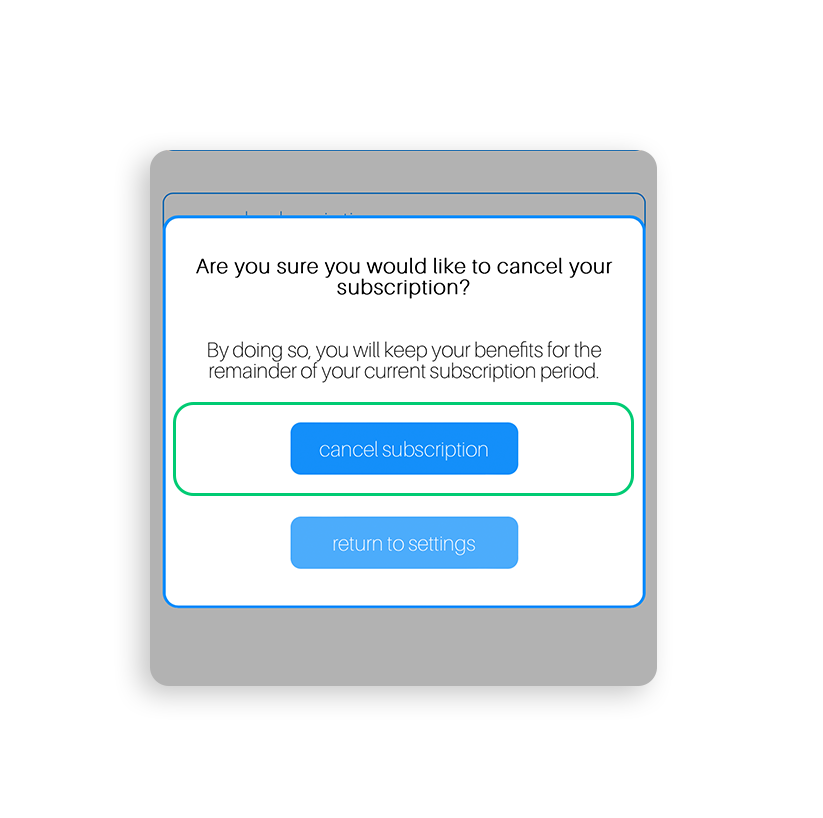
Step 3. A popup will appear, confirming the cancellation. If the member wants to move forward with the cancellation, they will select cancel subscription from the popup.
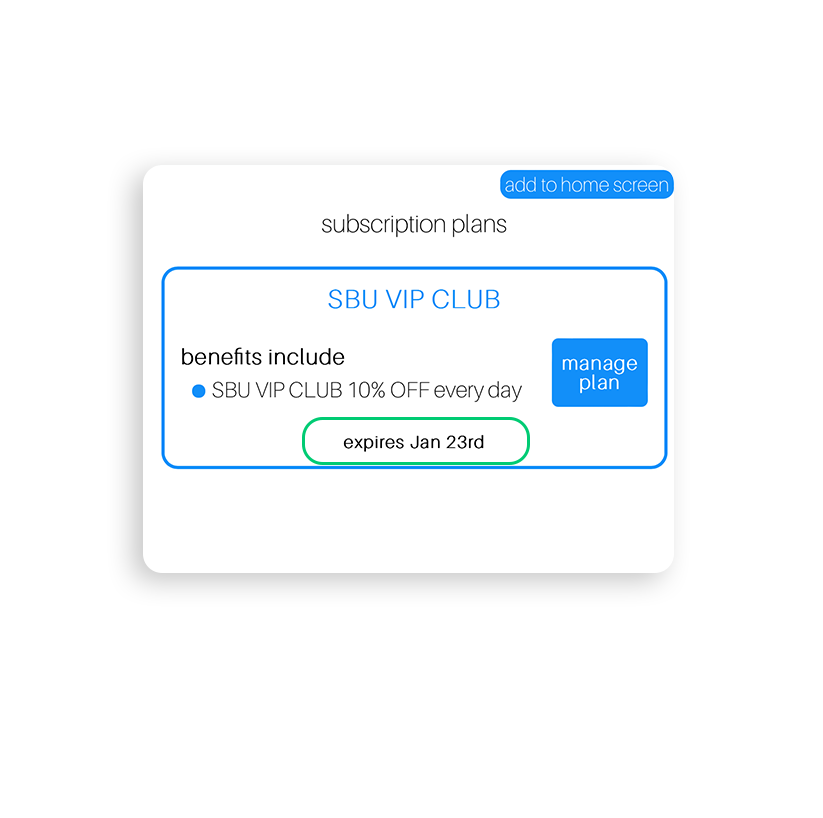
Step 4. The member’s subscription will then be canceled, and an expiration date will appear under their current plan to show them when their subscription plan expires.
Enrolling in a New Subscriptions Plan
Step 1. Once the previous subscription plan is cancelled, members are brought back to the subscriptions selection page, where they can select their preferred subscription tier, enter in their credit card information and subscribe.
Step 2. Once the member hits add card and the credit card is successfully charged, they are now a part of the new subscriptions program.
Cancelling a Subscription Plan
Step 1. Once on the subscriptions page in the wallet, select manage plan.
Step 2. Select cancel subscription to cancel the member’s current subscription plan.
Step 3. A popup will appear, confirming the cancellation. If the member wants to move forward with the cancellation, they will select cancel subscription from the popup.
Step 4. The member’s subscription will then be canceled, and an expiration date will appear under their current plan to show them when their subscription plan expires.
Having trouble? If this is an issue related to customer billing, please direct the customer to submit the details to subscriptionsbilling@springbig.com for assistance. Please ensure that the customer provides first name, last name, email and phone number in their email. For any other issues, please reach out to support@springbig.com and provide as much information as possible.
Viewing a Customer's Subscription Plan Status
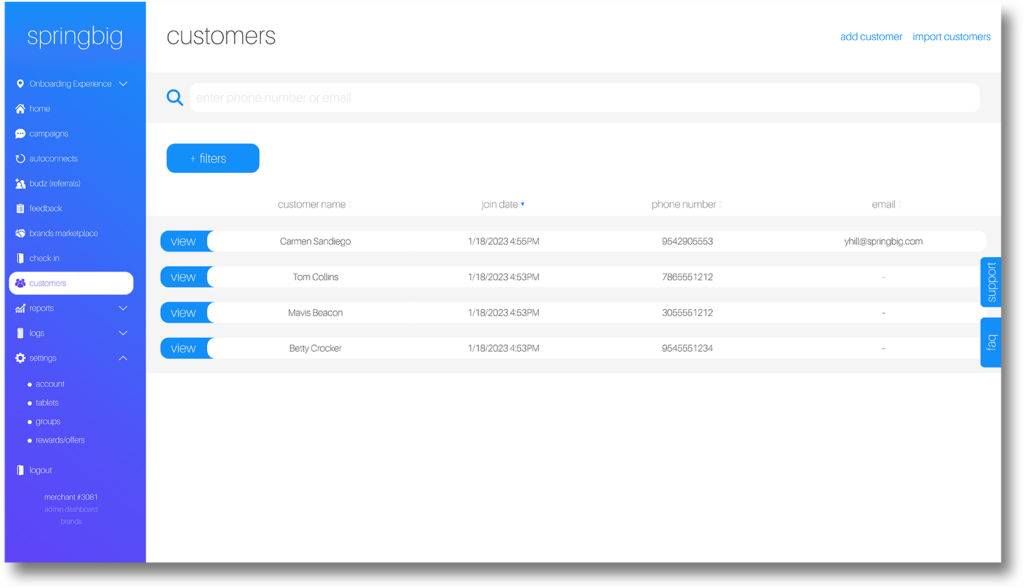
Step 1. Navigate to the customers page and search for the customer in question.
Step 2. Once the customer is located, select view on their profile to view the profile details.
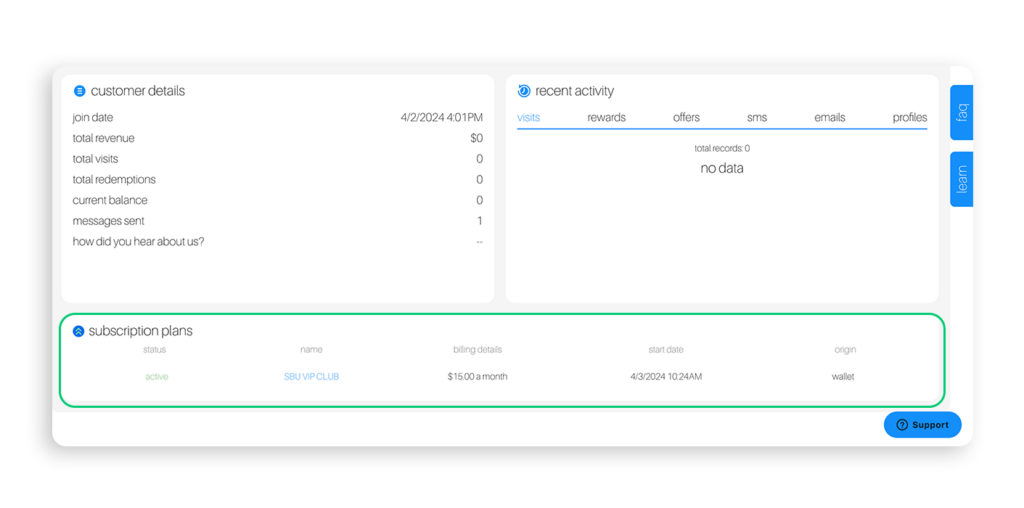
Step 3. Scroll down to the Subscription Plans section of the profile.
Step 4. From there, you are able to view more information around the customer’s subscription plan:
Their subscription status
The subscription plan’s name
The billing details
Which includes their monthly/yearly subscription price
Their subscription start date
How the member subscribed
Subscription Statuses
Subscriptions Statuses
Active
This status will show when a customer’s subscription plan is currently enabled and a payment has been successfully processed.
Suspended
This status will show when a customer’s card has failed on payment.
“Suspended” will show for a week, while the system tries to run the card to process the payment.
If the card is unable to be ran after a week, their status will be changed to “Failed”.
Failed
This status will show when a customer’s card has failed on payment after a week of trying to run the card.
When a customer’s subscription plan is changed to “Failed” they are no longer an active subscriber in the program.
Cancelled
This status will show when a customer has cancelled their subscription plan.
When a customer’s subscription plan shows “Cancelled” they are no longer an active subscriber in the program.
Applying Customer's Subscription Offers at Check Out
Please click on your POS listed below for specific steps on applying offers to customer’s transactions.
If your POS is not listed, please follow the steps below to redeem offers from the customer’s wallet!
Step 1. Have the customer navigate to their wallet and view the ‘offers’ page
Note: If they need to access their wallets, please have them go through the QR code in store or the login link (settings –> account –> sharing links –> login link)
Alternatively, the retail staff member can access the customer wallet by searching the customer, viewing the customer’s profile details and then selecting ‘view customer wallet’.
Step 2. Have the customer select ‘get’ on the offer they would like to redeem
Step 3. Apply the offer to the customer’s transaction
View the video below for the entire offer redemption process in the customer’s wallet
Ecomm Experiences with a Subscription Plan
Please click on your Ecomm listed below for specific steps on applying offers to customer’s transactions.
If your Ecomm is not listed, please follow the steps below to redeem offers from the customer’s wallet!
Step 1. Have the customer navigate to their wallet and view the ‘offers’ page.
Note: If they need to access their wallets, please have them go through the QR code in store or the login link (settings –> account –> sharing links –> login link)
Alternatively, the retail staff member can access the customer wallet by searching the customer, viewing the customer’s profile details and then selecting ‘view customer wallet’.
Step 2. Have the customer select ‘get’ on the offer they would like to redeem.
Step 3. Apply the offer to the customer’s transaction.
View the video below for the entire offer redemption process in the customer’s wallet
For more information around creating a subscriptions program, please visit the Creating a Subscriptions Program page.