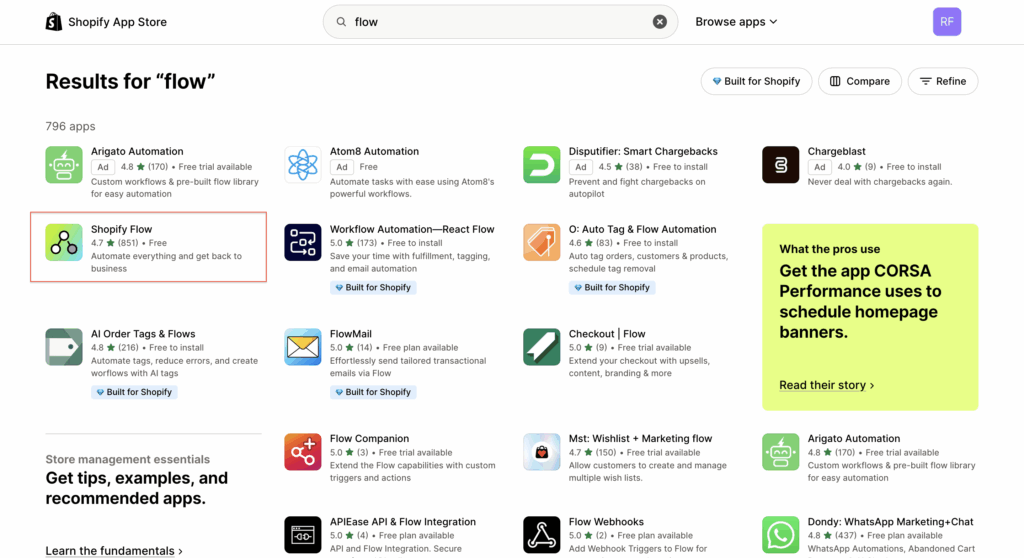
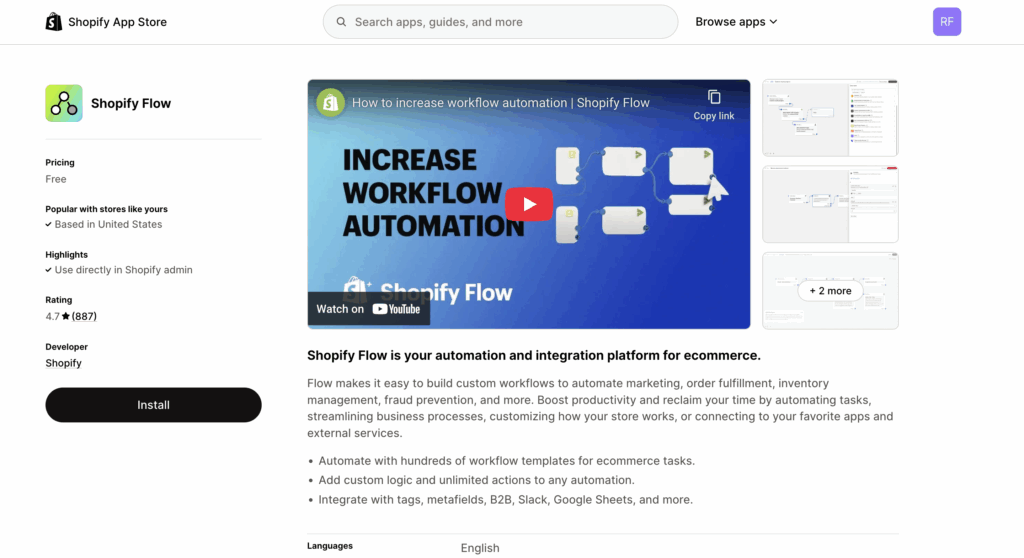
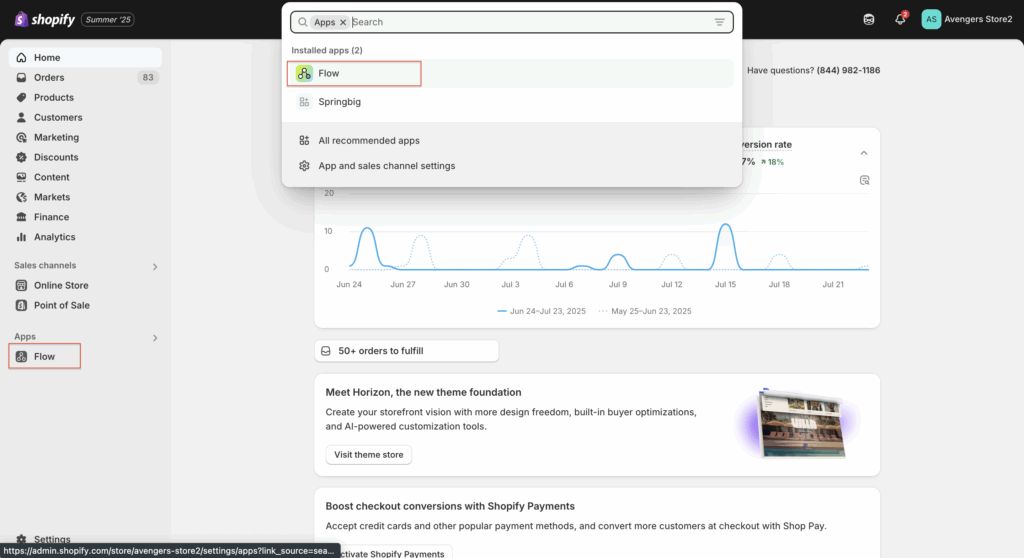
This guide walks you through setting up a Shopify Flow that automatically sends SMS messages via Springbig. Merchants can now harness the rich customer and behavioral data from Shopify with Springbig’s SMS marketing engine—all without leaving the Shopify admin.
What You’ll Learn
Set up Shopify Flow to send SMS through Springbig
Use triggers like “Abandoned Cart” or customer segments
Create conditions to ensure customers are opted into SMS
Send HTTP requests to Springbig to trigger messages
Manage API keys securely using Shopify secrets
WHY USE THIS INTEGRATION?
Through this integration, Shopify merchants gain access to the full power of Springbig’s SMS marketing while leveraging the vast behavioral and transactional data available in Shopify. This combination allows merchants to:
Send personalized and timely text messages
Re-engage customers who abandoned carts
Reward high-value or frequent shoppers
Win back customers who stopped engaging
Target based on product views, email inactivity, collection visits, and more
Think of this integration as unlimited segmentation + SMS automation = growth machine.
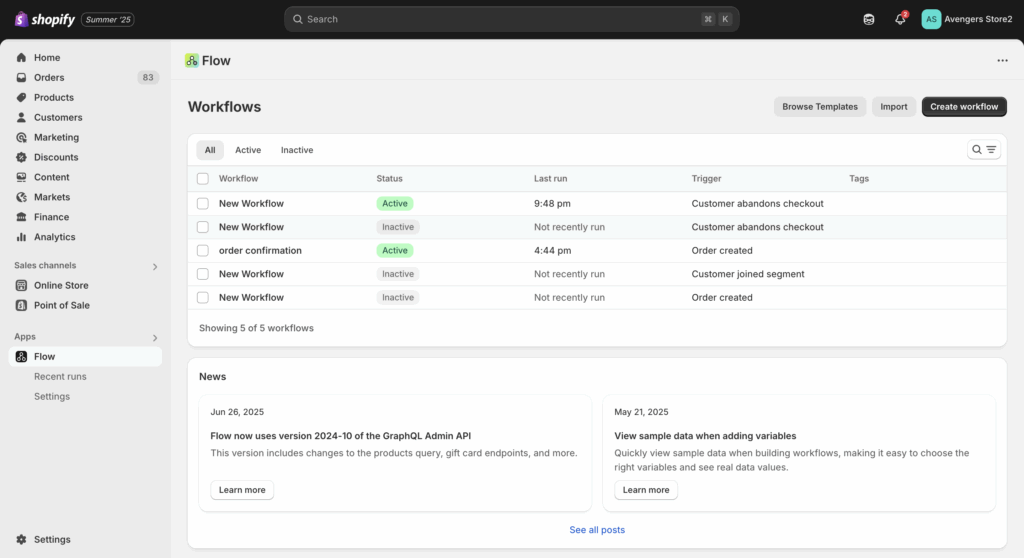
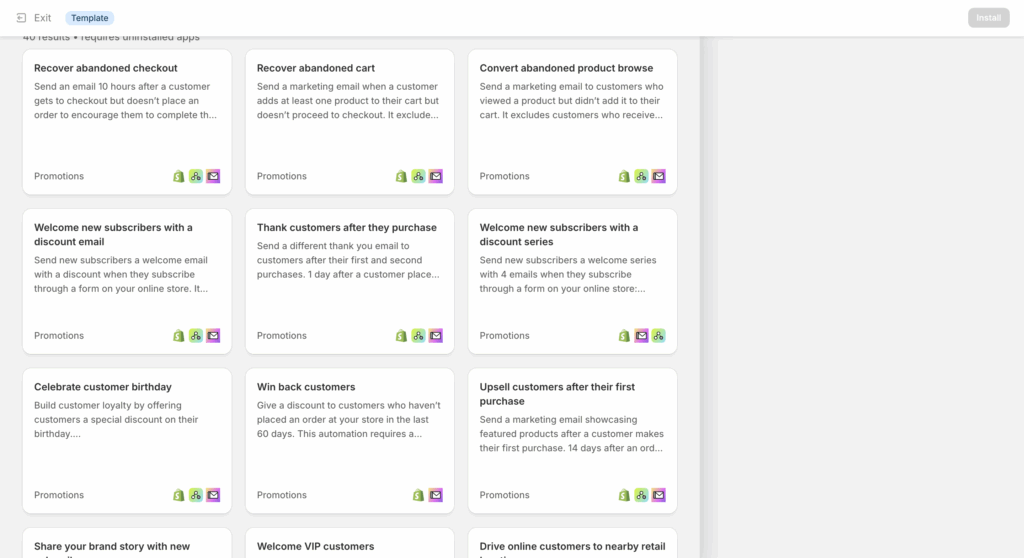
The following screenshot is browse templates. Take a look here to get some ideas on automation flows you can setup, however, they do need to be adjusted to trigger an SMS message through Springbig.
Step 3: Choose a Trigger
After selecting create workflow in the previous step, Click Select a trigger
click the shopify app on the right side of the page
here you will see a large list of triggers (75+) like: order created, refund created, etc..
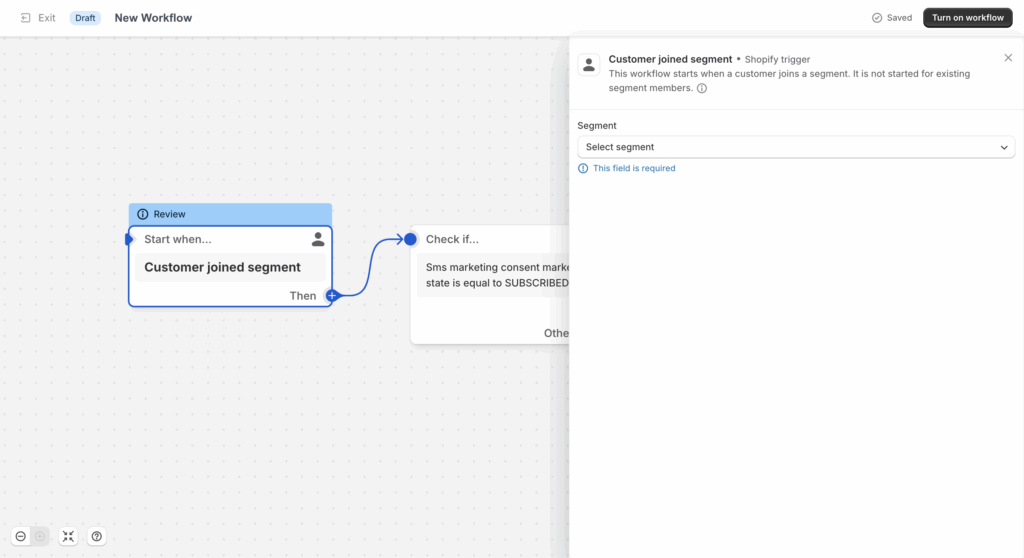
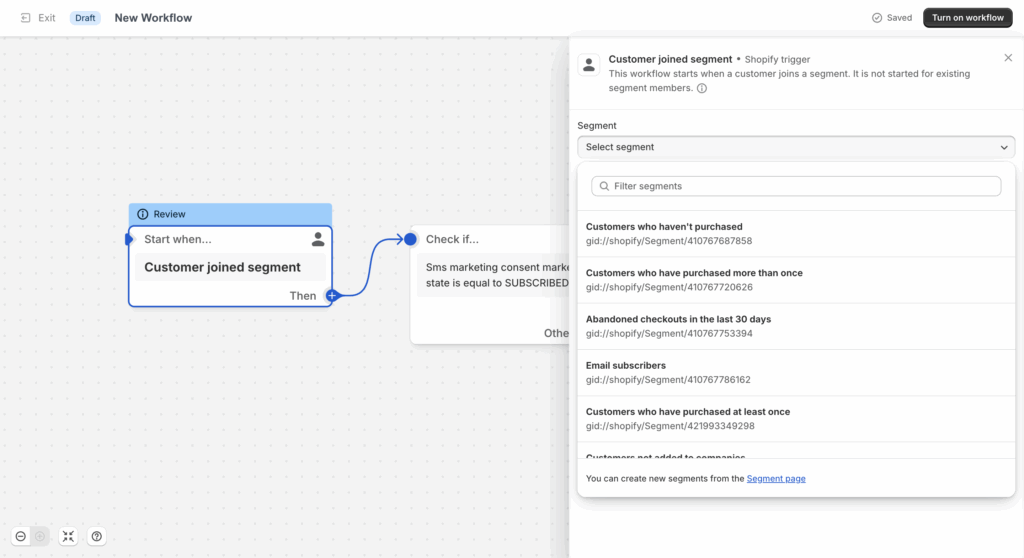
You can also use a segment-based trigger ‘customer joined segment’
For this guide we will be using the example of ‘Customer abandons checkout’. Search for this trigger and select it.
An abandoned cart in shopify is defined as a customer adding an item to their cart, going to checkout, filling in their details and then leaving the checkout, with 1 hour of inactivity.
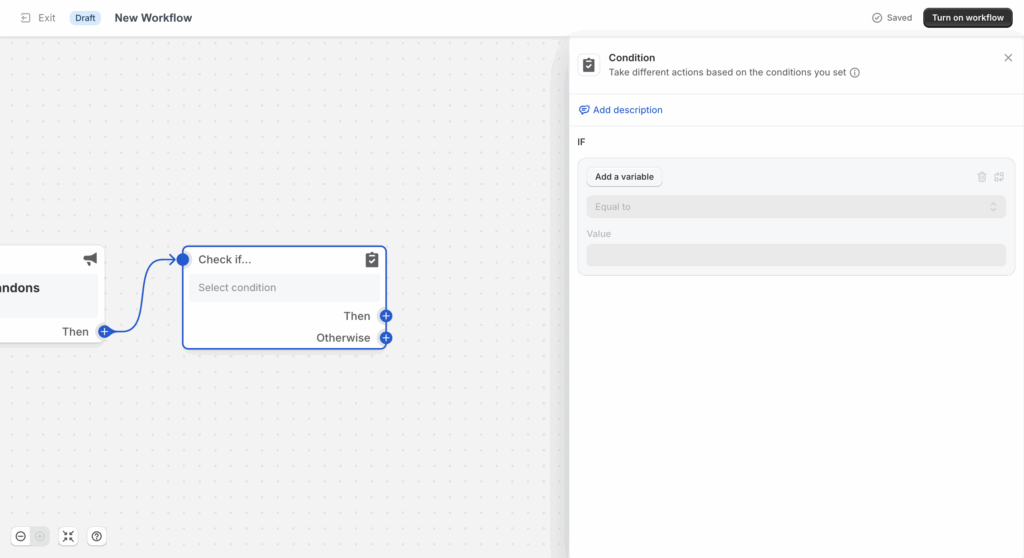
Step 4: Add an SMS Opt-In Condition
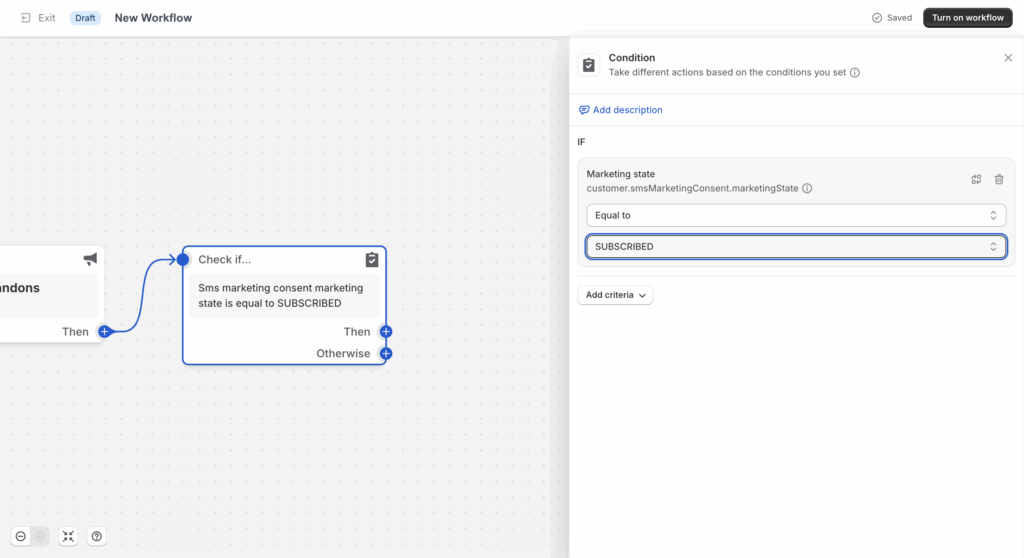
Under Then, click the + → choose Condition
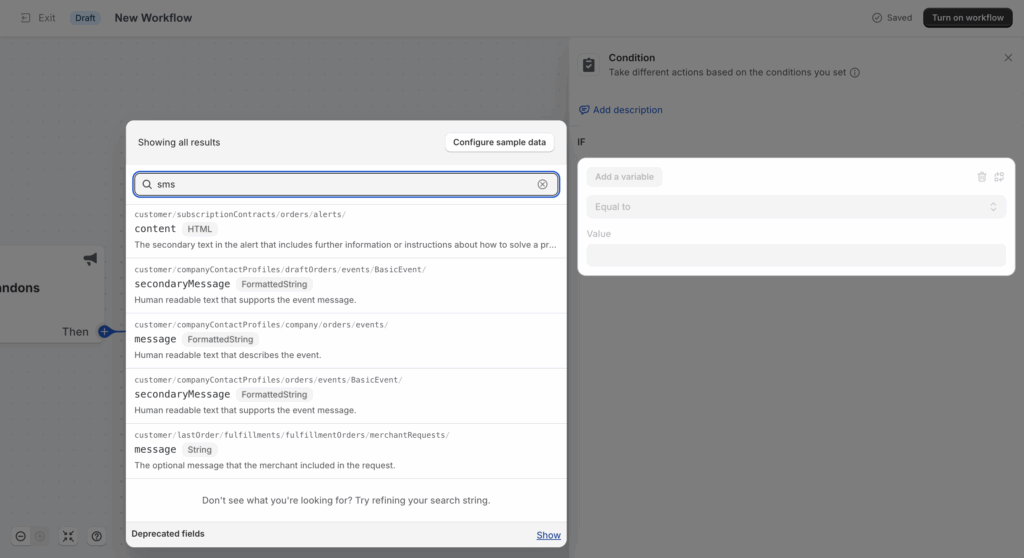
Click Add a variable
3. Search for sms
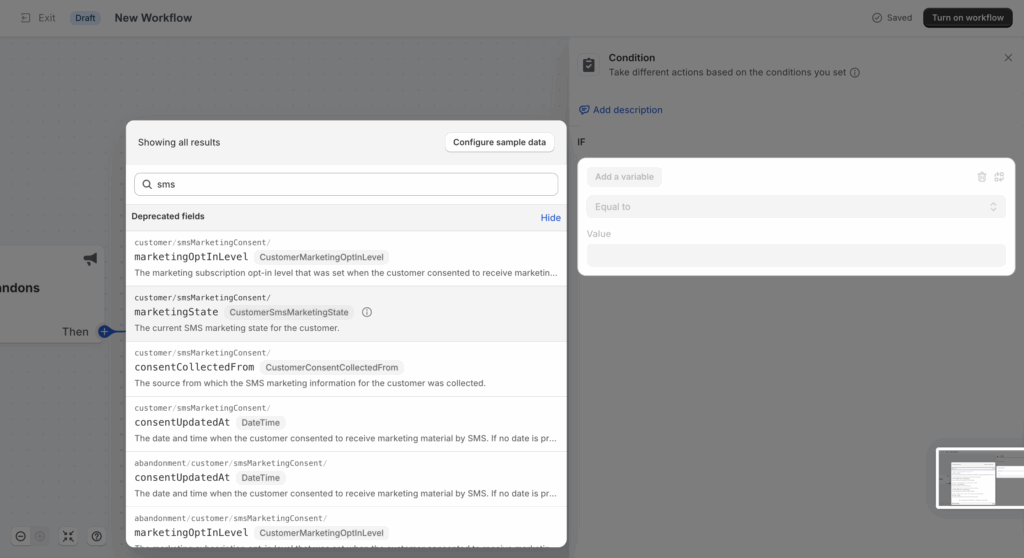
4. Check Show deprecated fields
5. Select CustomerSMSMarketingState
6. Set condition: is equal to → Subscribed
We will continue with an action to trigger an SMS. If you would like to send an email see page Email Configuration
Step 5: Trigger the Springbig SMS Action
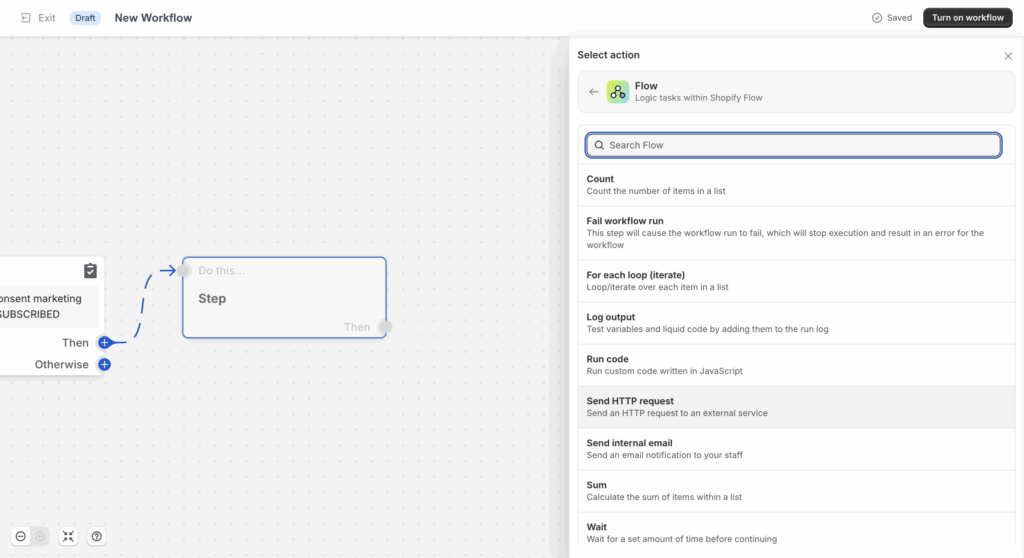
Under the next Then, click the + → select Action
Choose Flow → Send HTTP Request
3. If you have a cURL from your CSM, click Import cURL
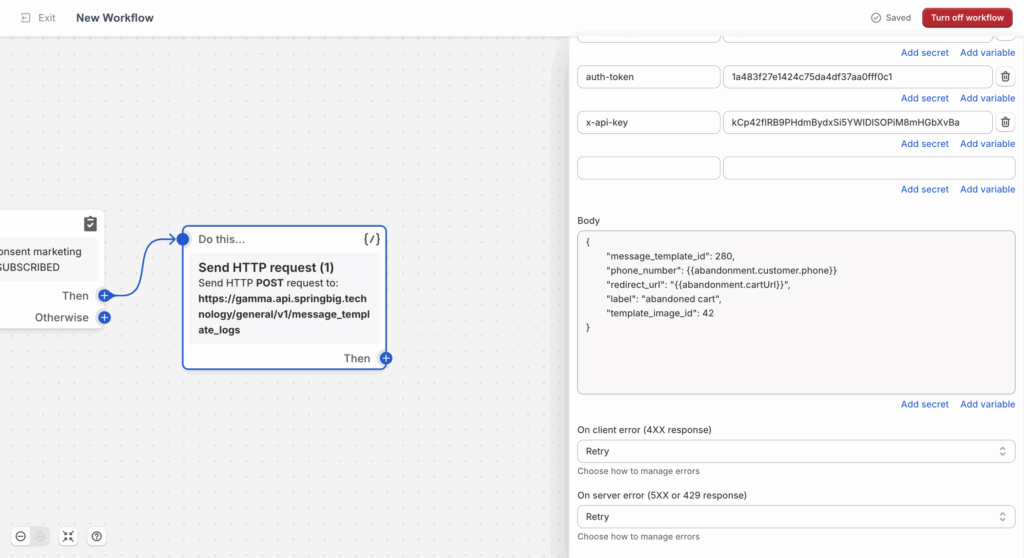
4. Or fill in the details manually as laid out in the next section HTTTP Request Configuration:
Description: The ID that connects to the template message you would like to send in this flow.
Ask your CSM for this ID
phone_number
Description: the number you would like to send to when they come into this flow
you can select ‘add a variable ‘ and use a liquid dynamic variable like{{abandonment.customer.phone}}or{{order.customer.phone}}
redirect_url(Optional)
Description: the link you would like the take the customers to after they click the url in the message sent. If not included there will be no link in message.
you can select ‘add a variable ‘ and use a liquid dynamic variable like {{abandonment.cartUrl}}
label:
Description: Campaign name for internal tracking Ex: abandoned cart
template_image_id(Recommended)
Description: The ID that connects to the image you would like to send in this flow.
Ask your CSM for this ID
Step 6: Finalize
Click Apply changes
Turn the workflow ON
Your automated workflow is now LIVE!
TRIGGERING FROM SEGMENTS
using the Shopify app option in the right hand side, Set trigger as: Customer joins segment
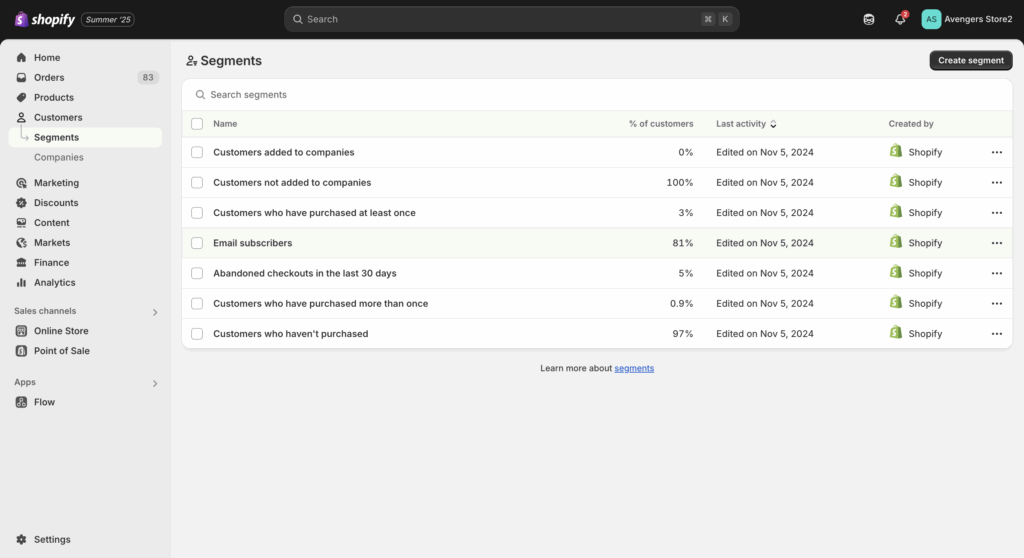
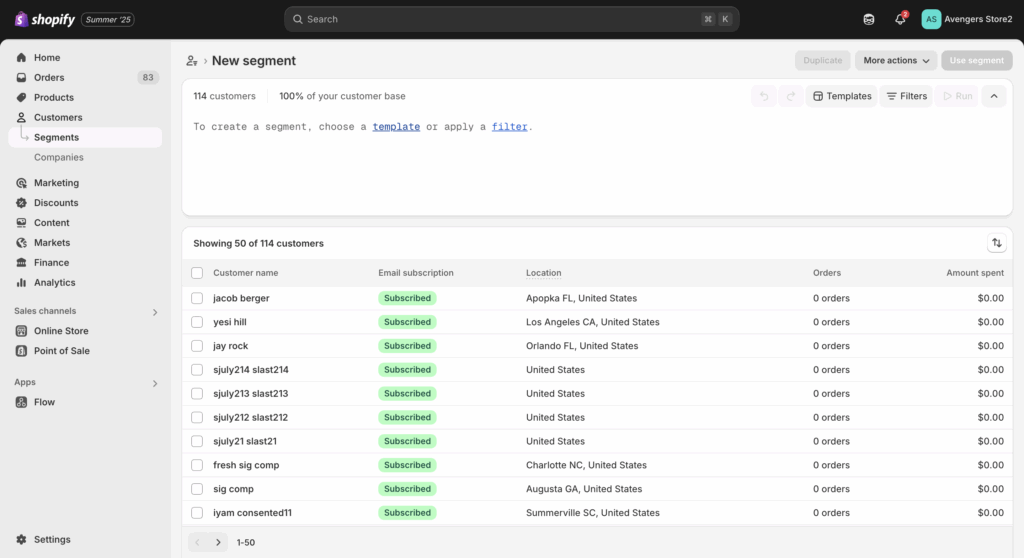
If segment already exists, choose it and build flow from there
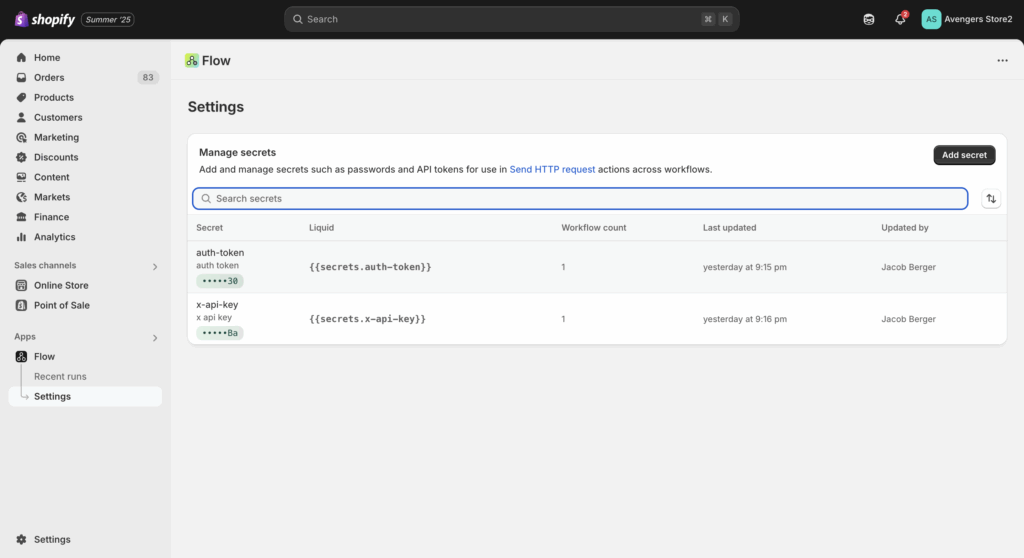
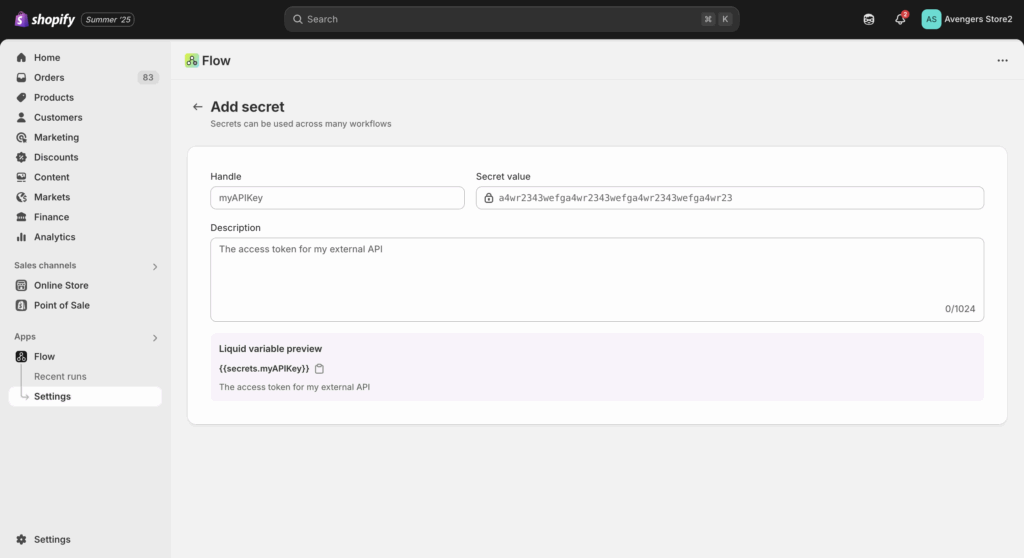
Ask your CSM for Springbig API credentials - Auth Token and X API Key
In the Send HTTP Request step, click Add secret under headers
Click Manage secrets → redirected to admin
Click Add secret
4. Set handle name like auth-token or x-api-key
5. Enter value (your token or API key)
6. Add description for clarity
7. Save and return to Flow to use the secrets
FAQ
Q: How do I get the message template ID or image ID? A: Contact your Springbig CSM to provide the approved template and image IDs. These need to be pre-approved on our platform. You can also ask about submitting custom templates pending approval
Q: Can I use other triggers besides Abandoned Cart? A: Absolutely. Shopify Flow supports 75+ triggers like order created, product viewed, refund created, etc. You can also use shopify’s native segment to build out all sorts of marketing campaigns
Q: Can I use multiple conditions in the workflow? A: Yes, you can layer conditions to refine your audience—for example, check SMS opt-in AND order value over $100.
Q: What happens if a user isn’t opted in to SMS? A: The flow will not proceed to send the message.
Q: What happens if a user replies stop to opt out? Will that be reported to shopify A: Yes, Shopify and springbig’s integration includes SMS consent value sharing. We have a complete customer sync on SMS enrollment values to keep your customer’s consent values up to date.
Q: Do I need developer skills to set this up? A: Nope! Everything is done within Shopify’s admin and Flow interface.
ENJOY BUILDING YOUR AUTOMATION WITH SPRINGBIG + SHOPIFY