SPRINGBIG'S STASHBOARD SETTINGS
TAILOR YOUR STASHBOARD TO FIT YOUR BRAND
From this page, you can make customer facing changes that will appear in your campaign Stashboard.
Edits can be made to:
- Static Stashboard Header – Add links that your customers can click to get to your website, social, or menu.
- Theme – Change the color for buttons that will appear in your customer’s wallet / stashboard.
Navigate to settings – account – stashboard settings
STATIC HEADERS
The Stashboard is the landing page your text messages will link to, where your campaign will be displayed to your members.
Add links as headers that will pop up for customers to easily access your sites when they receive your campaigns.
Add URLS, upload icons and see what they will look like in the preview.
The Static Headers should direct your members to sites like your website, online menu, social media pages, and more.
You can include more specific and time sensitive links in your campaigns such as links to specific items, pages on your site, or product / categories on your online menu.
- Add and rearrange up to 5 stashboard header links
- Make sure to include the full URL including http:// or https://
- Images should be JPEG / PNG with 300x300px or 1:1 image ratio
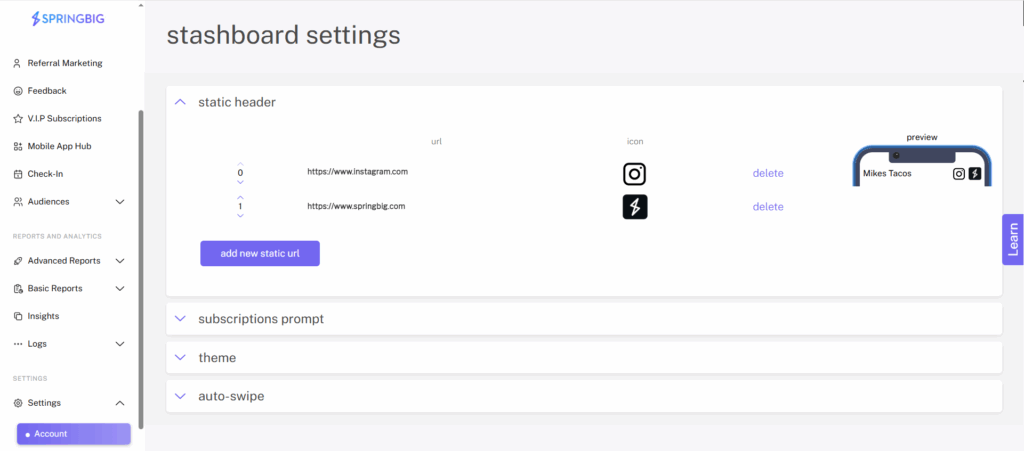
Note: Any changes made to these headers will update past links, retroactively
SUBSCRIPTIONS PROMPT
Note: You will only see this option if you are running a Subscriptions plan.
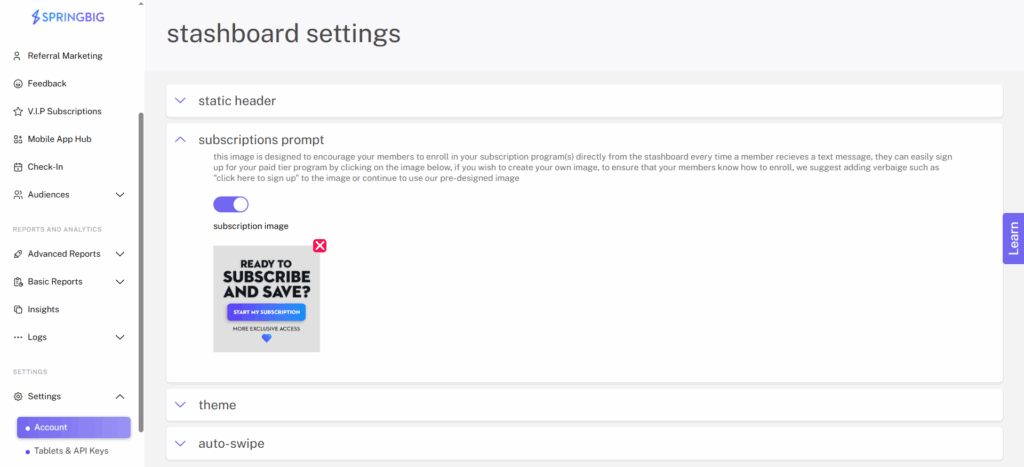
The Subscriptions Prompt allows you to promote your paid subscription program directly from the wallet. When enabled, members will see a clickable image that makes it easy to enroll in your subscription tier.
You can choose to use Springbig’s pre-designed image or upload your own custom image. If you upload a custom image, we recommend including clear call-to-action text such as “Click here to sign up” so members know how to enroll.
This setting can be turned on or off at any time. For full setup instructions and best practices, refer to the Subscriptions Guide.
STASHBOARD THEMES
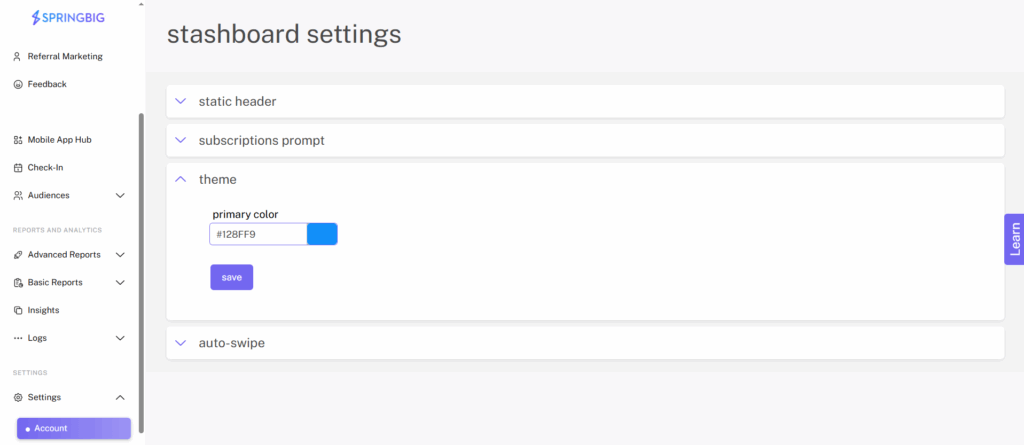
You can change the theme color of the pin code page, as well as, the any link tiles that display in the stashboard to fit your branding!
To change your stashboard theme:
- Navigate to settings – account – stashboard settings
- Click theme
- Insert Hex code or click the color block to select a color
- Click save
AUTO-SWIPE SETTINGS
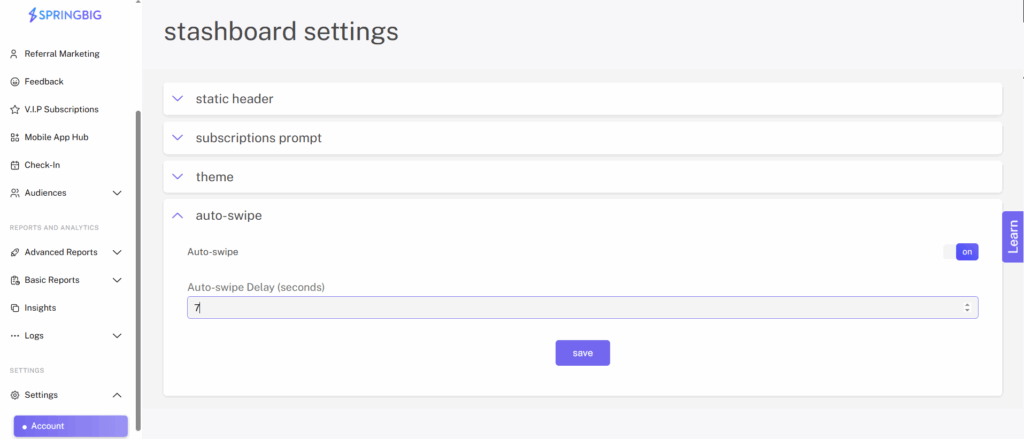
The Auto-Swipe setting lets you control how long each image appears in the Stashboard before automatically swiping to the next image (when multiple images are used).
You can choose how long each image is displayed, with options ranging from 7 seconds up to 60 seconds per image. This gives you flexibility to highlight key visuals or messages at a pace that fits your in-store experience.
Auto-Swipe can be adjusted at any time based on how much attention you want each image to receive.