User Roles are designed to simplify how retailers assign roles and permissions for their employees. Admins can start with predefined role templates and customize them as needed, or start from scratch and make completely custom user roles, making it easy to grant the right access to team members. Permissions are grouped into manageable sets (roles), allowing for precise control over what each employee can do, from accessing specific locations to performing key functions. With real-time role management and optimized system performance, User Roles offers a flexible and secure way for retailers to manage employee access.
Please note: Users being added via the manage users page should be team members that will be working with you on your platform, and NOT your customers/members. Examples of users can be your business partner, Budtenders, your marketing team, etc.
LEVERAGING USER ROLES
Step 1: Navigate to the User Roles Page
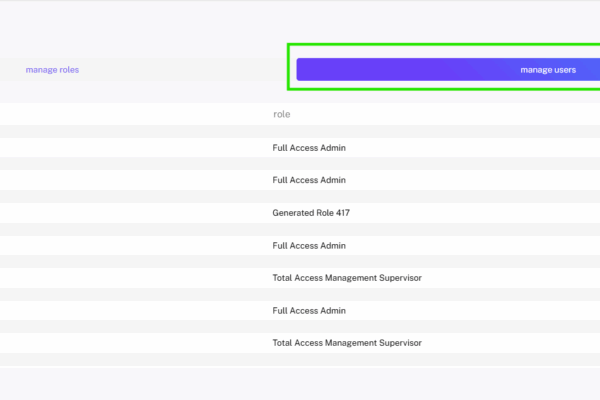
To get to the user roles page from the home screen, on the navigation bar on the left-hand side of the screen go to Settings > Account > Manage users and roles.
Note: Once there, you’ll see that some roles have already been built for you based on the current permission sets you’ve built out on your platform. Don’t worry, you can edit these or delete them completely if necessary by simply clicking on them.
Step 2: Creating a New Role
To create a new role, click the new role button in the top right of the screen. When clicked, you’ll be taken to the role creation page where you’ll be able to name the role, select an icon for it or upload your own image, and most importantly define the role’s permissions
Step 3: Adding Users to a Role
Once you’ve completed step 3, you’ll be taken to a page that allows you to either add brand new users or existing users to the role you just created.
Step 4: Editing an Existing Role
To edit a role, make sure you’re on the manage roles tab of the Manage users and roles page and simply click on the role you’d like to edit.
Step 5: Managing Users
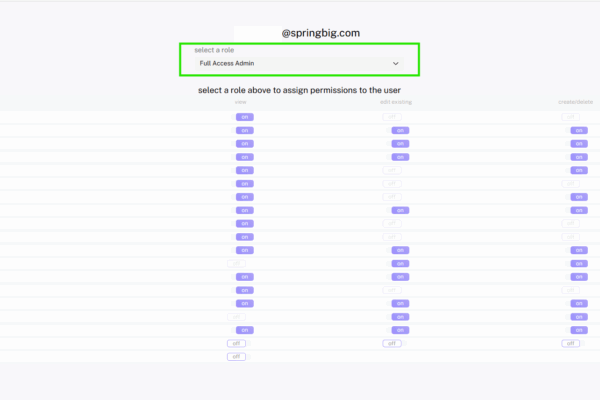
From the manage users and roles page you’ll also be able to manage individual users. To do this, simply click on the manage users tab. Once there, you’ll be able to view and edit the permissions of specific users.