Welcome to the Springbig + Jane POS Integration guide!
In this guide you will learn about:
Installing Jane POS
Creating and syncing Springbig rewards with Jane POS
Creating members in Jane POS
Completing transactions and redemptions in Jane POS
Let’s get started!
Jane POS Integration Guide
User interface is subject to change at the discretion of your POS provider. For the most accurate and up-to-date information, please consult your POS provider directly.
Part 1: Installation
How to Integrate Jane POS with Springbig
Connect Jane POS with Springbig to enhance your customers’ shopping experience with our seamless loyalty integration!
Retreive your Springbig Auth Token
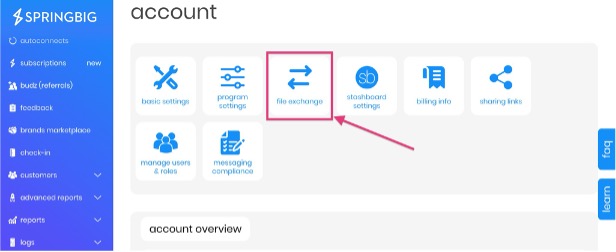
Reach out to your Springbig representative to request credentials for Jane POS. You will receive an automated email once this information has been uploaded to your Springbig account under Settings > Account > File Exchange
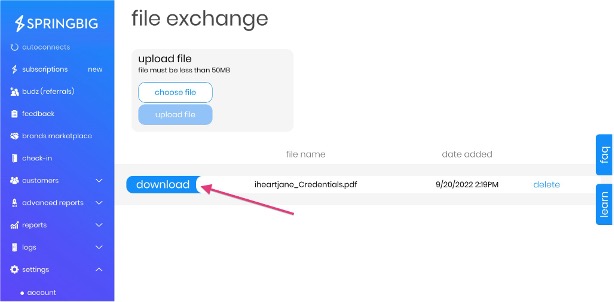
Download the file where you will find the AUTH-TOKEN
Create a New Integration in Jane POS
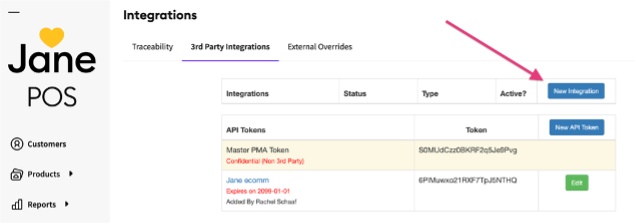
In your Jane POS dashboard navigate to Settings > Integrations > 3rd Party Integrations and click ‘New Integration’.
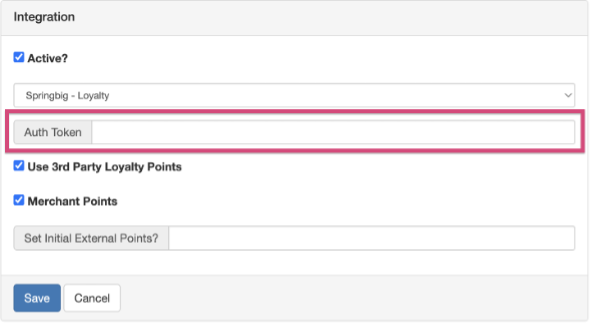
Select ‘Springbig – Loyalty’ from the dropdown. Enter the AUTH-TOKEN from Springbig into the Auth Token field. Ensure ‘Active?’ and ‘Use 3rd Party Loyalty Points’ are checked. If you have more than one location and want to allow customers to share their loyalty points across these locations, check ‘Merchant Points’. Hit ‘Save’.
Part 2: Creating and Syncing Springbig Rewards with Jane POS
In order to sync Springbig rewards with Jane POS you will need to build them in both systems. Make sure the loyalty integration has been created in Jane POS by following these steps.
First, create your rewards in Springbig following this guide.
NOTE: Jane POS only supports synced rewards at this time. Springbig offers will not sync with Jane POS but can still be redeemed in store via the customer’s Springbig wallet/app.
Once your rewards are saved in Springbig, build the same reward in Jane POS.
Log into your Jane POS
Navigate to the Marketing > Loyalty > Rewards and click ‘New Point Reward’
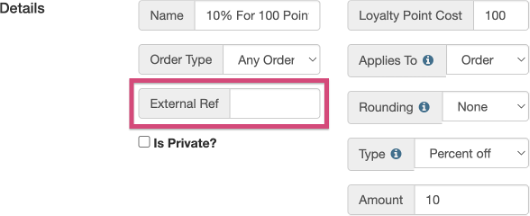
Create the same discount in Jane (The reward name in Jane POS must match the reward name in Springbig)
Leave the External Ref field This ID will auto populate once the reward in synced
Hit ‘Save’
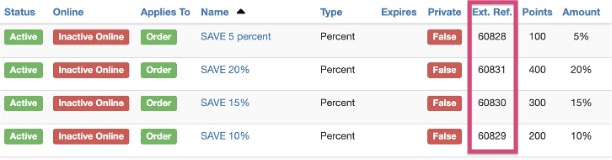
The Ext Ref column will indicate whether the reward has synced successfully. If this ID does not populate, check to ensure that the reward name in Jane POS matches Springbig exactly.
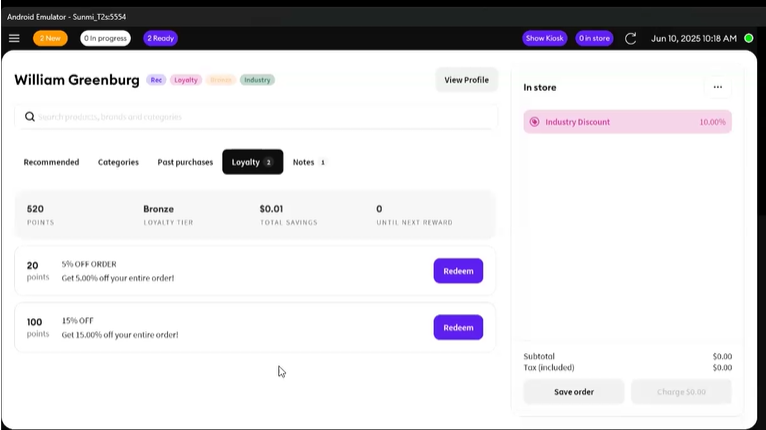
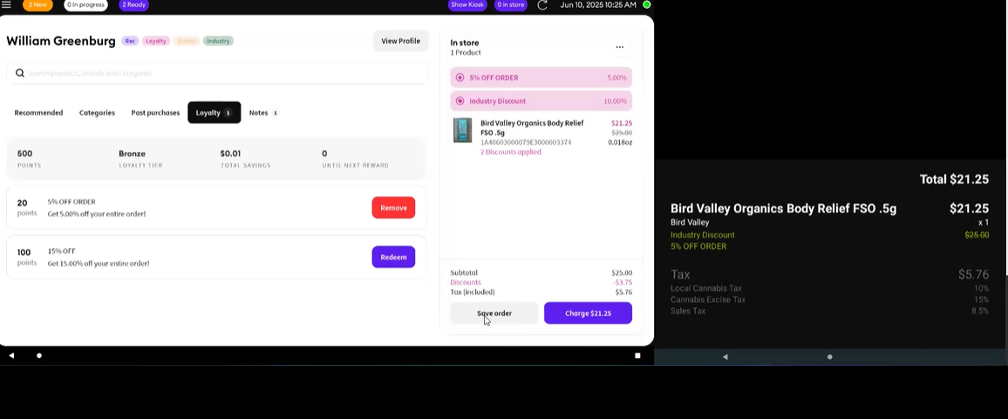
Once a reward is synced, it will be available to redeem at the register within the Jane POS app for customers who have enough points.
Part 3: Member Creation
Overview: This section will show how to create new members and the data that’ll be sent to Springbig.
Note: Only customers that have consented via the customer consent page will be sent to Springbig.
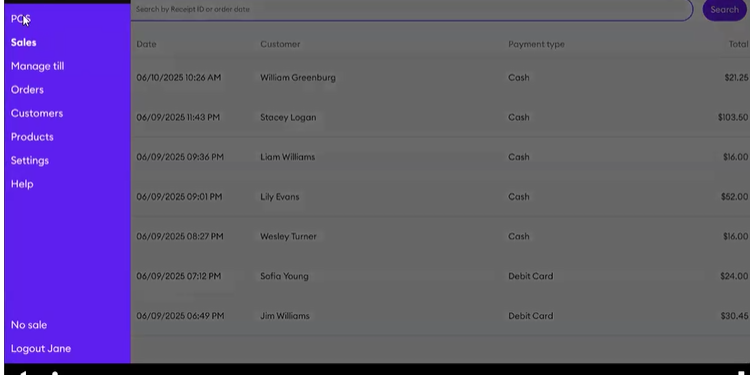
In order to create a new customer, navigate to the customers tab
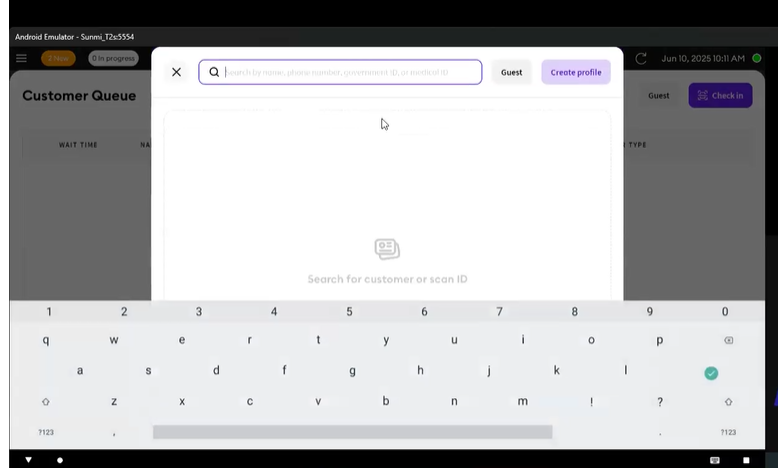
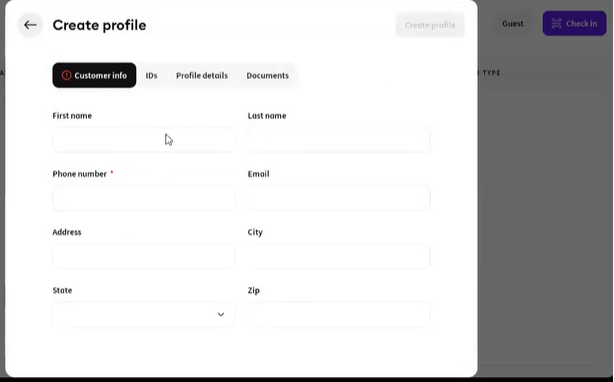
Click Check-in, then use the search bar to look for an existing profile or you can also scan the customer ID to bring them up. If the customer does not exist, you will click create profile.
When you create a new customer, the following values will be sent to Springbig:
First and last name
Phone Number
Email Address
Address (City, Postal Code)
Birthday
Medical Card Expiration
Purpose (Med/Rec)
Gender
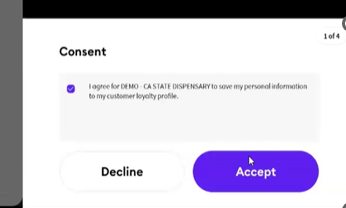
Customer Consent Page
In order for a member to be sent to Springbig, the customer will have to fill out the Customer consent page.
Note: The customer must click the checkbox to agree to the terms and privacy policy.
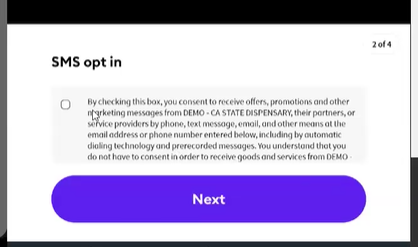
Springbig will respect the Opt-in value sent to us from JanePOS
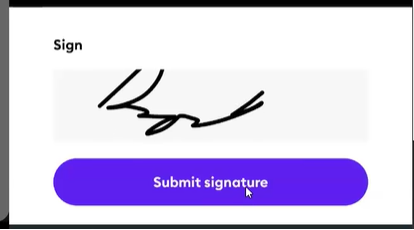
Note: The Customer Signature is required in order to create their profile, they must click submit signature to capture the consent
Order Page
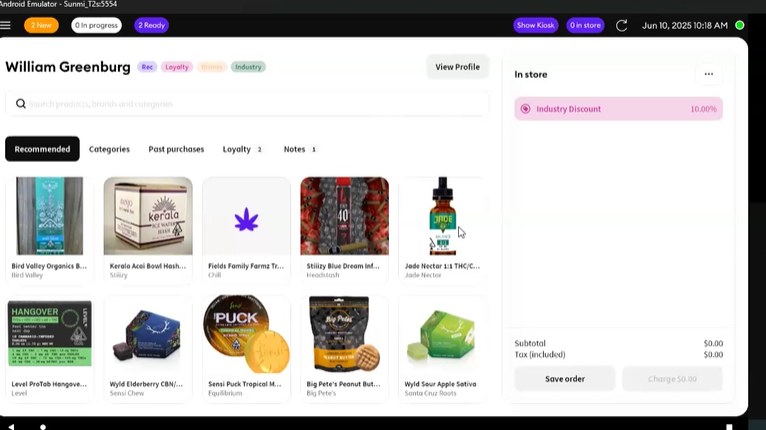
Overview: After the customer is saved, you will be redirected to the order page. There, you can fulfill the order for your customer.
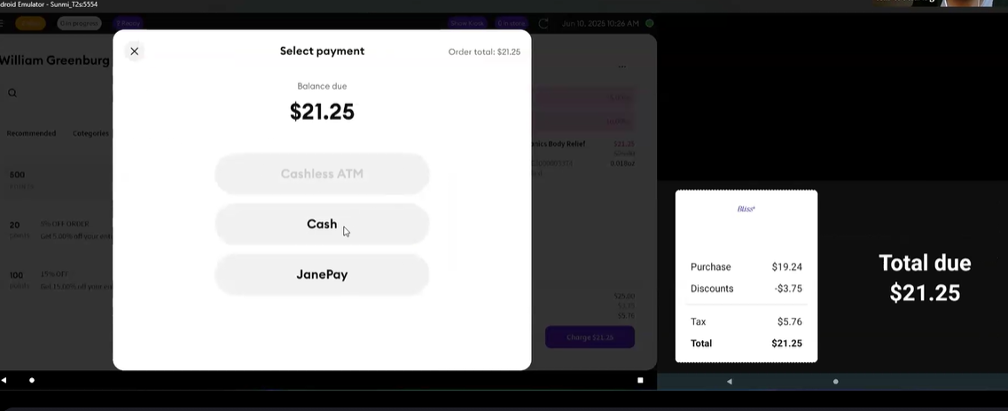
On the order page, click the charge button to be taken to the checkout page.