Welcome to the Springbig + Breadstack Integration Guide
In this course you will learn about:
The Breadstack onboarding process
Configuring discounts
Rewards set up
Offers set up
Signing up customers in the Breadstack system
Adding loyalty at checkout
Refunding reward redemptions
Let’s get started!
PART 1: ONBOARDING
User interface is subject to change at the discretion of your POS provider. For the most accurate and up-to-date information, please consult your POS provider directly.
Please reach out to your Springbig onboarding specialist/account manager to receive an auth token.
To connect to Springbig via Breadstack:
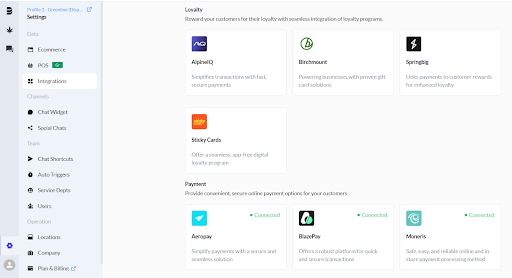
Direct to the left-hand menu
Click on settings (gear icon)
Click on Integrations
Direct to the loyalty section and click Springbig
5. Click Connect>enter auth token>click Connect again
Part 2: DISCOUNT CONFIGURATION
Rewards Setup
***Rewards are only created in Springbig which will automatically sync to Breadstack via the checkout
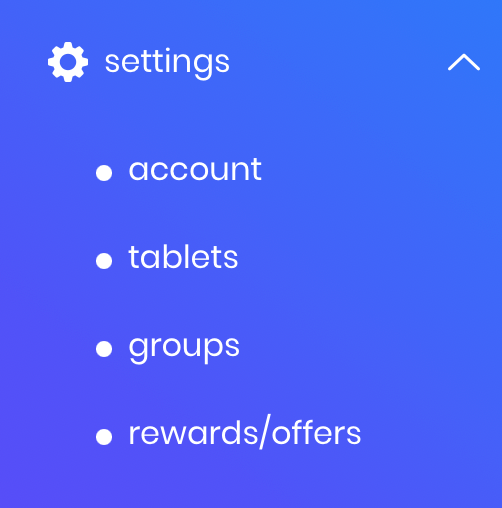
1. Navigate to the Springbig main menu, click settings, and then rewards/offers.
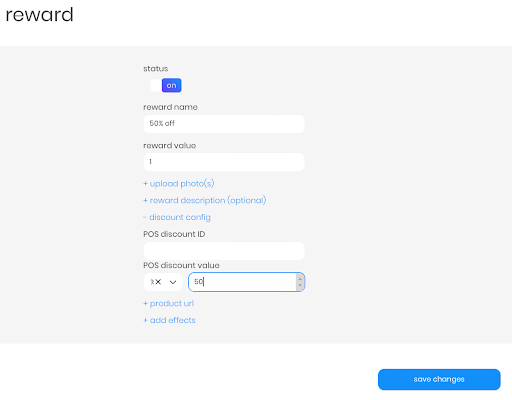
2. Breadstack will retrieve the following required attributes:
a. Reward name
b. Reward value
c. POS discount type (% or $)
d. POS discount amount
3. Toggle status to on
4. Click save changes on the bottom
Offers Setup
***Rewards are only created in Springbig in which will automatically sync to Breadstack via the checkout
There are 3 types of Springbig offers:
Member offers:
Direct to the left-hand Springbig menu
Click settings
Click rewards/offers
Scroll down
Click +new offer
Campaign offers:
Direct to the left-hand Springbig menu
Click campaigns
Click new campaign
Scroll down
Click add extension
Select digital voucher
Autoconnect offers:
Direct to the left-hand Springbig menu
Click autoconnects
Click new autoconnect
Select intended autoconnect
Select track offer
Offers Setup Continued
1. Navigate to the Springbig main menu, click settings and then rewards/offers
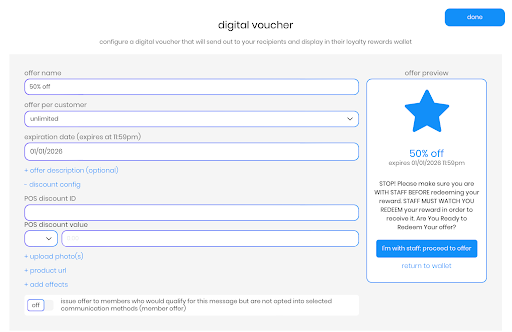
2. Fill in these required fields on the offer setup:
a. Offer name
b. Offer per customer
i. (NOTE: this value does not display at the Breadstack checkout)
c. Expiration date
i. (NOTE: only member and autoconnect offers can be left as a zero/omitted. Also this value does not display at the Breadstack checkout)
d. POS discount type (% or $)
e. POS discount value
3. Ensure offer is saved/completed
Member offer:
Click active
Click update
Campaign offer:
Click done
Autoconnect offer:
Click done on the bottom
Part 3: SIGN-UPS
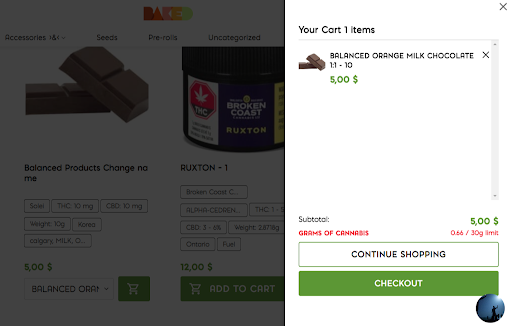
Add items to the cart
Once ready, click the cart icon on the top-right corner and then click Checkout
3. Enter required information as marked by asterisks
4. To join Springbig loyalty click the Connect button:
a. Click Submit upon confirming contact information
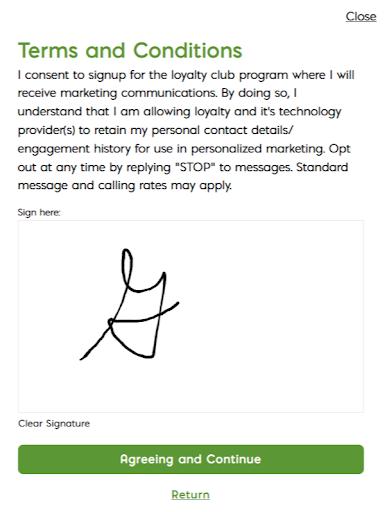
b. Click Agreeing and Continue
5. After agreeing, Breadstack send the profile with:
a. First name
b. Last name
c. Phone number
d. Email
e. POS user AKA profile ID
f. Signature
NOTE: Breadstack does not send profile updates to Springbig.
Part 4: LOYALTY AT CHECKOUT
At the checkout click Connect, confirm contact information and enter the verification code
Click Select to redeem a Springbig reward or offer
Note:
Offers are identified if there are no points required to redeem
After click Select, a redemption cannot be canceled.
Upon clicking Select, the redemption is processed immediately i.e. points are subtracted from the balance if a reward is used or an offer’s usage amount is deducted.
There is a backend toggle setting called springbig_only_show_redeemable_rewards_within_the_customer_points that is enabled by default. This setting is only accessible by Breadstack’s team.
3. The redemption will be relayed to the POS (only supported on Cova and Greenline). A note is included indicating what redemption to use (only supported on Greenline) along with the discount value (supported both on Cova and Greenline).
Part 5: REWARD REDEMPTION REFUND
***Redemption refunds are only supported for rewards, not offers.
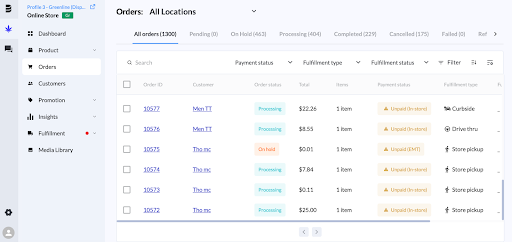
Via the Breadstack admin portal, direct to the cannabis leaf icon and click Orders
2. Select an order with a reward redemption to refund
3. Scroll to the bottom of the order, click the three dots icon next to Change Shipping Method and then click Cancel Order