SPRINGBIG'S HOMEPAGE SETTINGS
TRACK YOUR PERFORMANCE AT A GLANCE
Log in to your home page dashboard to begin your onboarding experience.
In this section, we will cover:
- Home page navigation
- Understanding your metrics
- Shortcuts available from the home page
Get here by navigating to the home button on the left side navigation
HOMEPAGE EXPLAINED
The home screen displays a visual dashboard with key performance indicators (KPIs) to track the effectiveness of your marketing program.
The data displayed only refers to members. A member is anyone who has created a profile in the system to enroll in your loyalty program and/or receive marketing messages.
Note: If the customer opts out of loyalty and/or messaging in the future, they will still be included in the report if their profile hasn’t been deleted and they are attached to a POS transaction. Non-members will not be included in the report.
Make sure Budtenders are always asking if a customer is a member and attaching the member to the POS transaction for reporting purposes.
HOMEPAGE KPI'S EXPLAINED
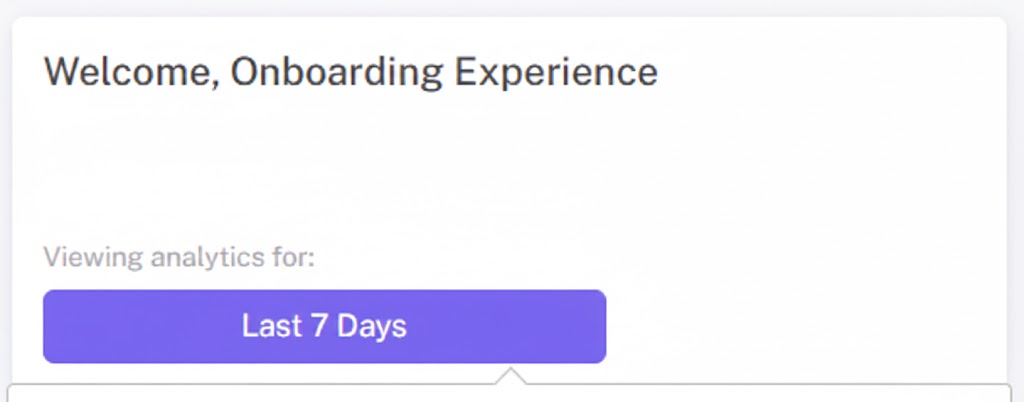
Analytics Date Selection: allows you to change the dates around the KPIs shown on your homepage. This will automatically default to the last 7 days.
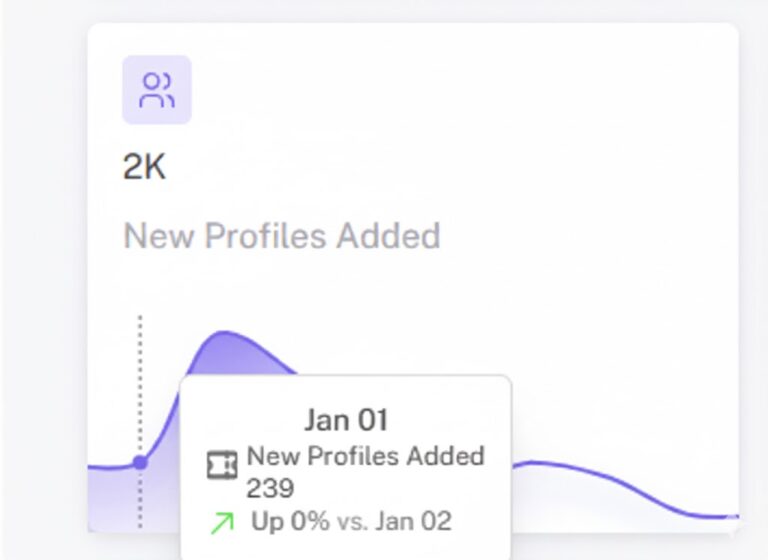
New Profiles Added: View trends in growth and the number of new customers who have created a profile in your system to enroll in the loyalty program and/or to receive marketing messages within the selected timeframe.
Average Ticket: shows the average amount spent per visit/transaction within the selected timeframe.
Revenue Generated: shows the total amount of revenue generated by members in the selected timeframe.
Visits: shows the number of visits from members within the selected timeframe. Visits come to Springbig through your integration.
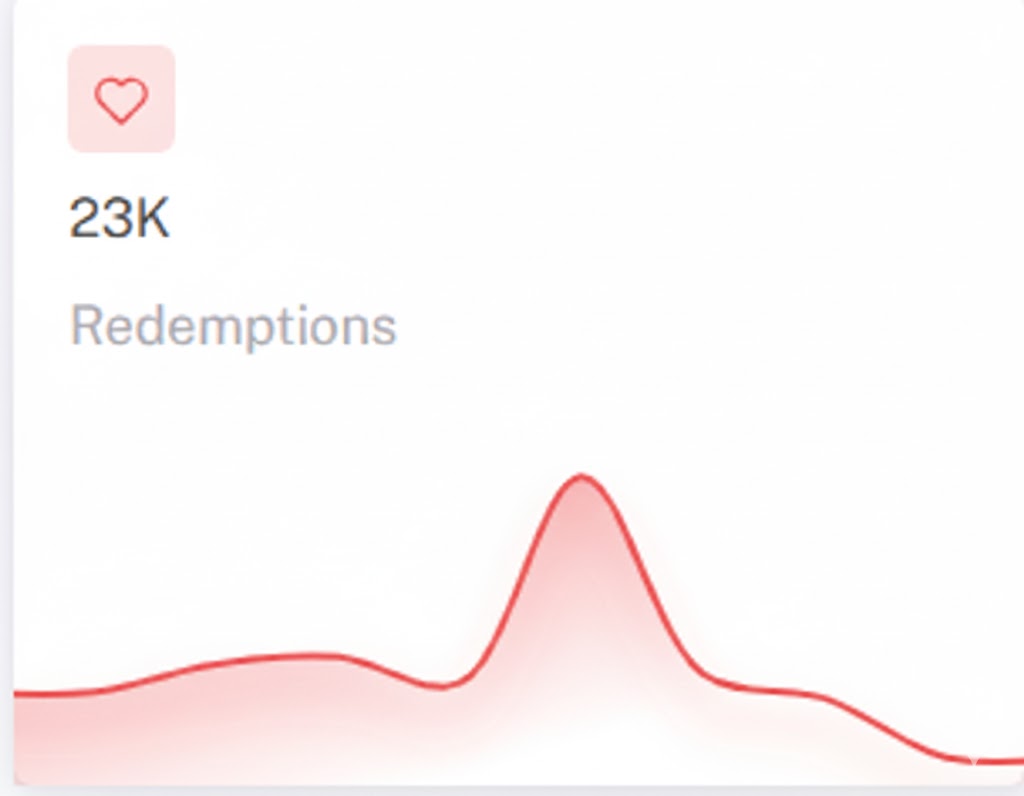
Redemptions: shows the number of redemptions that have occurred within the selected timeframe.
New Subscriber Breakdown: shows the percentage of members in your database that are currently reachable, broken out by Text Message, Native App, and Email.
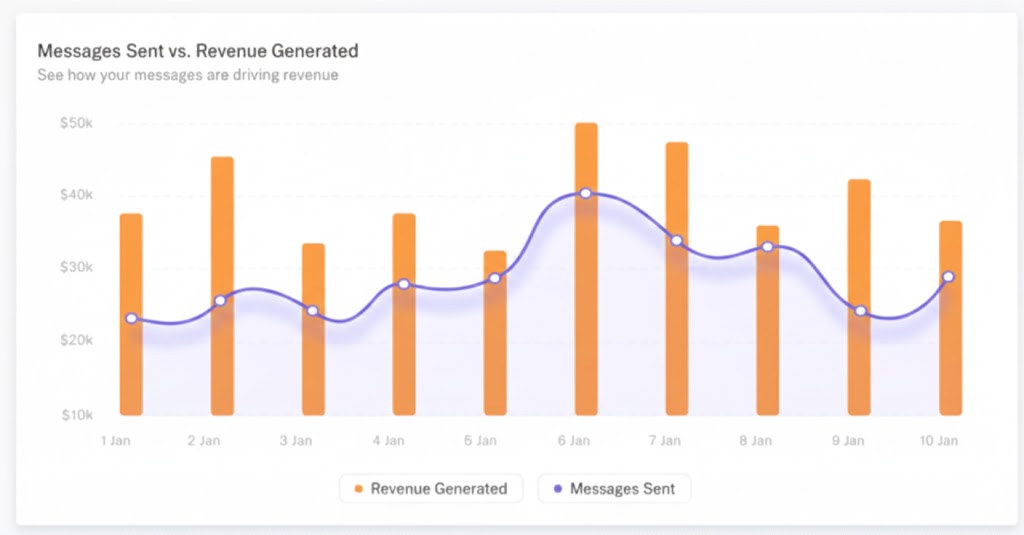
Messages Sent vs. Revenue Generated: Shows you which of your messaging efforts are driving the most results over the selected period of time.
Quick Links: Located at the top of your dashboard, our Quick Links provide instant access to the Springbig Learning platform and creation tools. Use the New Campaign or New Automation buttons to bypass the menus and head straight to the campaign builder or automation setup.
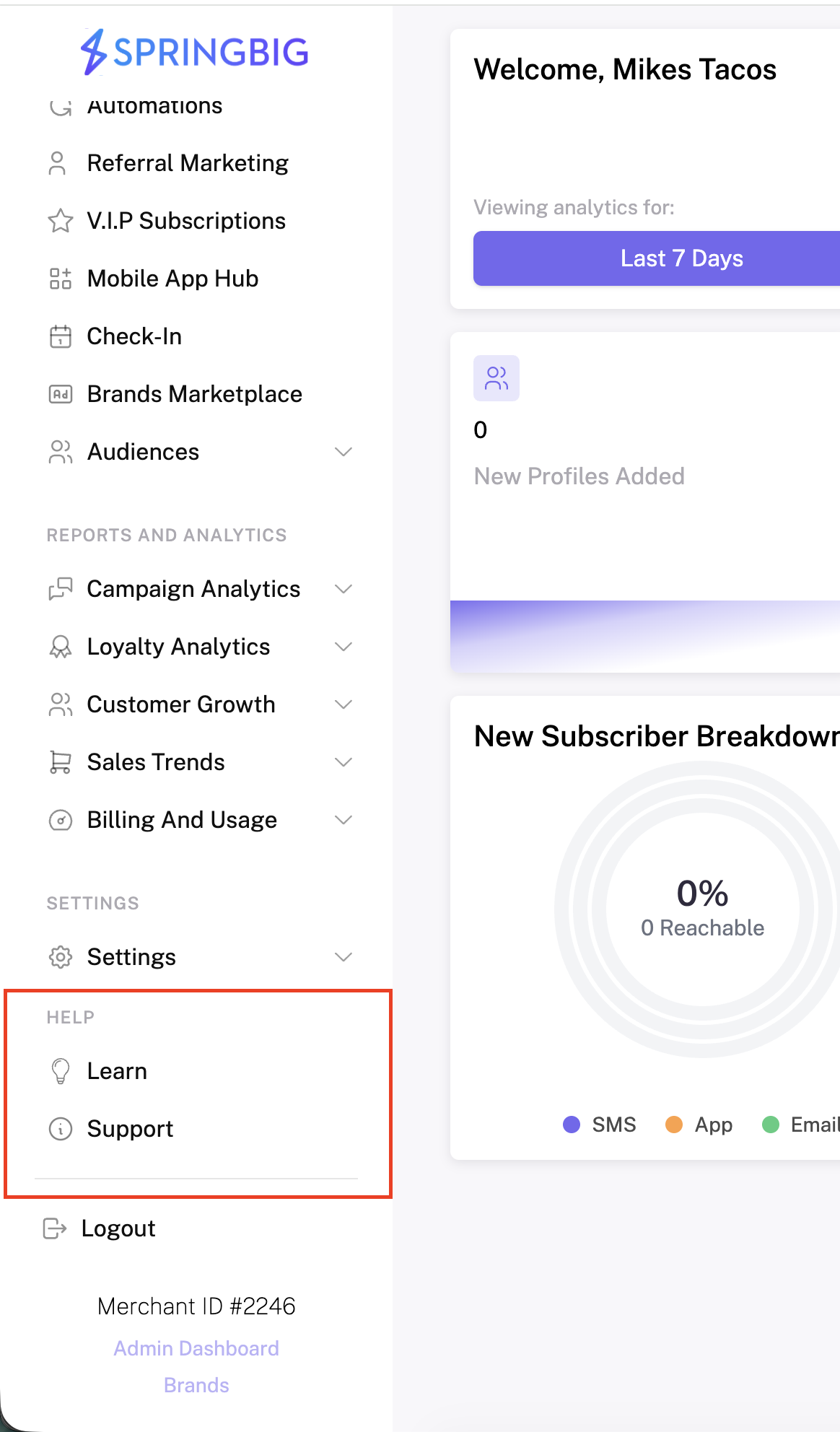
Learn & Support: Access these tools on the side navigation bar:
Learn: Jump to our knowledge platform for deep dives into our features.
Support: Ask questions to get instant links to relevant course content. You can also submit tickets for support, new integrations, messaging, billing, or Professional Services (reporting).
VIDEO REVIEW OF THE HOMEPAGE
Check out this video of the Home Page on the Springbig platform.
SUPPORT, FAQ, AND LEARN TABS
Need help? Springbig’s Support and Learn tab are located on the left-hand side of the platform. These tabs follow you through every page of the platform.
- Click Support to easily create a support ticket directly from the platform.
- Click Learn to return to Springbig Learning in a new tab.
Tip: You can create a support ticket via this portal for multiple departments.