Dutchie Native Ecommerce Guide

Onboarding

Please reach out to your Dutchie representative to retrieve your Dutchie Plus Public and Secret Keys for each location. Provide those credentials to your Springbig onboarding specialist/account manager.

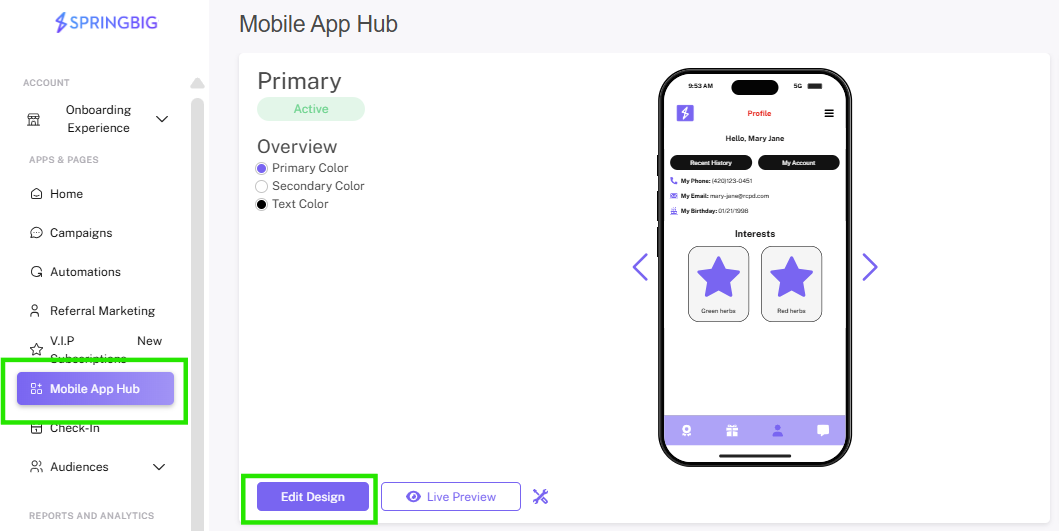
You will need to enable the “Shop” icon in your Mobile App Hub to allow visibility into the native experience.

You will access the Mobile App Hub in your Springbig platform > Edit Design > Navigation > Edit Navigation > Enable “Shop.”
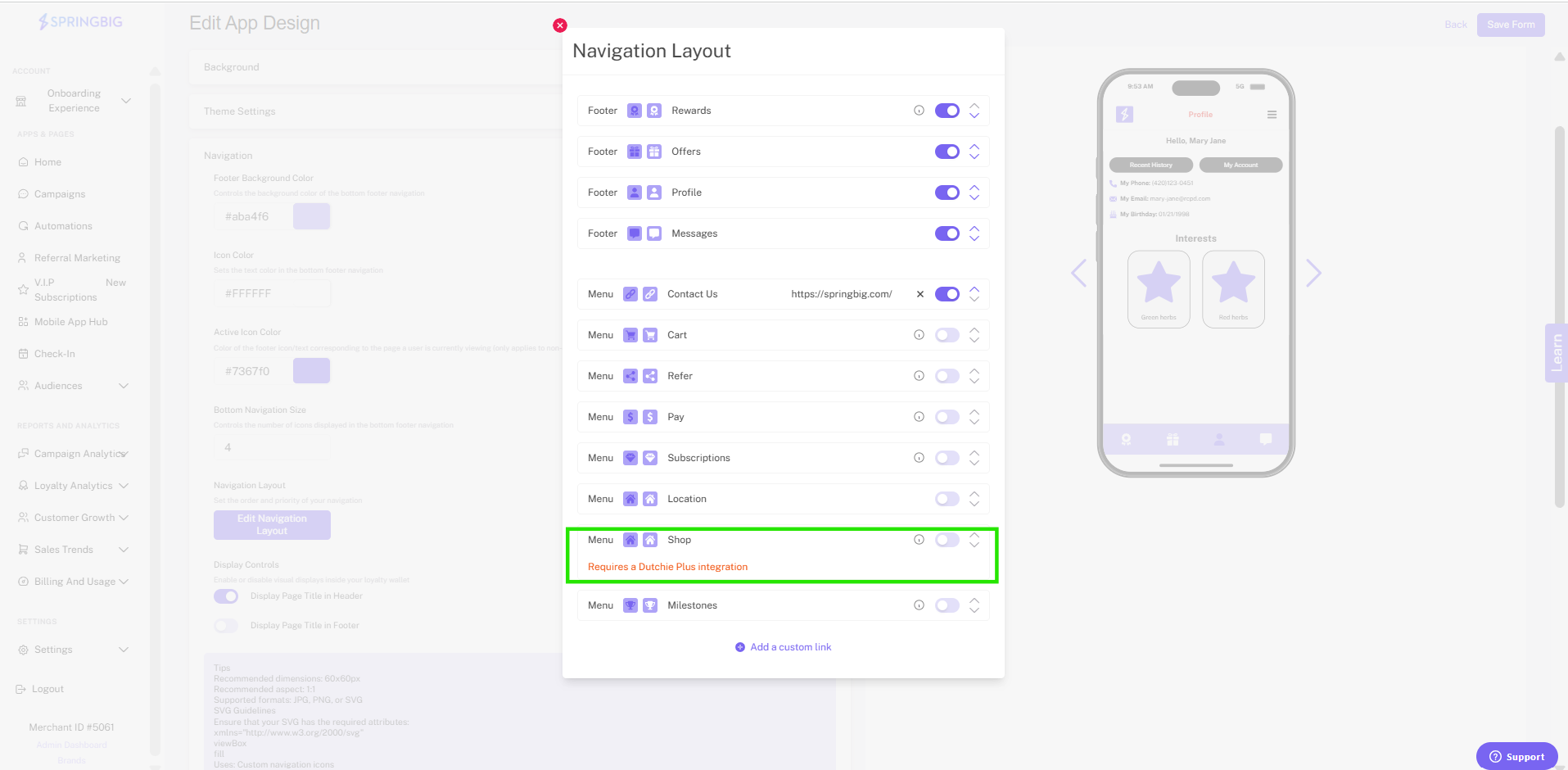


Note: “Cart” differs from “Shop” as it links to your website in a new window.
Dutchie Plus Native Ecommerce Experience

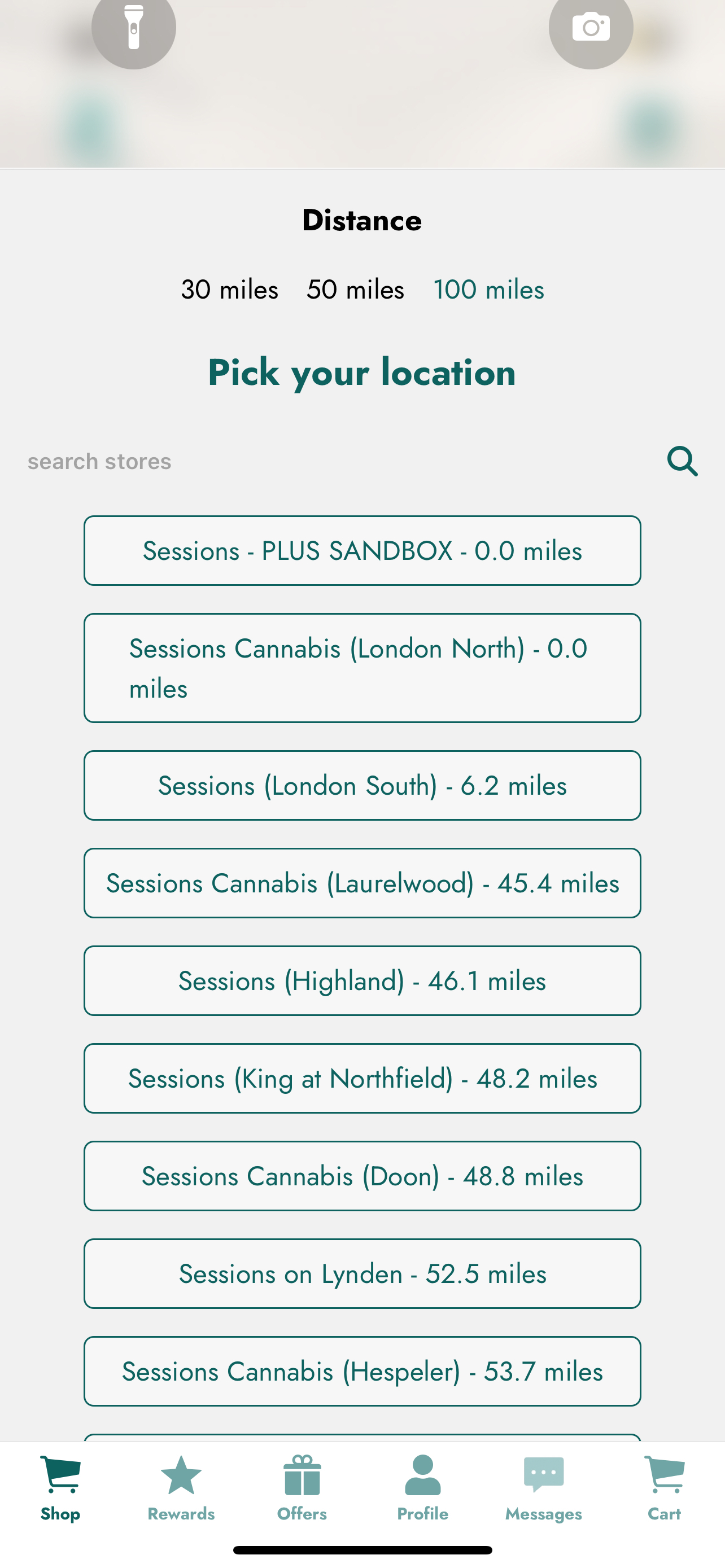
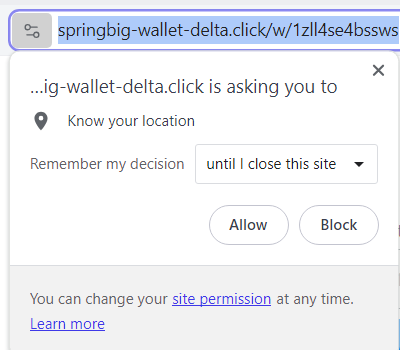
1. Ensure the location is enabled within the web browser or Springbig custom application.

NOTE: If the location is disabled then the user will not be able to proceed further.

2. Select intended location

 NOTES:

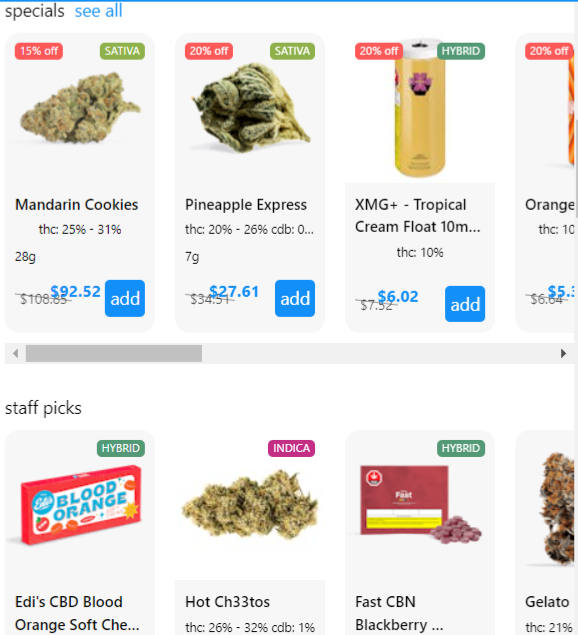
  • Products will show based on the location they’re tagged/available in.
  • Locations will show if the user is within the mile radius.

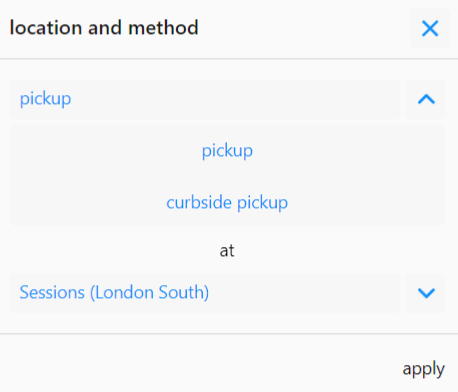
3. Change locations if desired by:

a. Navigate to the top and click the name of the location.

b. Click on the location dropdown menu via the pop-up.

c. Choose location

d. Click apply

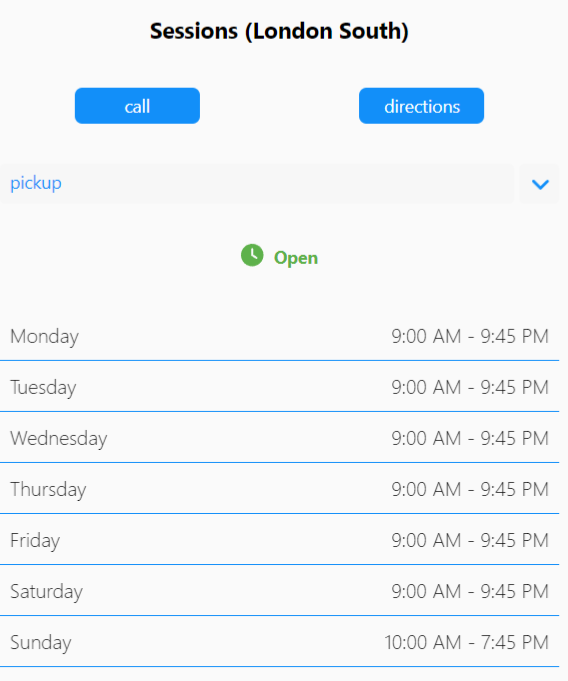
4. Can view store hours, directions or direct to the store location’s phone number by selecting the ‘shop’ icon via the top of the page next to the ‘cart’ button.

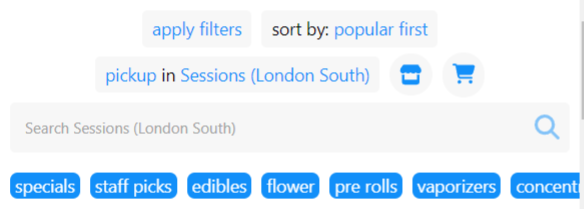
5. To search products:

          a. Click apply filters (via the top of the page) by strain type, effects and/or price and then click apply

          b. Click sort by and select either by potency: high/low to low/high, price: high/low to low/high or popular first.

          c. The search bar

          d. The category tags

          e. The categorical menu below

6. Click on an item to view product details.

7. Add products to the cart by clicking add on an item.

8. To place an order:

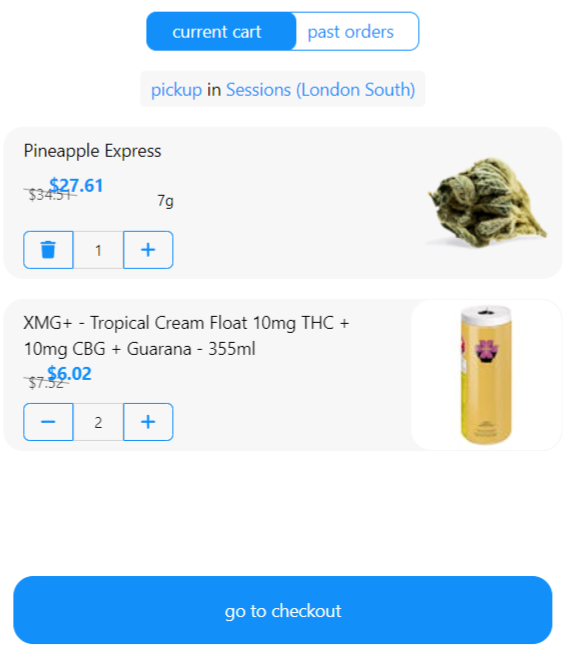
          a. Either click view cart on the bottom of the screen or direct to the top of the page and click the ‘cart’ icon.

          b. Click go to checkout

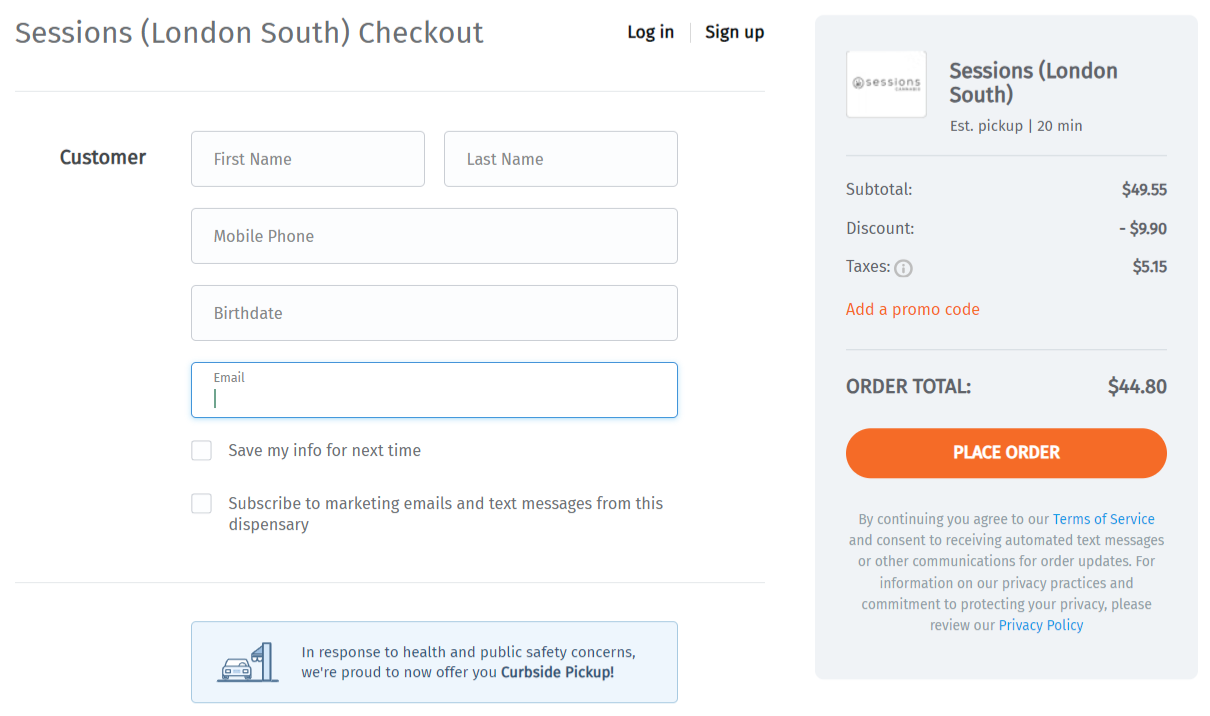
          c. It will then direct to the

Dutchie ecommerce checkout page,

          d. Click PLACE ORDER

9. For information on the redemption experience at the checkout page please refer to this Springbig University link for the regular Dutchie Ecommerce integration guide.

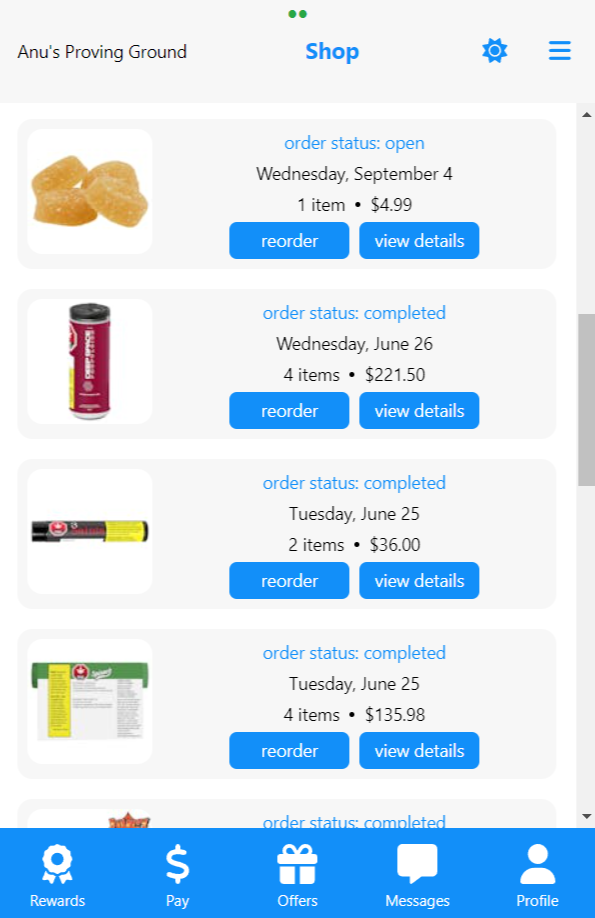
10. Cart Page:

a. To view order history, return to the Dutchie Native Ecommerce main page and click the cart icon.

b. Can also view the order status (open, canceled or completed) and order details.

c. In addition, there’s the option to repeat the same order.