
Please reach out to your onboarding specialist/customer success manager regarding issuing an auth token. Springbig will send the auth token to Terpli for their team to internally setup the integration.
Step 1: Ensure the Terpli custom group is created before the launch date.
Step 2: Direct to the Springbig platform
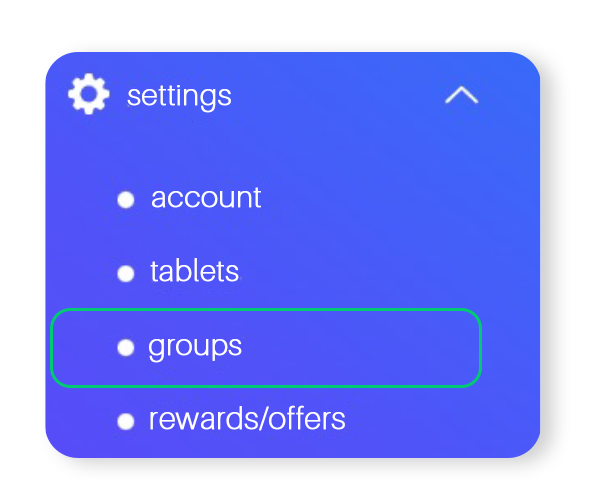
Step 3: Navigate to the menu, click on settings, and then click groups
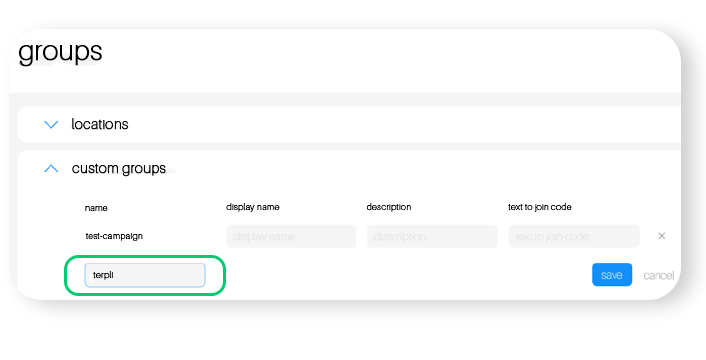
Step 4: Click on custom groups, and create a new custom group called Terpli, then click save.
Step 5: Return back to the settings tab, and click on account and click on sharing links.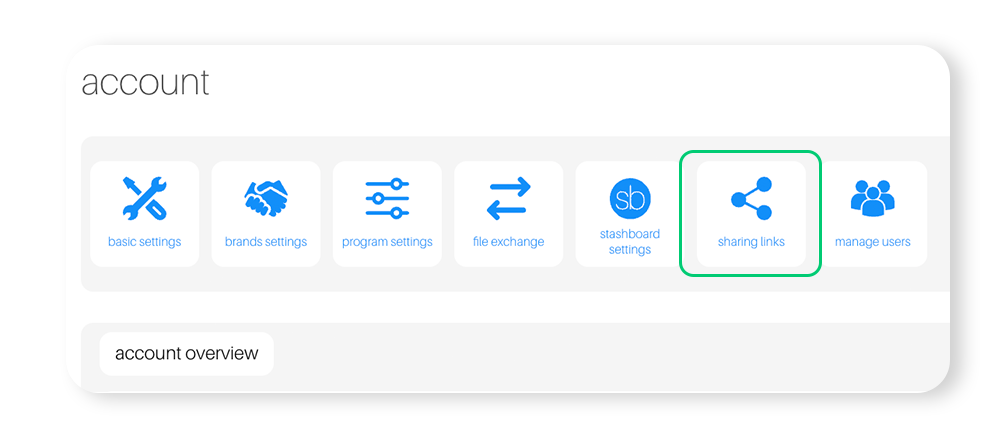
Step 6: On the top right of the page, click on location/custom group
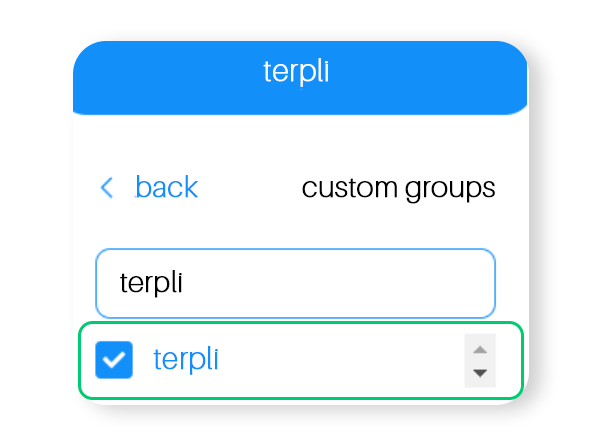
Step 7: Click custom groups and search for Terpli, select the Terpli custom group.
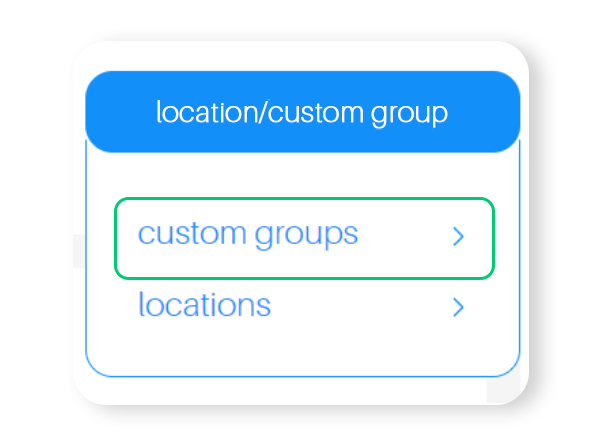
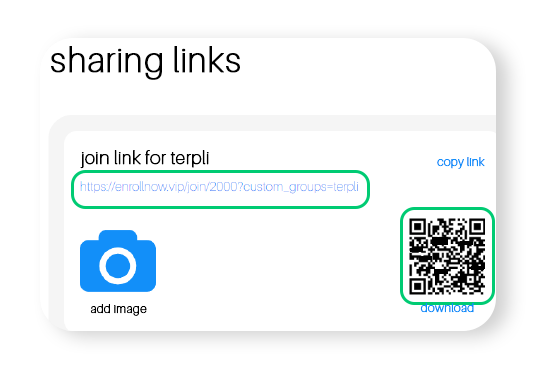
Step 8: Copy custom group link and send to either Springbig or Terpli
Step 1: Direct to merchant website with the Terpli plugin
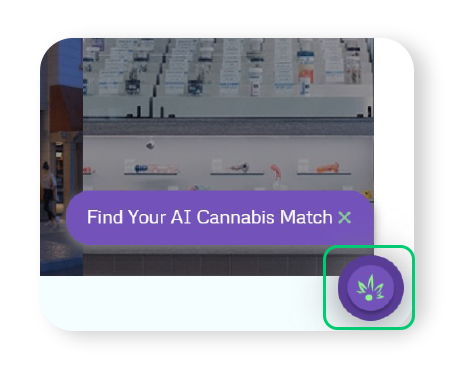
Step 2: On the Bottom right, click the Terpli plugin
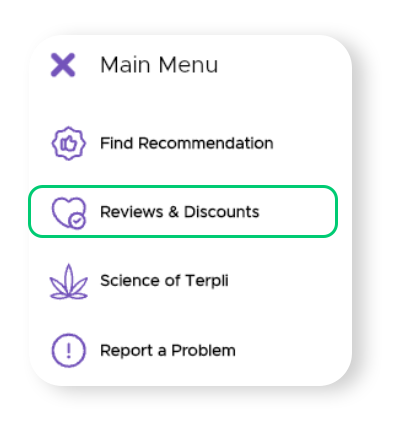
Step 3: Direct to the burger menu and click Reviews and Discounts

Step 4: Click Sign in if the phone number or email exists already in Springbig which then will create a unique Terpli profile in Springbig. If a phone number or email does not exist already in Springbig, then click Sign up in loyalty which will then direct to the Springbig join form.
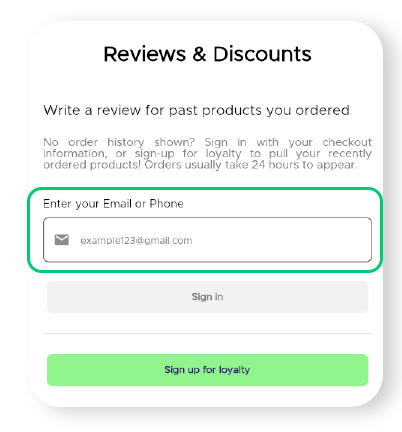
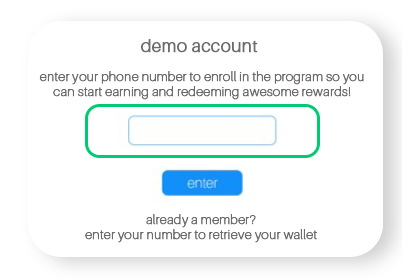
Step 5: Enter phone number followed by necessary information, once completed, click join on the bottom
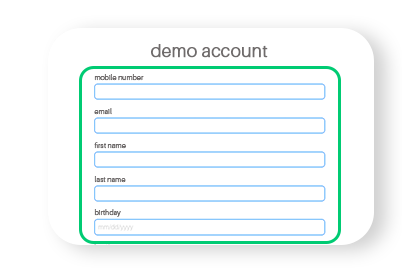
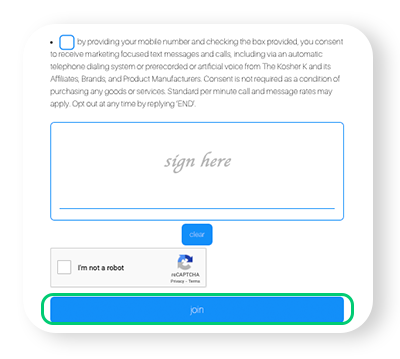
Step 6: Navigate back to the Terpli Plugin and click Sign in
Step 7: Confirm the code to complete the sign in
Step 1: Direct to Review and Discounts and sign in
Step 2: Click Write Review to select and product
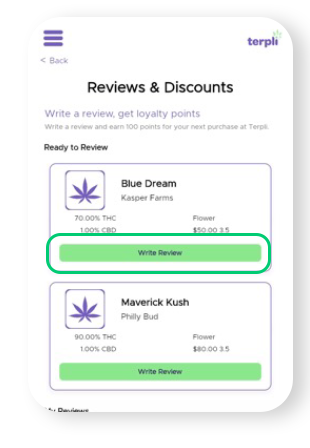
Step 3: Fill in required information
Step 4: Enter the phone number or email that was initially used to sign in and click the checkbox. Once completed click Submit to start earning points.
Note: The 5 previous products bought will appear regardless of how apart each was bought from each other. Please reach out to Terpli if the amount of points issued should be changed to a different amount.
Terpli Getting a Recommendation:
Step 1: Direct to the Terpli menu and click Find Recommendation
Step 2: Click Buy Here to select store location
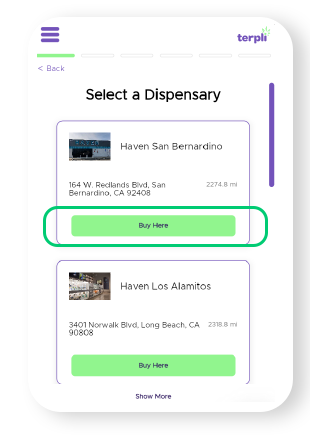
Step 3: Fill in required information
Step 4: Enter phone number or email that was initially used to sign in, click on the Checkbox followed by submit to earn points.
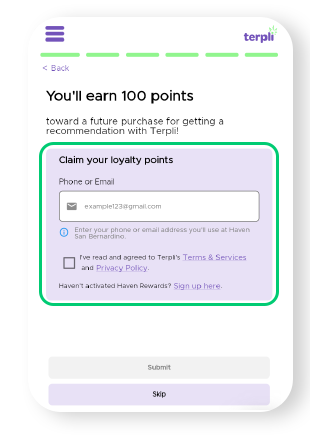
Note: You can only receive points after getting a recommendation once per day which the cycle restarts at the end of the 24 hour day. Please reach out to Terpli if the amount of points issued should be changed to a different amount.