
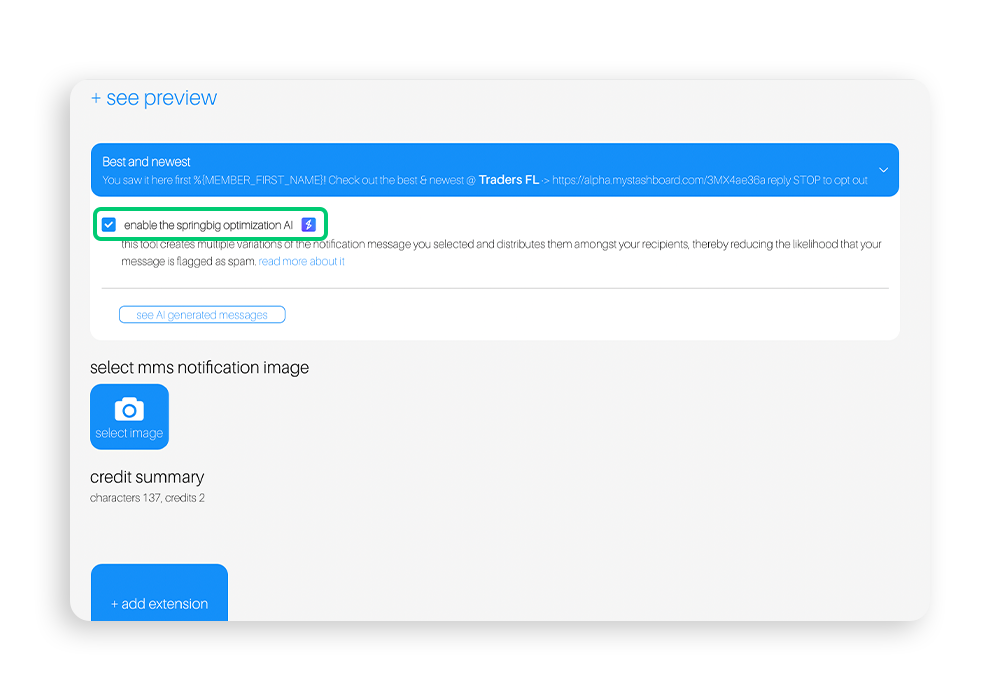
Step 1: Enable the Springbig Optimization AI
In the campaign creator under “+ add extension” you will now see the Springbig Optimization AI feature. To start, make sure you’ve clicked the box next to “enable the Springbig optimization AI.” Once clicked, the box will be blue and you’ll be able to see 5 alternate versions of your original notification message
Step 2: Review the alternate versions of your notification message
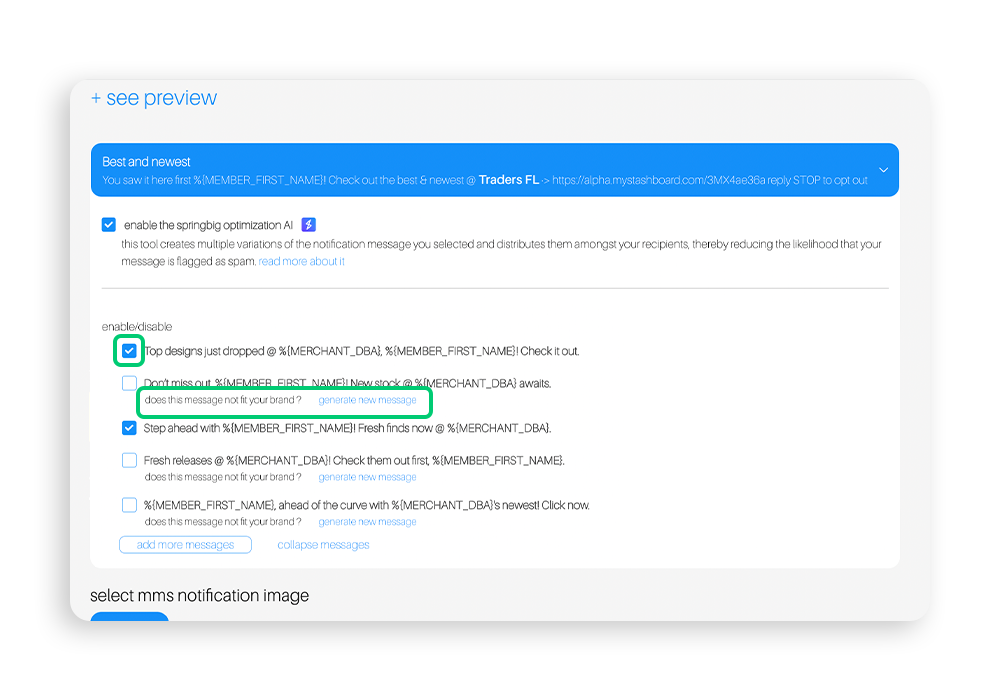
Once enabled, you’ll see 5 versions of your original notification message. If there are any that aren’t quite what you’re looking for, you can unselect them by clicking the blue box to the left of the text. If you unselect a prompt, you can optionally generate a replacement prompt, or simply leave it unselected and send the campaign out with the remaining versions.
Step 3 (optional): Add more messages
If you want to go the extra mile to further improve delivery, you can choose to add more message variations by clicking the “add more messages” button in the bottom left of the Springbig Optimization AI box.
Step 4: Send your campaign and keep an eye on your delivery rate
Once you’re happy with the message variations, it’s time to send your campaign. Keep an eye on delivery rates to ensure that the message variations are having the desired effect. If they aren’t, consider evaluating the content of the message to make sure it doesn’t contain any verbiage that could be negatively impacting delivery.