Email Reporting Guide
Email Reporting Guide
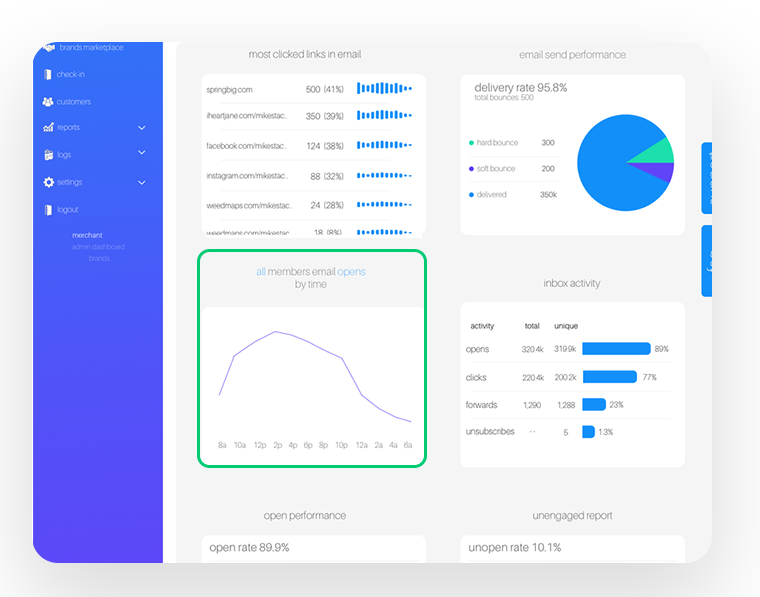
Overview: Our email platform is getting a major upgrade with intuitive email reporting that allows retailers to see in-depth reports on email performance within campaigns as well as target recipients based on this data. These reports will offer a number of different charts that display information regarding email opens over time, links clicked, and delivery rate among others.
How to use email reporting:
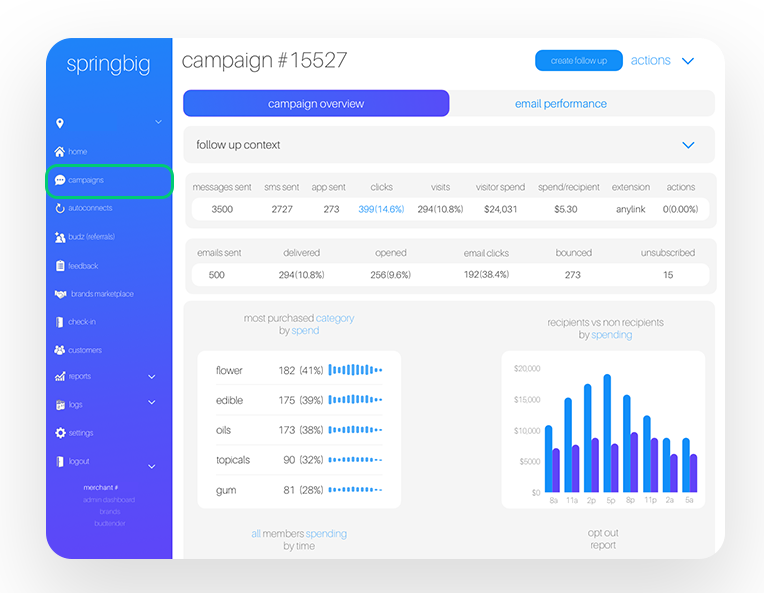
Step 1: Navigate to the campaigns page
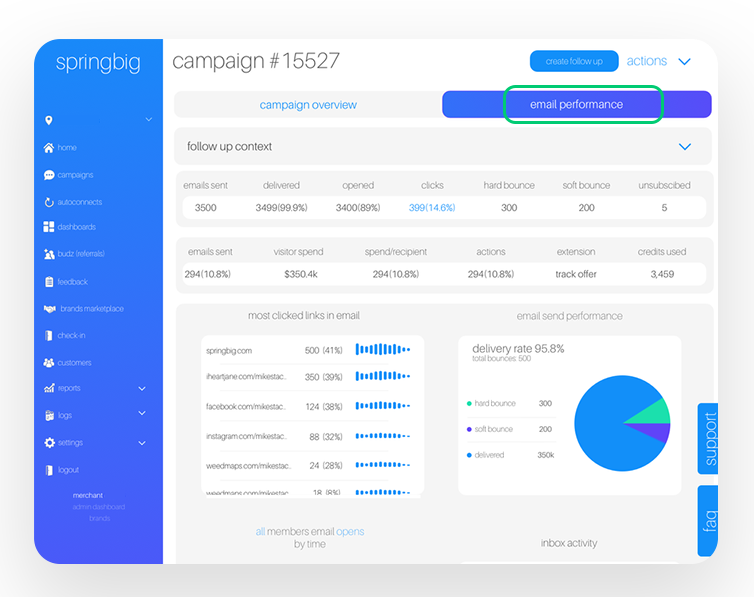
Once there, select a campaign and you’ll see a new tab to the right of campaign overview called email performance. If you sent emails as part of that campaign, you’ll see a breakdown of that email’s performance in this tab.
Step 2: Analyze
Once you click on the email performance tab, you’ll be taken to the following page where you’ll be able to view key KPIs, view and interact with charts, and even target customers based on the data.
Step 3: Interact and target
On the email performance page, you can select a timeframe to analyze and interact with any of the blue text within the rows of KPIs or within the graphs. Clicking on these will allow you to either:
1. Select a timeframe to analyze.
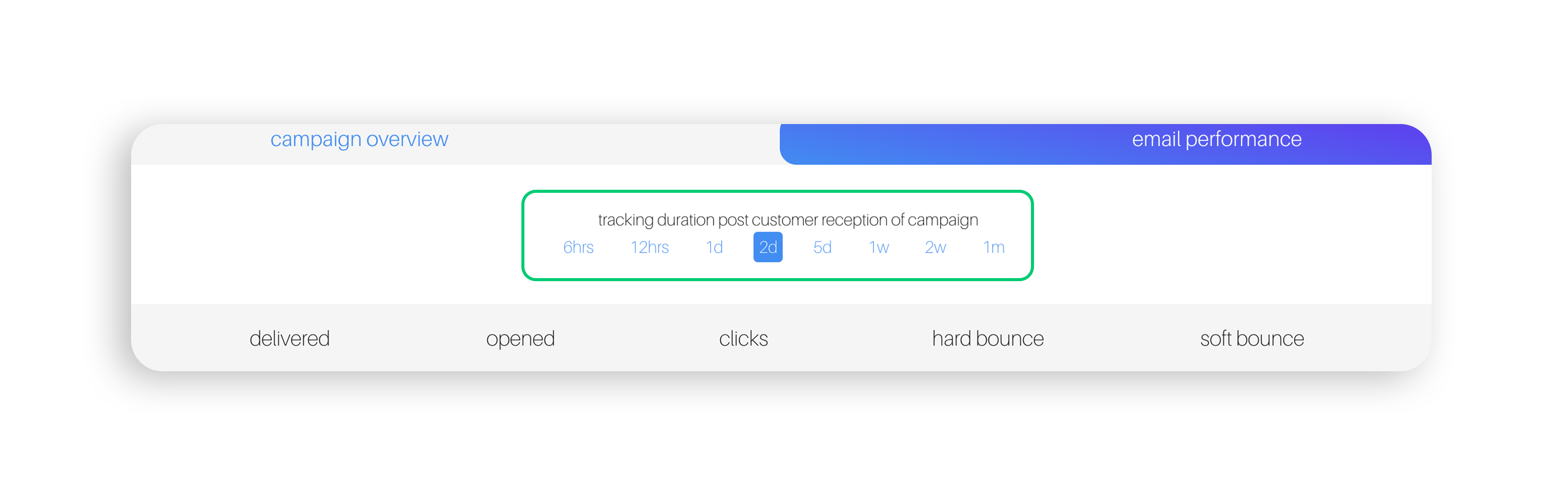
At the top middle of your screen, select a timeframe to analyze between 6 hours and 1 month.
2. Create a follow up campaign based on the KPI
For example: Let’s say you want to target the members who clicked on the campaign you sent with a special offer. To do this, click on the opened emails KPI. Once clicked, a prompt will display where you’ll click the send these members a campaign button on the left as shown to the right:
VARIABLE TRACKING FOR CAMPAIGNS
With this feature, you’re able to select different time frames that will update your view of key performance data for your campaigns and autoconnects. This means you can more accurately compare the impact of your message over time, allowing you to make more informed marketing decisions.
Step 1: From the main menu, navigate to either campaigns or autoconnects to view a list of your messages and select the time frame you would like to track in the top left corner, under “Attribution Window.”
Springbig will automatically default to a 48 hour window.
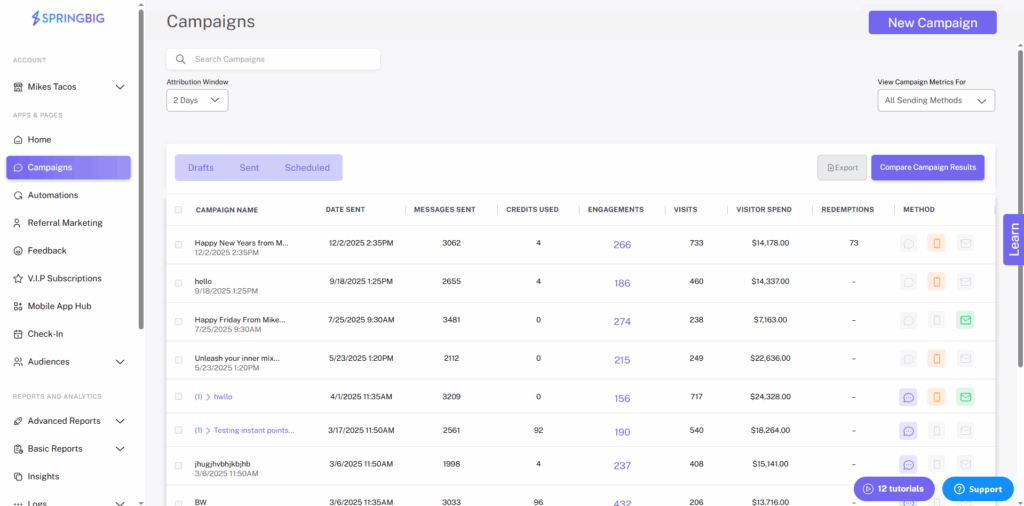
Step 2: Select the campaign or autoconnect you want to learn more about.
Step 3: Once you’ve selected a campaign or autoconnect to review, you will see the “Attribution Window” in the top left corner of the campaign/autoconnect overview page. Select the option you wish to view by clicking on the dropdown.
You can see how each campaign performs at:
- 6 hours
- 12 hours
- 1 day
- 2 days
- 5 days
- 1 week
- 2 weeks
- 1 month
Note: you also have the ability to export the data to share with your team by clicking “actions” –> “export campaign data”.
Keep in mind the campaign data will reflect the tracking duration selected on the campaign/autoconnect overview page.

COMPARE CAMPAIGNS FEATURE
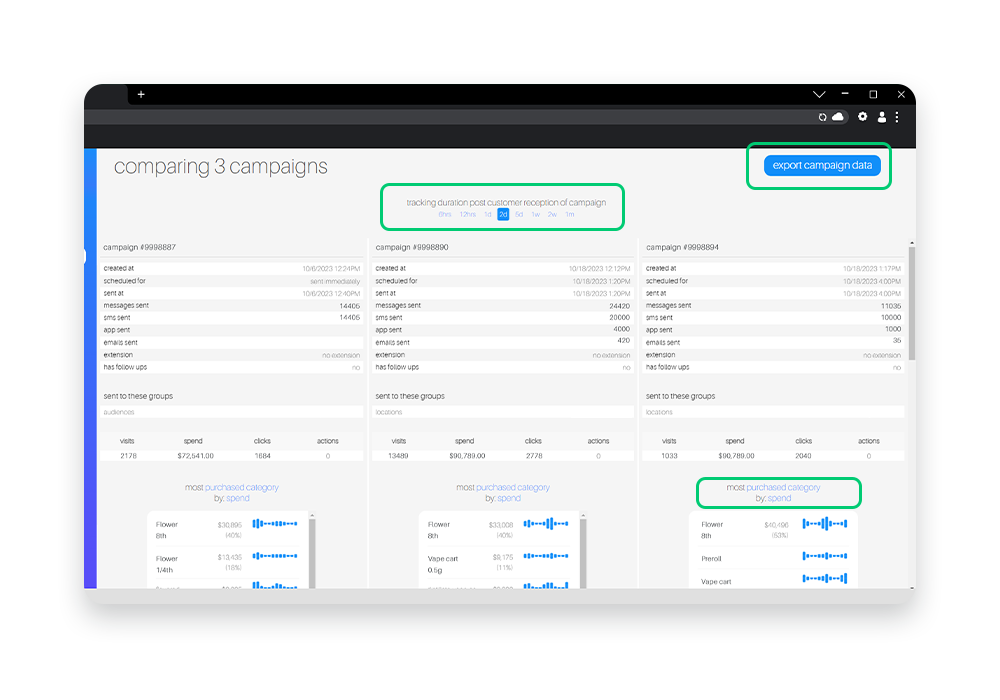
The compare campaigns feature allows you to select up to four of the campaigns that you’ve sent previously and compare them side by side, allowing for easy a/b testing and comparisons between campaigns and making it that much easier to create and fine-tune effective campaigns.
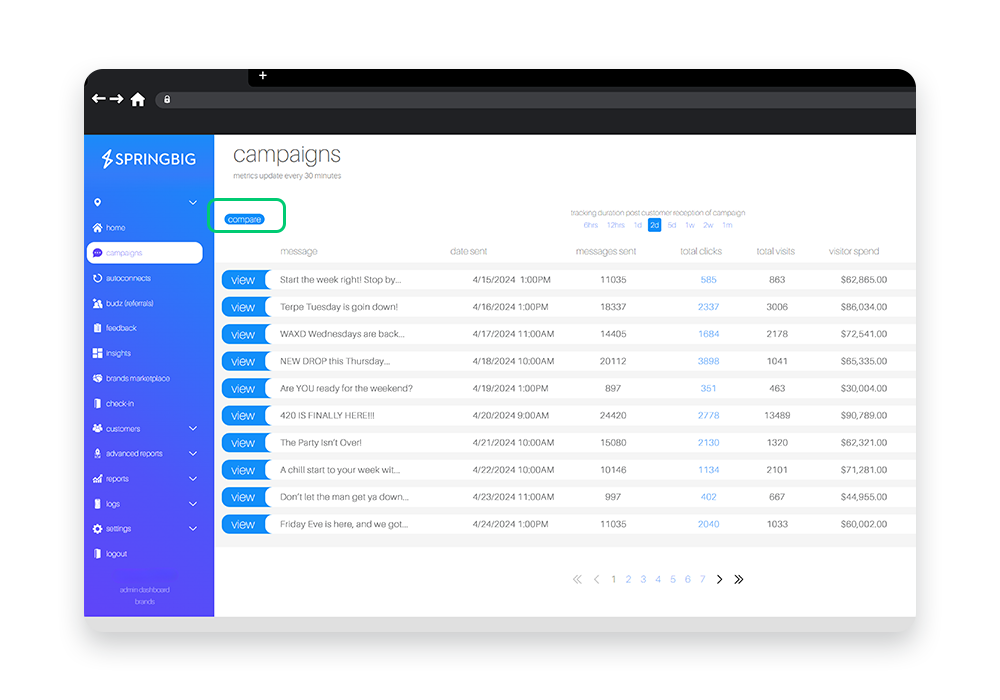
Step 1. Click the Compare button
On the campaigns page of the platform, you can click on the compare button at the top left of the campaigns list to get started.
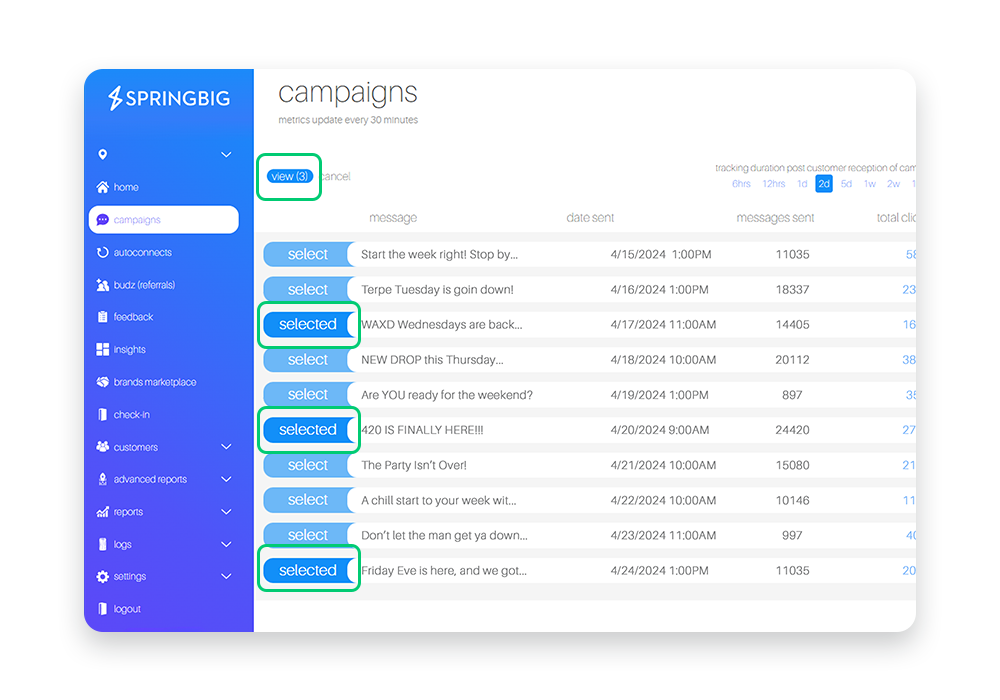
Step 2. Select the campaigns you wish to compare
Next, you will be able to select up to four campaigns to compare side-by-side by clicking the blue select tab to the left of the message in the list. In this case, we chose three. Once selected, click the blue view button.
Note: The view button will only be available when you’ve selected more than 1 campaign. This button will also display how many campaigns you’ve selected.
Tip: To get the most out of this feature, make sure the campaigns you’re comparing have distinctly different aspects so that you’re able to attribute the data to those specific aspects of the campaign. for example, choose campaigns sent at distinctly different times to see how time of day affects visits.
Step 3. View your data side-by-side
When view is clicked, you’ll be taken to the campaign comparison page where you’ll see the campaigns you selected side-by-side, allowing for easy comparison.
Note: The campaign comparison page is interactive and allows you to easily view and compare specific campaigns KPls.
Note: To export the data, click the export campaign data button in the top right corner of the page
- Notes:
- You will be able to adjust the time frame of the campaign comparison by simply selecting a time frame at the top of the page. you can choose anywhere from 6 hours after the campaigns were sent, to 1 month after.
- The charts within the campaign comparison page are interactive. Click the blue words above the charts in order to change the content of the charts and view different KPls