
SPRINGBIG'S MOBILE APP GUIDE
MASTER YOUR MOBILE CONNECTION
The Springbig Mobile App guide is your comprehensive resource for leveraging mobile technology to enhance customer engagement. From understanding the benefits of a branded mobile app to navigating setup and submission, this guide walks you through every step of the process. Learn how to configure your app, apply your brand, and create a seamless, engaging mobile experience that connects customers to your business in meaningful ways.
Table of Contents
APP BENEFITS
Mobile apps are becoming a staple for retail businesses. They are the best way for your customers to view their loyalty status, understand the offers available, and interact with important updates or promotions at your dispensary. You can also leverage a unique marketing channel, push notifications, a low cost and high engagement channel.
Springbig allows you to customize your app branding at your fingertips. Change your themes depending on the time of the year, add new banners to highlight promotions and specials, add unique external links to key landing pages, and much more!
APP ONBOARDING
During onboarding, all merchants are required to complete the Mobile App Hub setup—regardless of whether they plan to launch a custom native mobile app.
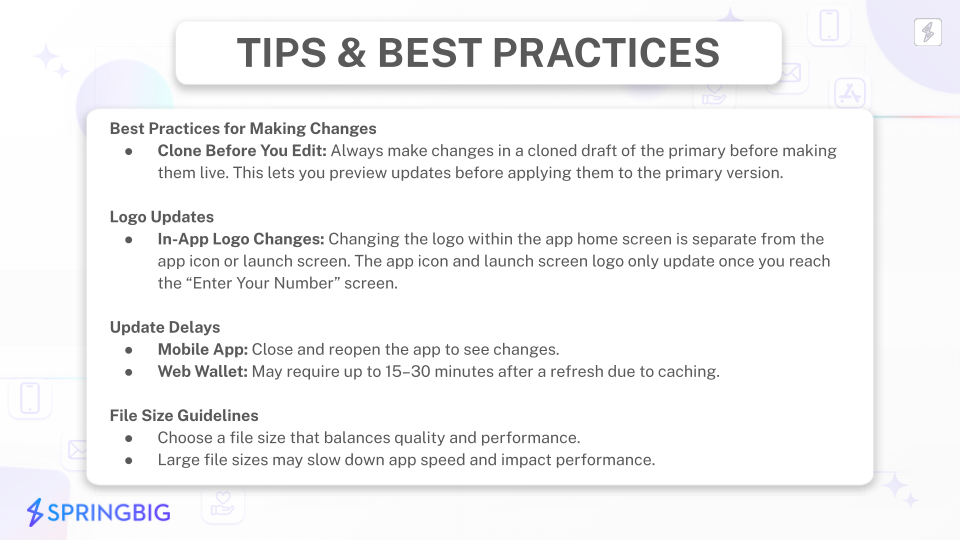
Because the Mobile App Hub powers both your native app and the digital web wallet app, this setup step ensures your brand is displayed correctly anywhere customers interact with their wallet and messaging. As part of onboarding, you’ll be prompted to upload your company logo and select your brand colors within the Mobile App Hub in the Springbig UI.
Even if you do not plan to offer a custom native mobile app, completing this step is essential for your messaging and web wallet experience. These assets directly control how your merchant wallet appears to customers and help maintain a consistent, professional brand experience across Springbig touchpoints.
Please note: Gaming merchants will work directly with their Customer Success Manager to complete web wallet setup.
Adding Company Logo & Colors
Step 1: Navigate to the Mobile App Hub in the Springbig UI

Step 2: Select “Edit Design” on the Primary design
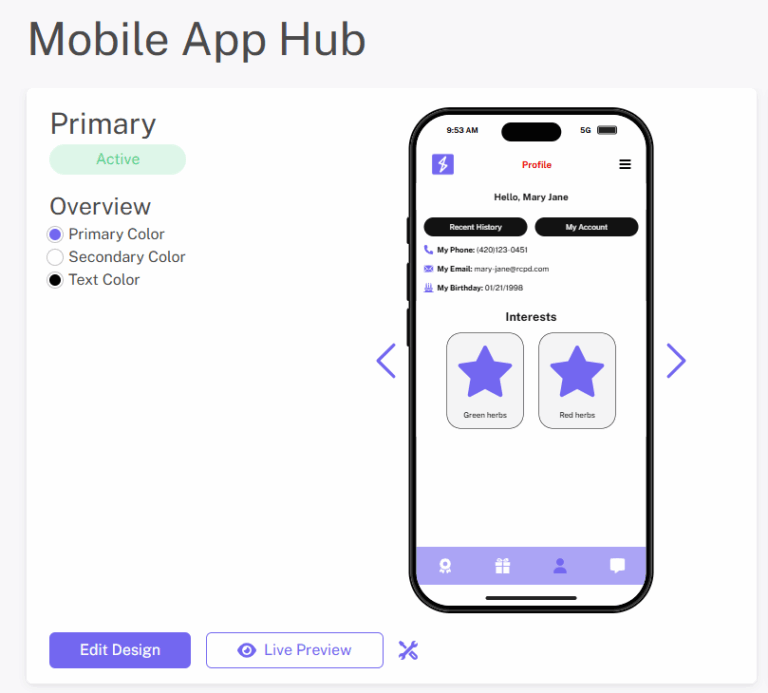
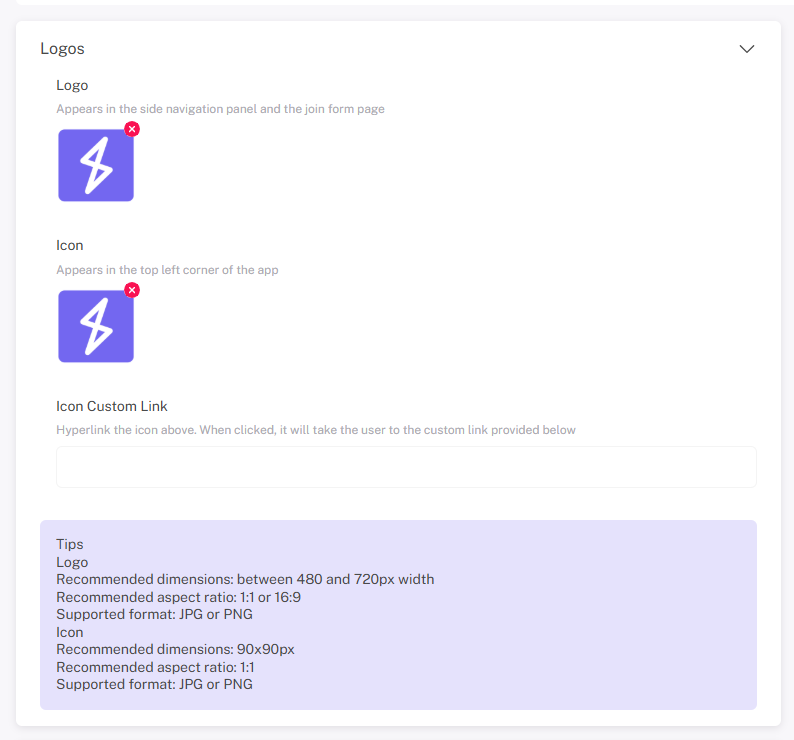
Step 3: Upload your company logo in the Logo section
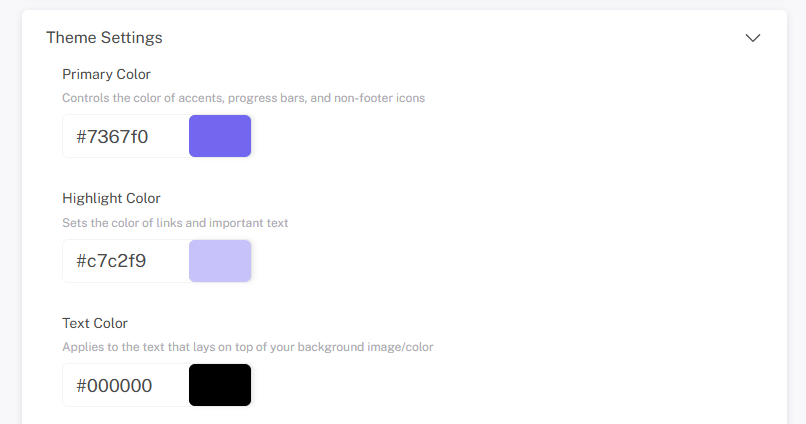
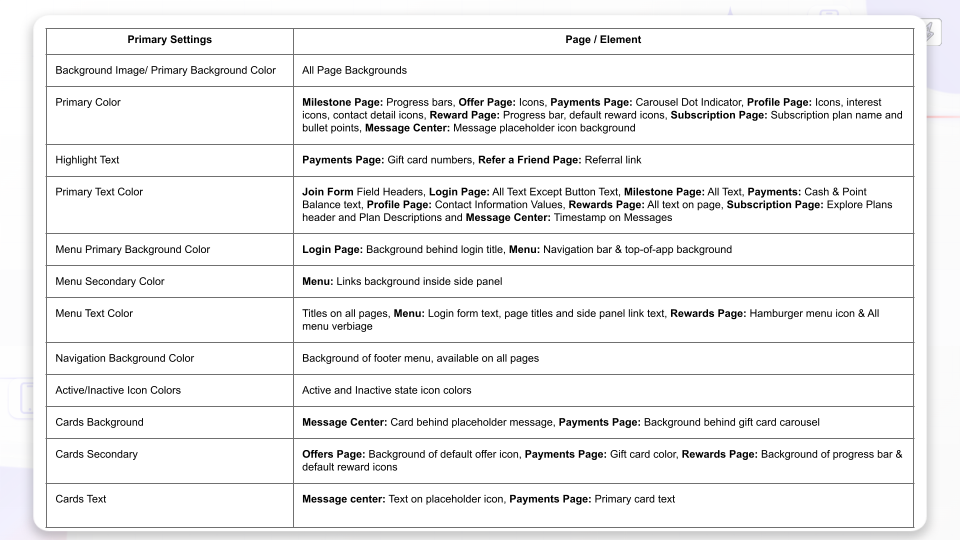
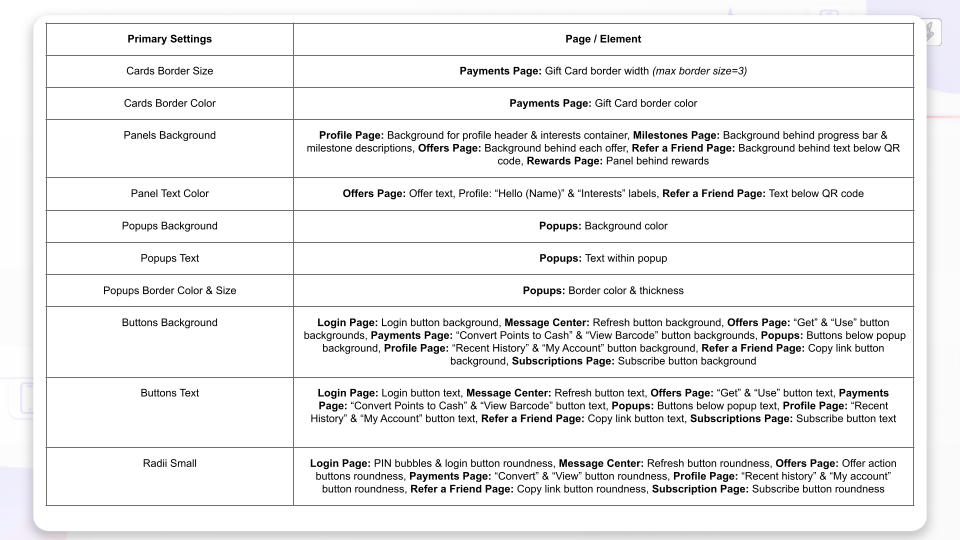
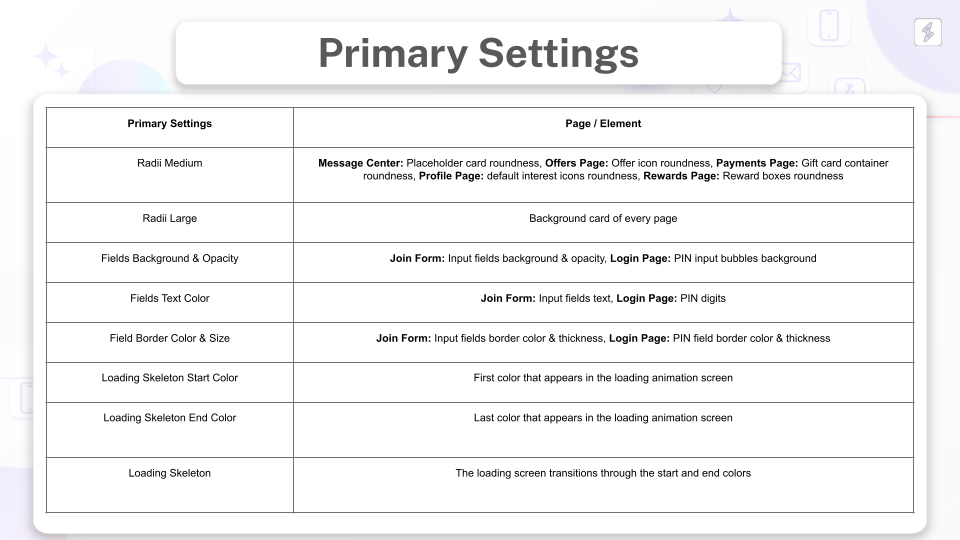
Step 4: Select your company colors in the Theme Settings section
Step 5: Select “Save Form” in the top right corner of the Mobile App Editing page
CUSTOM APP
Check out this video introducing the fully customizable mobile app:
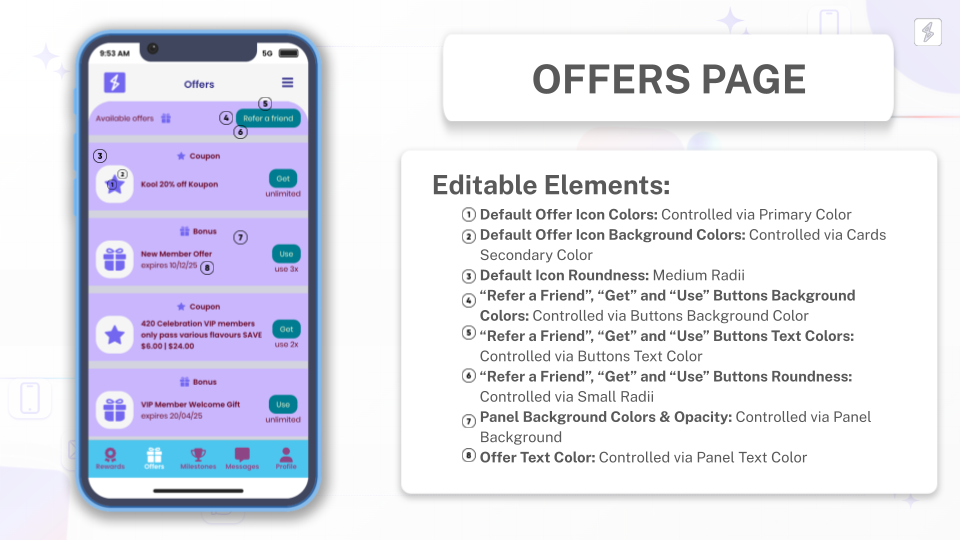
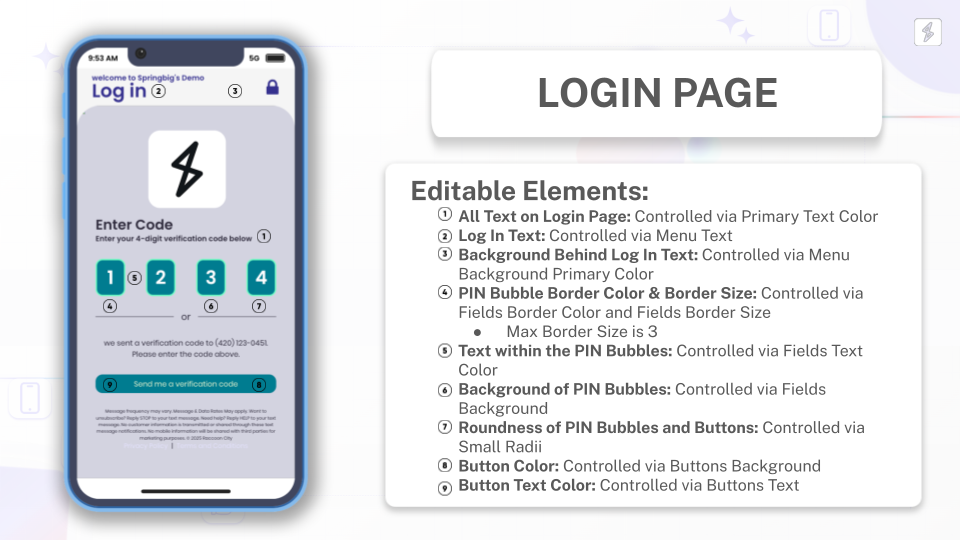
For more details on the extensive customization options available in Springbig’s Mobile App, explore the Mobile App Customization Guide here!
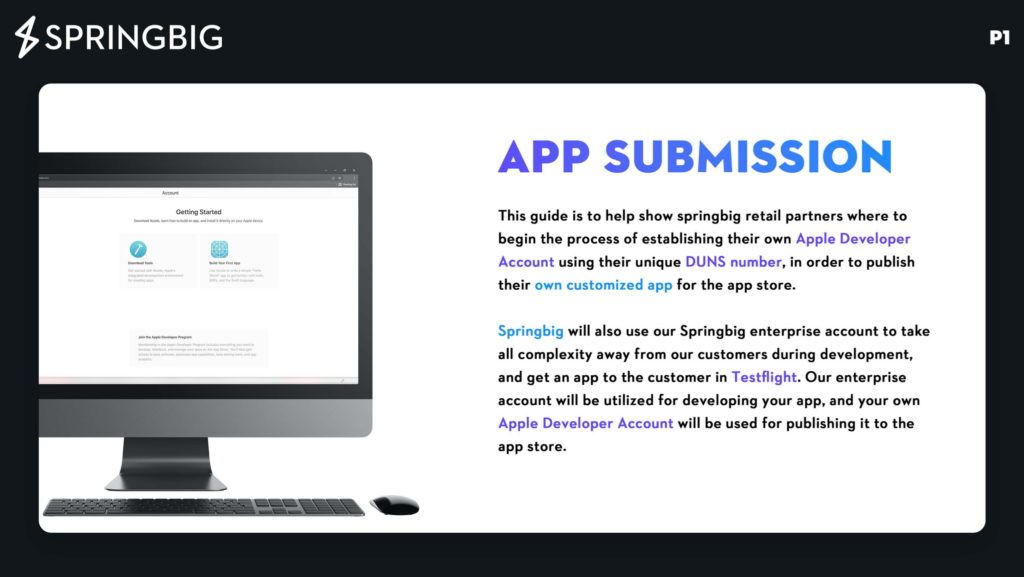
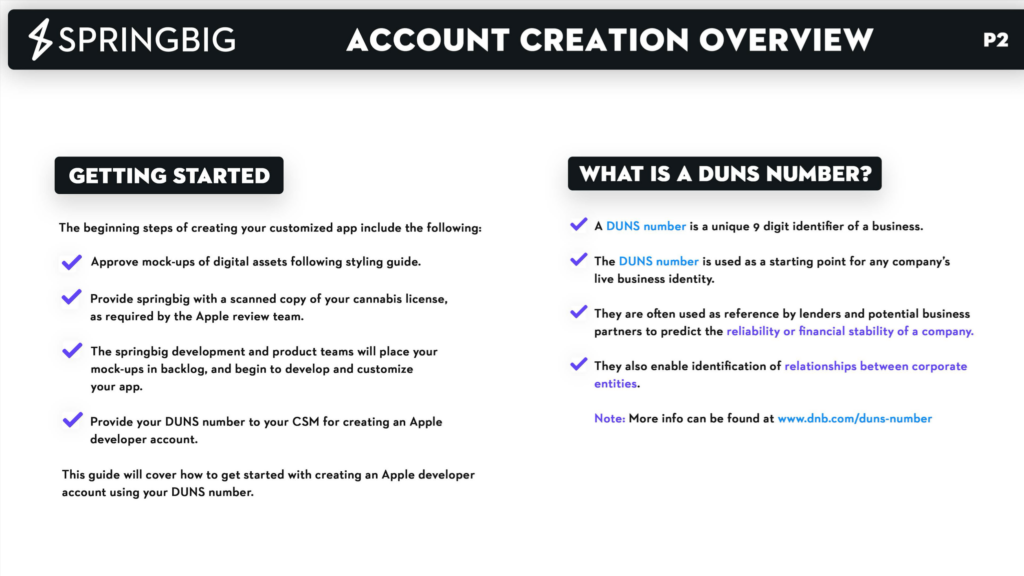
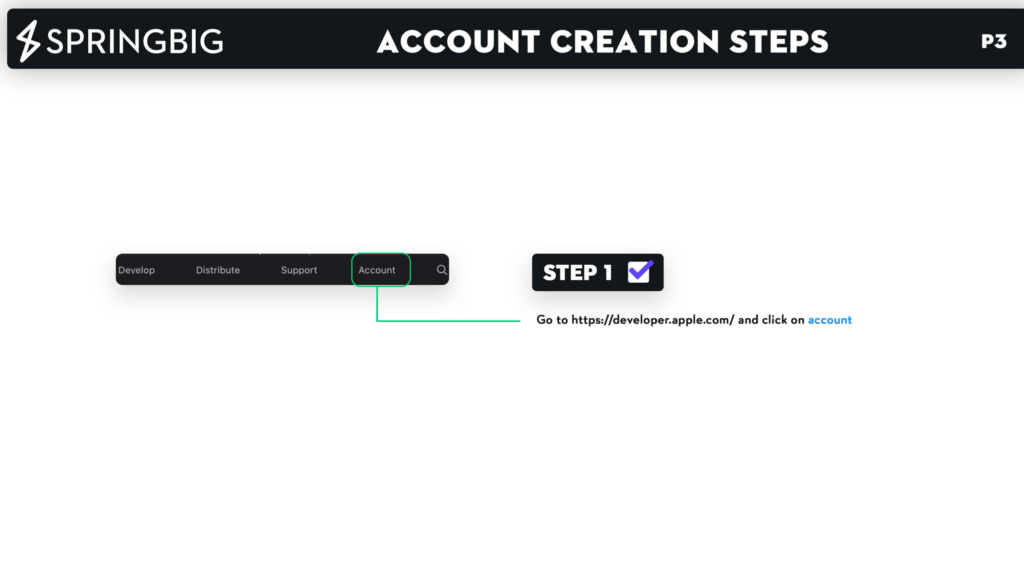
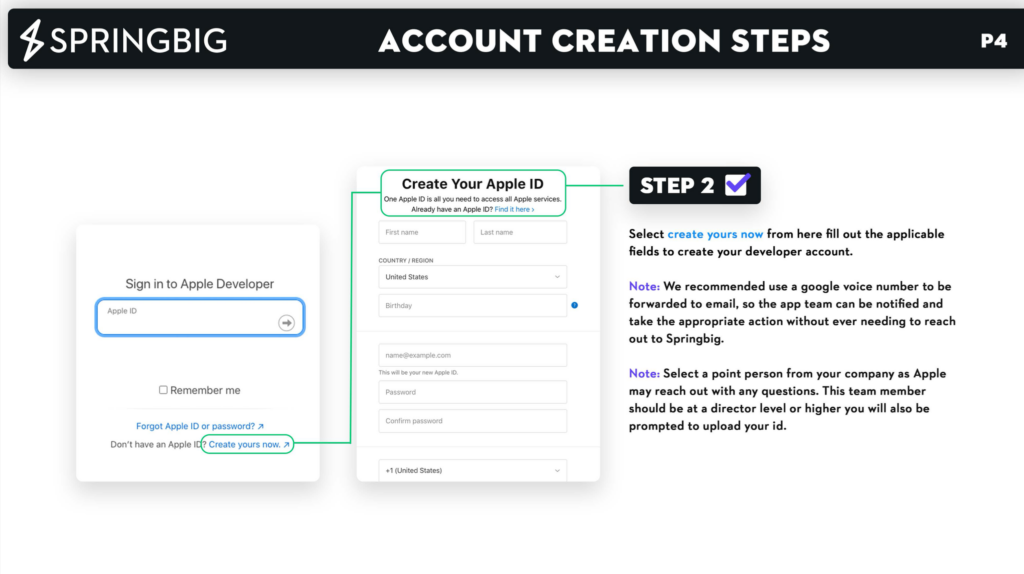
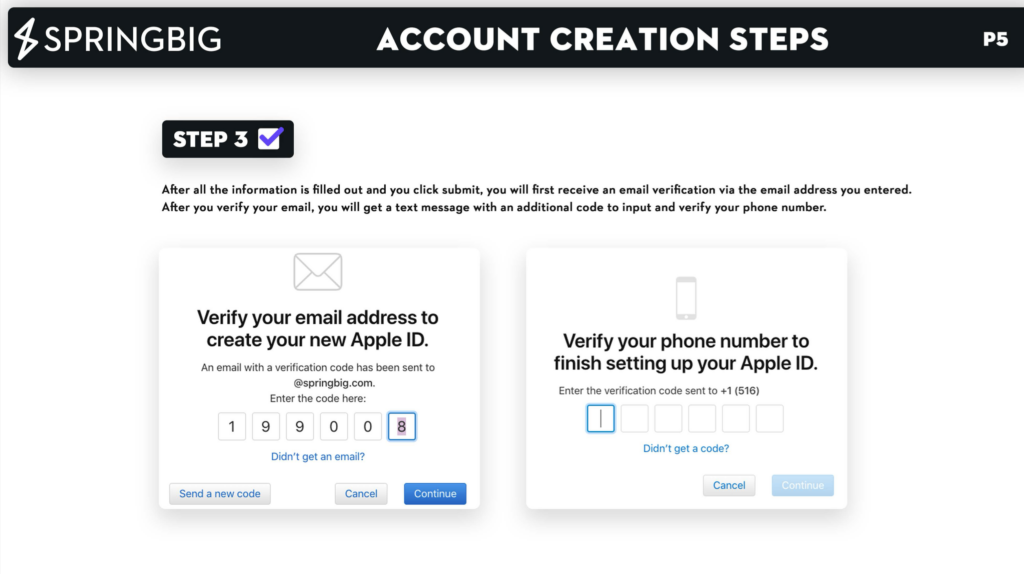
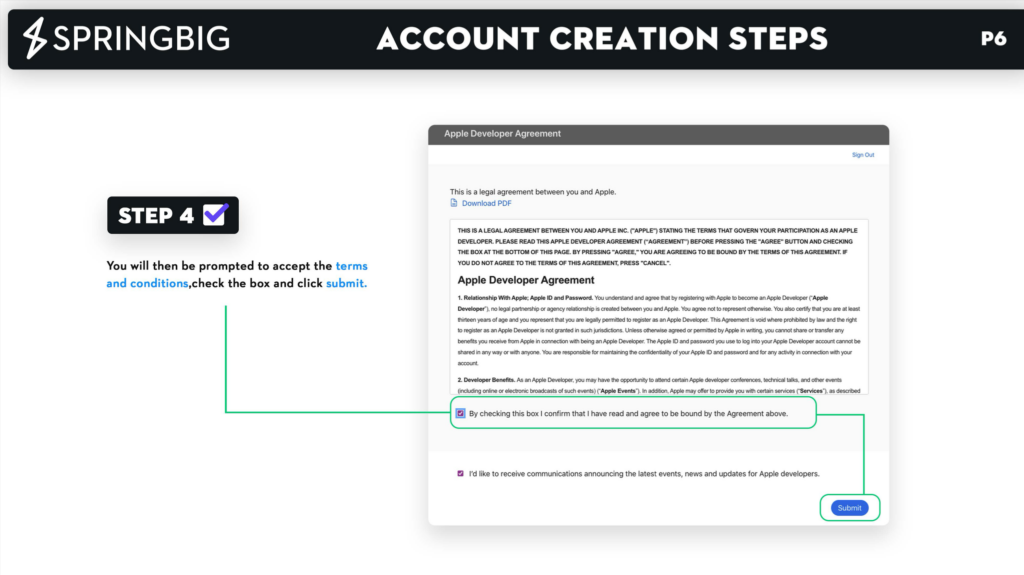
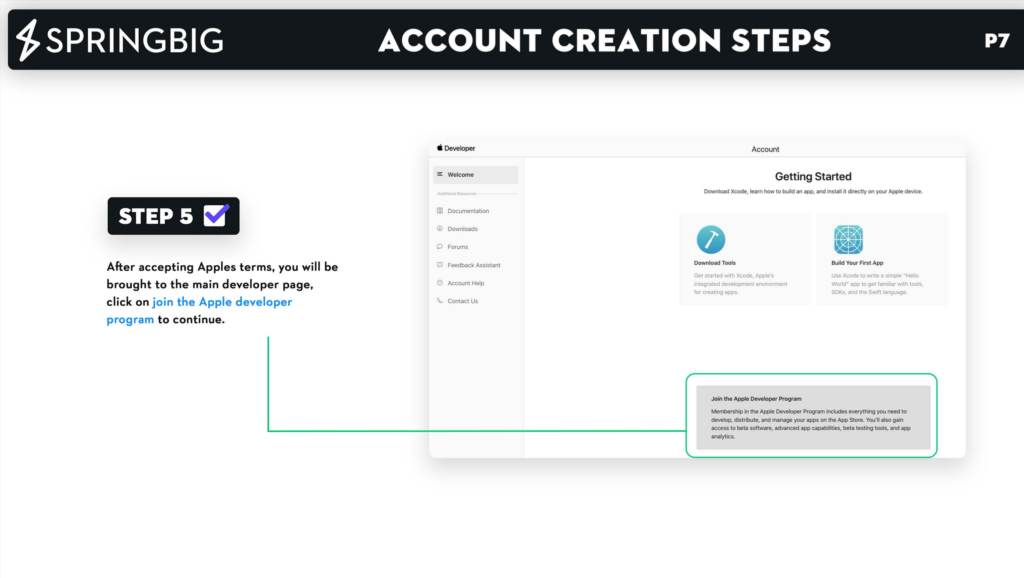
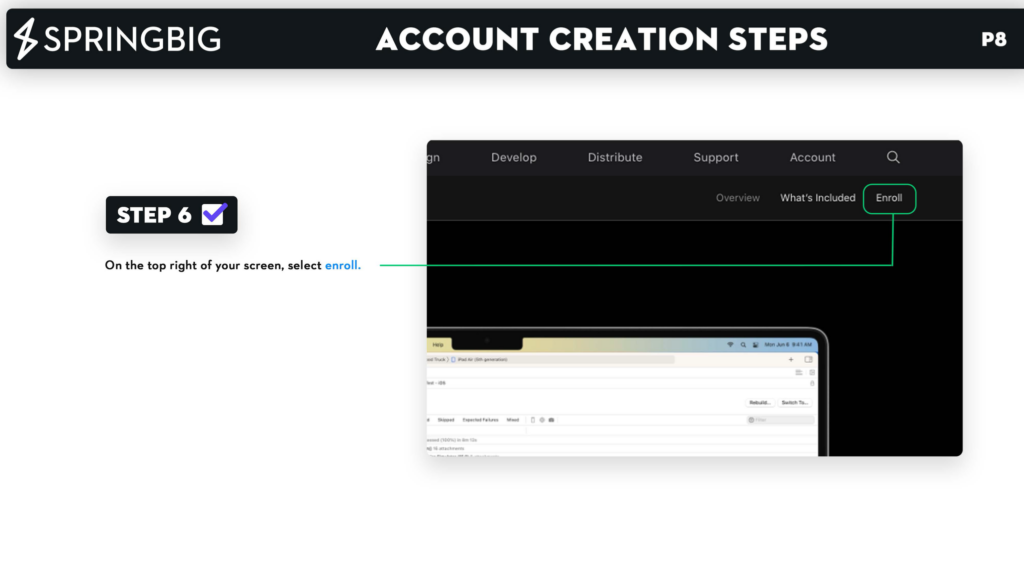
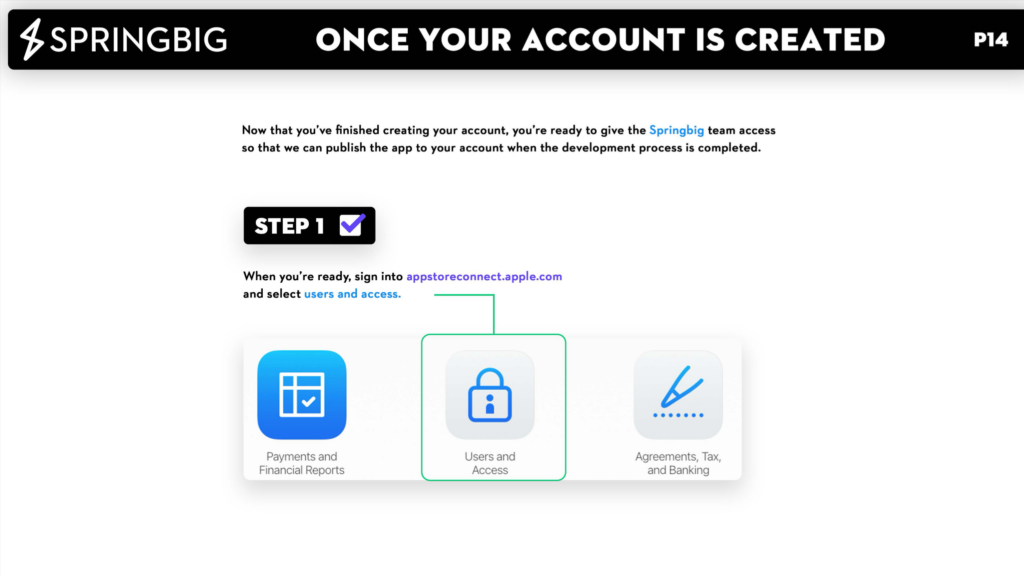
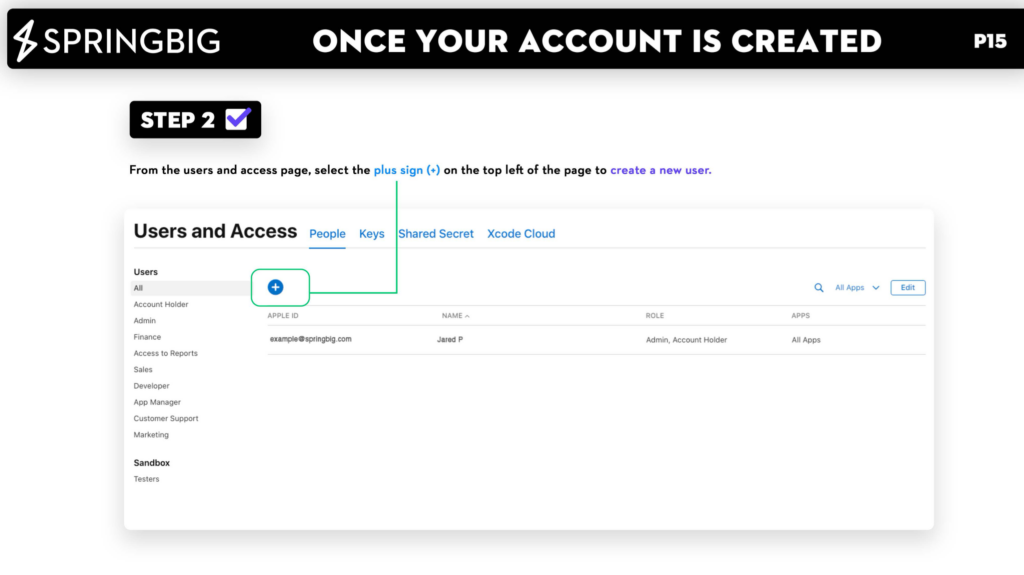
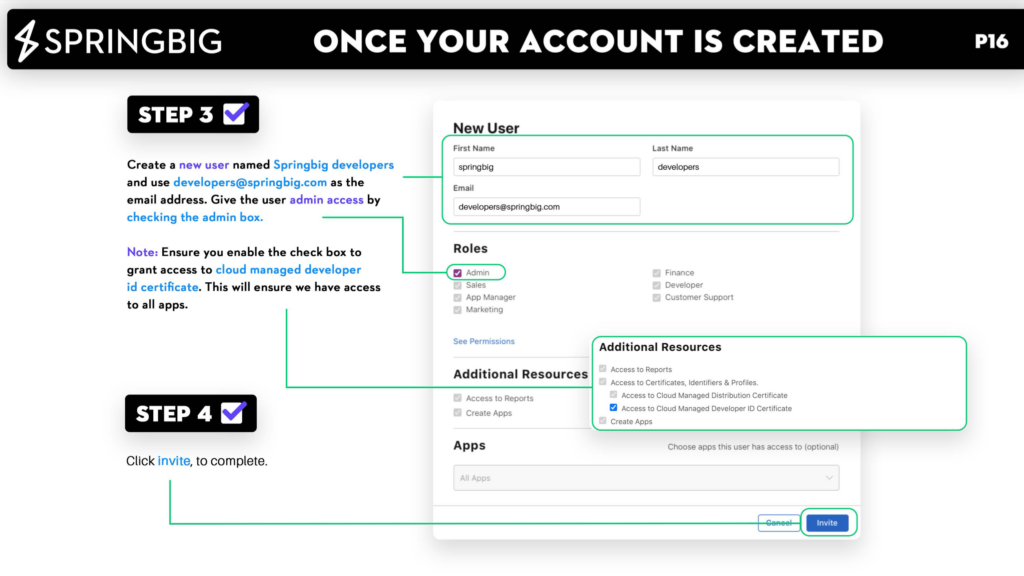
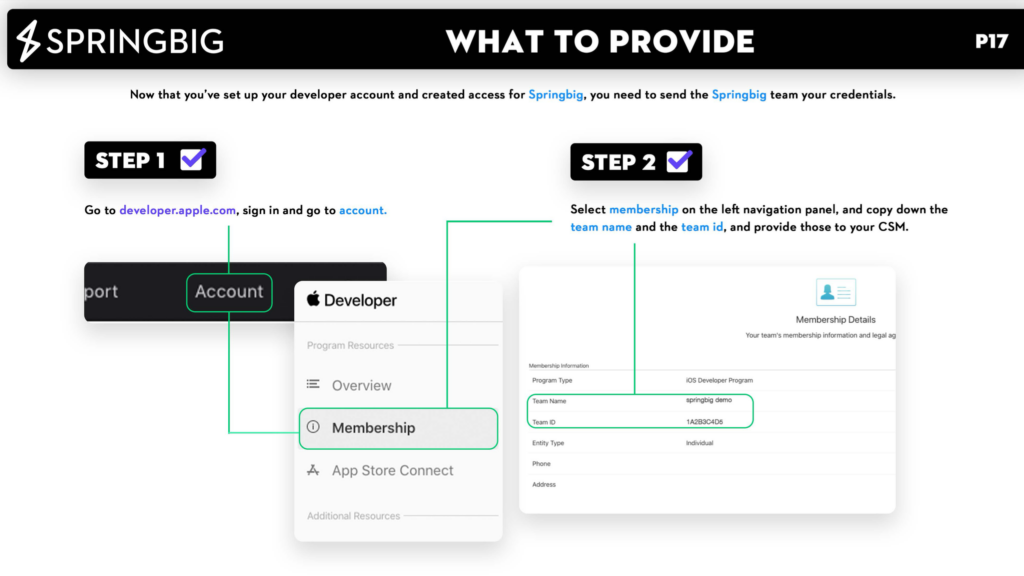
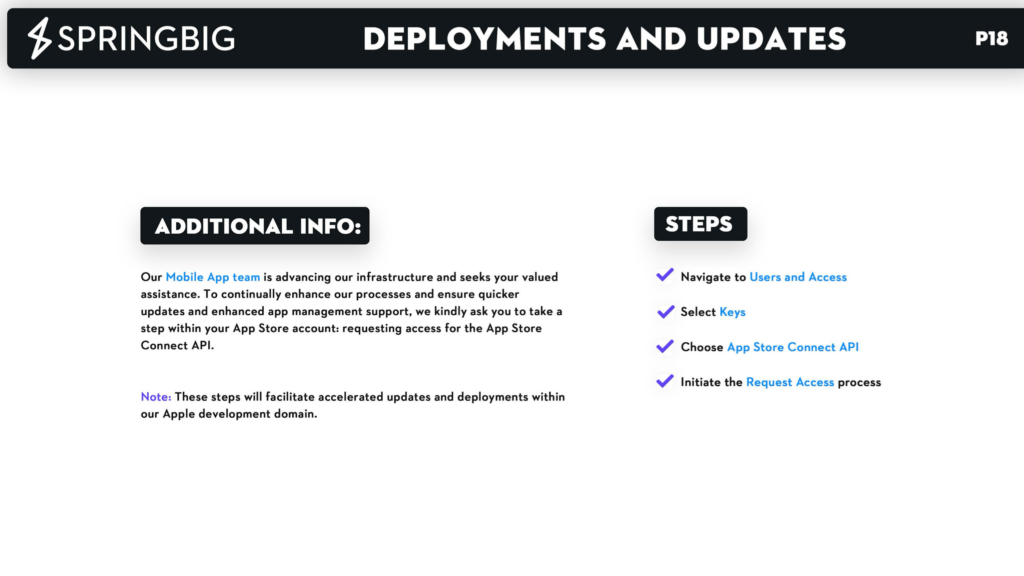
CREATING YOUR APP DEVELOPER ACCOUNT

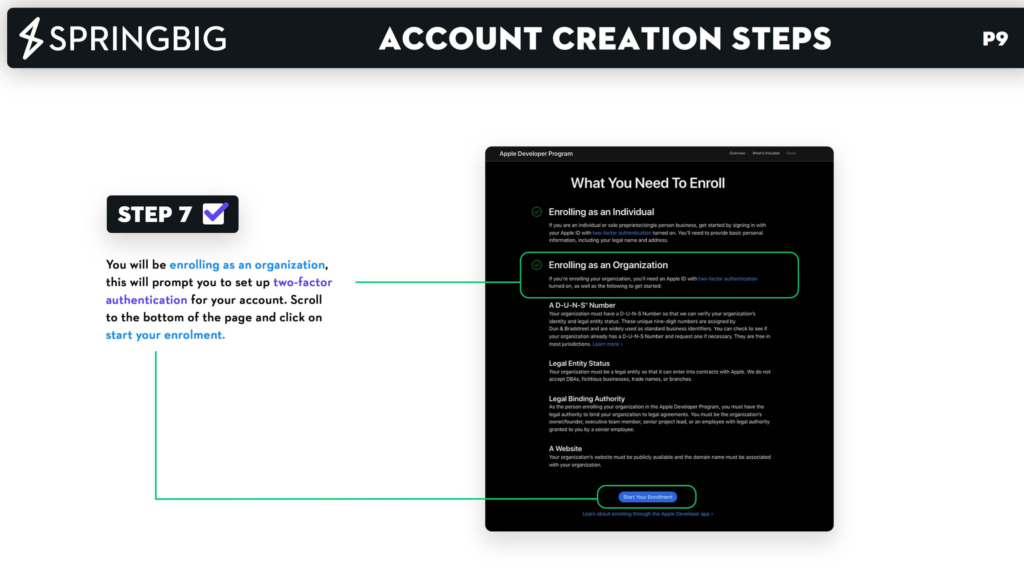
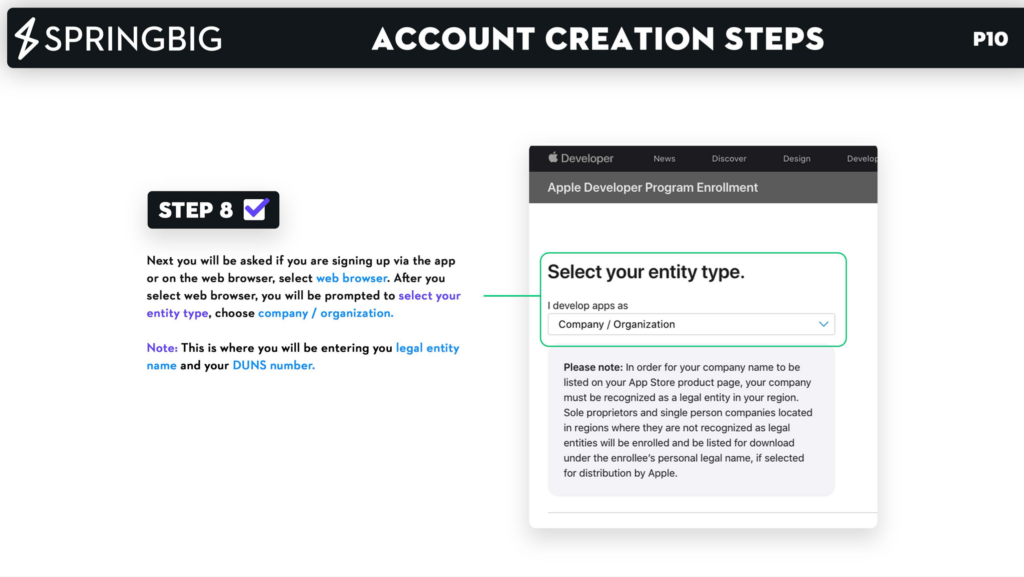

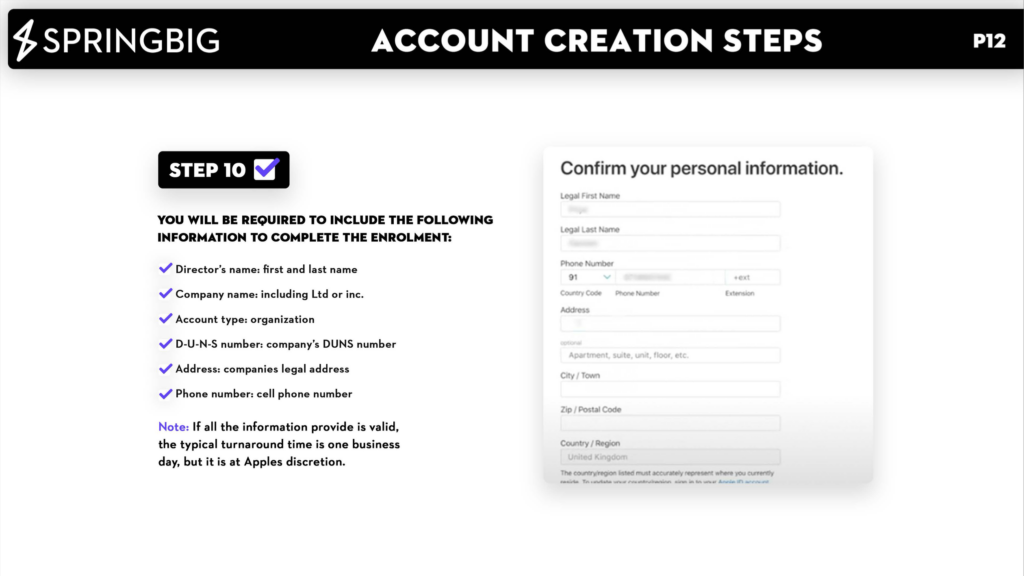
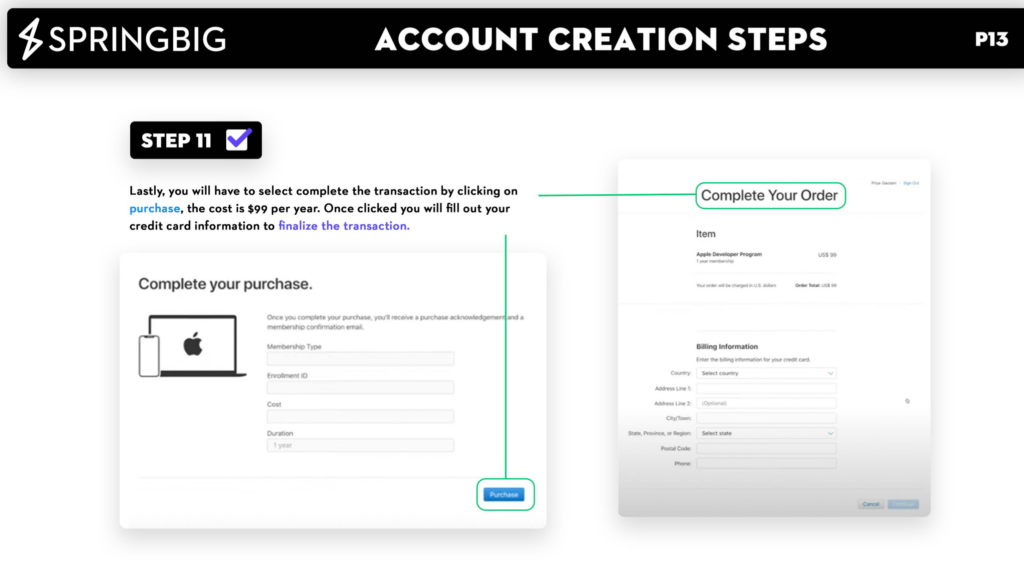
MOBILE APP HUB GUIDE





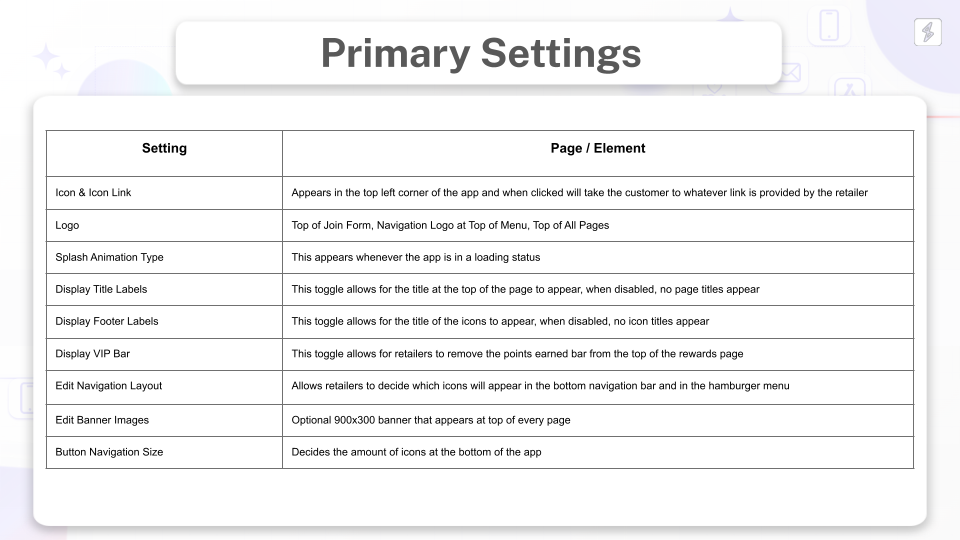

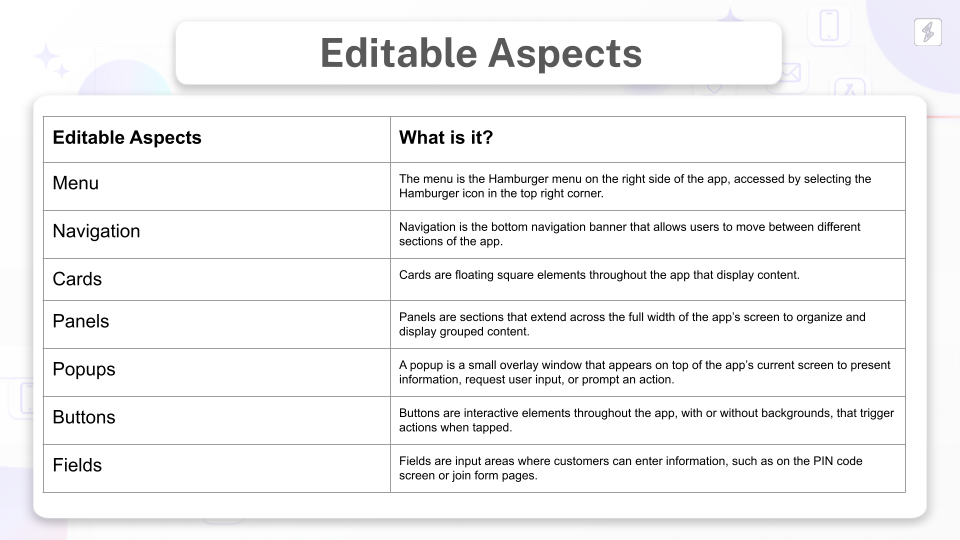
SETTING UP YOUR PLATFORM FOR APP NOTIFICATIONS
To start creating app campaigns, edit your send method in basic settings. This video shows how to do this in your platform.
NOTIFICATION MESSAGES
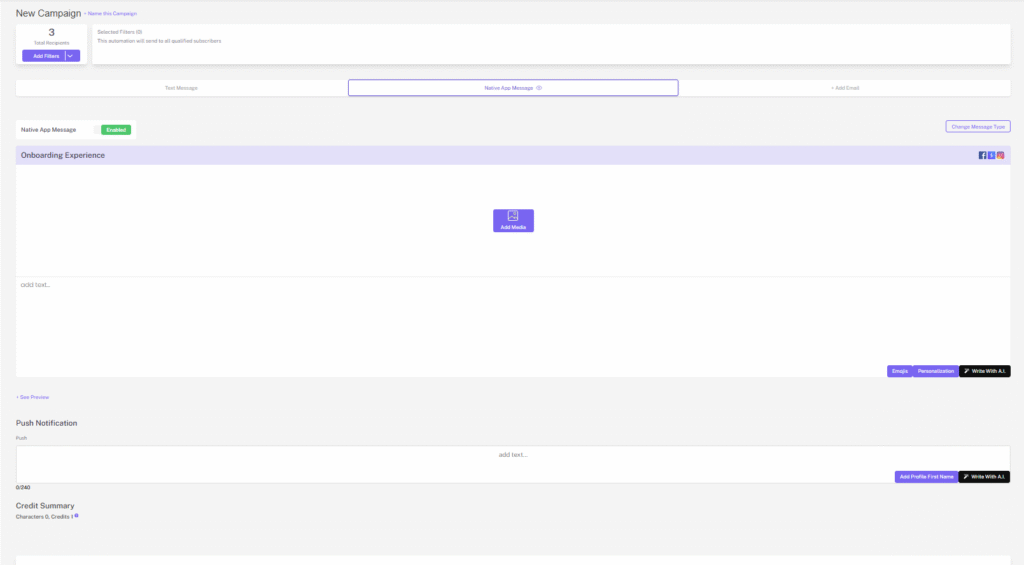
Now that you have learned about the Campaign options for SMS and Email, let’s talk about notification campaigns for the app. Notification messages do not have the same deliverability constraints that SMS have, meaning you can send cannabis and other regulated content out in your app notifications.
With your custom app’s message center, access a unique approach to communicating with your customers. Like SMS messaging but without the clutter, the message center allows you to send segmented groups of customers offers and other communications direct to their phones. Message threads will display images uploaded to your stashboard and link to stashboard content, while preoptimized notifications are sent with your messages to encourage high open rates.
Build your campaign in the native app message tab.
PROMOTING YOUR APP
Whether you are using re:source or your own custom app, promoting your app is critical to success. Inform and educate your customers with announcements and signage to feature your app. You can feature the links to the app store and google play to give customers easy access to download! Here are some ideas for promoting your app:
- Introduction campaigns
- Referencing the app in autoconnects like afterjoin or milestones
- In-store signs and TV screens
- Feature on your website and social media
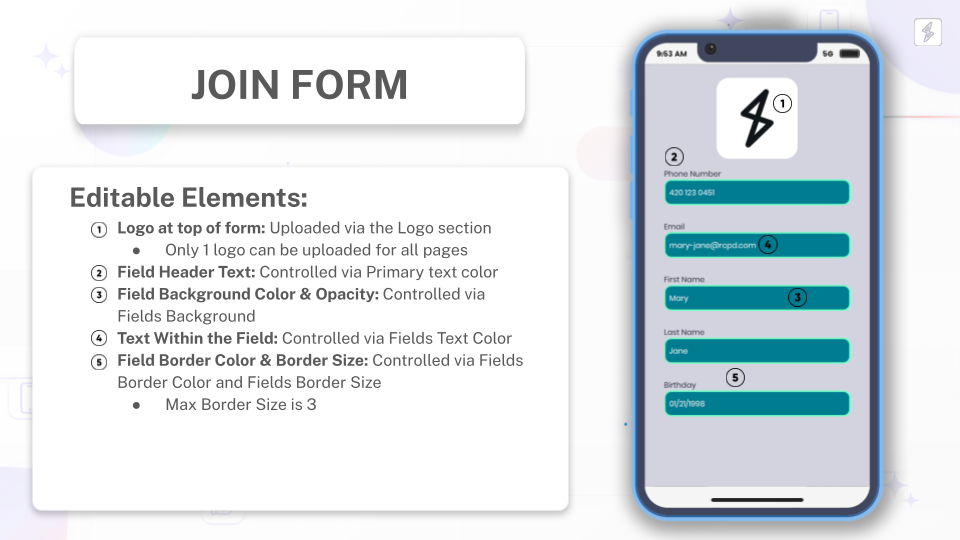
- Reach out to your Client Success Manager to add App links to your stashboards and join form
Check out this join form featuring the app links:
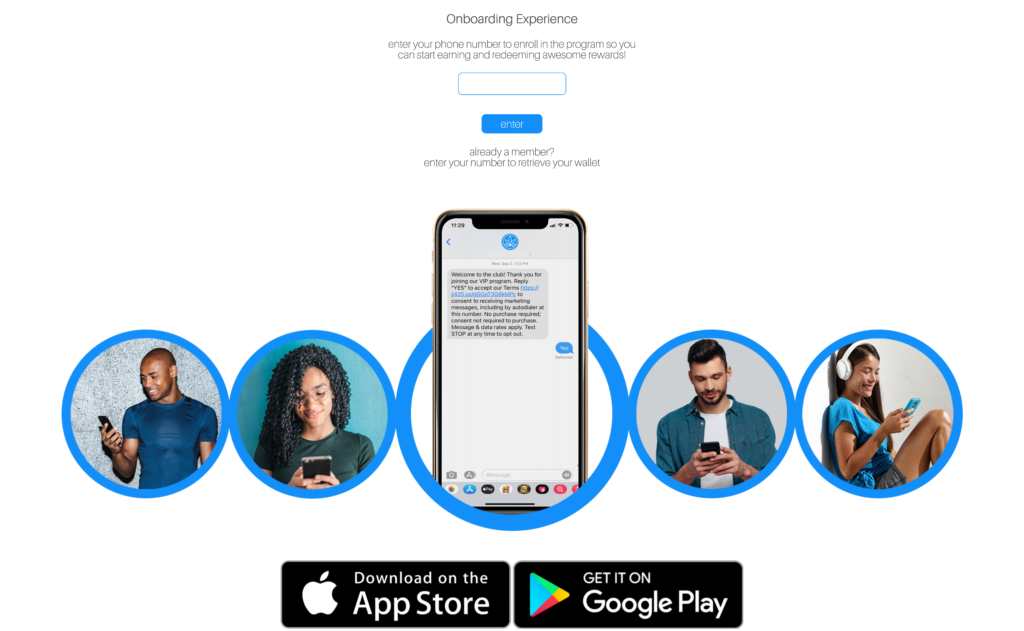
CUSTOMER APP EXPERIENCE
The customer experience for new and existing customers is simple: they can search for your app in the app store / google play store, download the app, choose to opt in for notification messages, and sign in with their phone number or join your program.
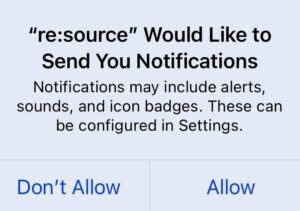
Customers that allow notifications will receive push notifications on their phone. If they do not allow notifications, they will still be able to view your campaigns in the message center and can always update their notification settings.
MAKE YOUR APP STAND OUT!
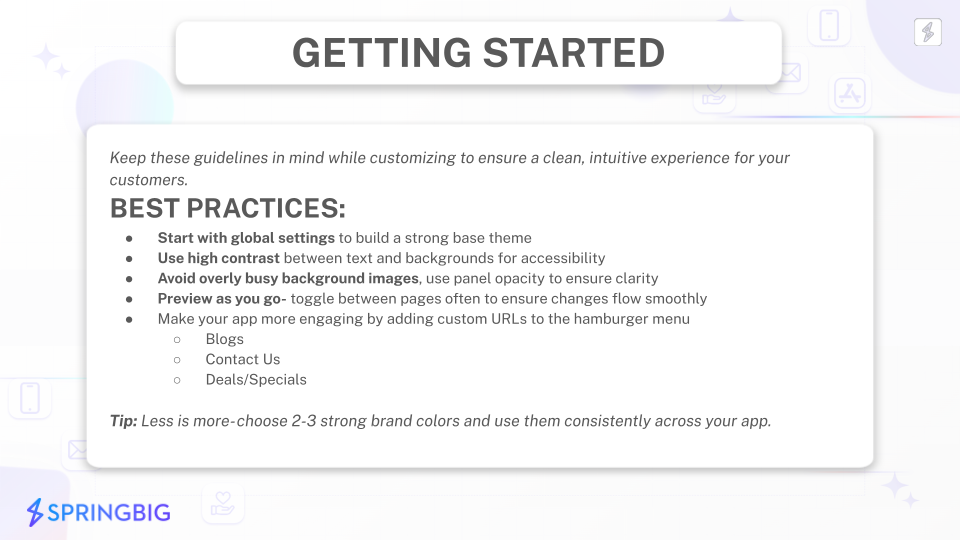
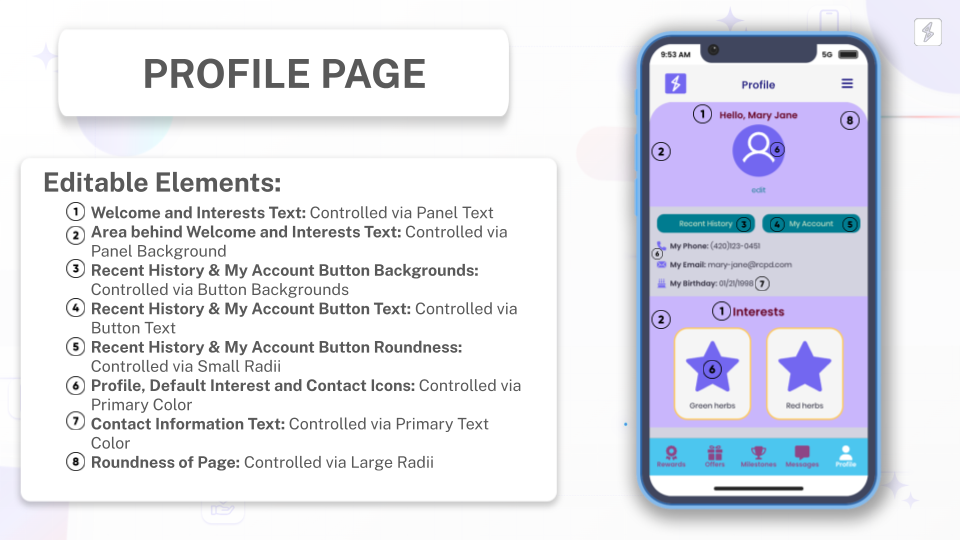
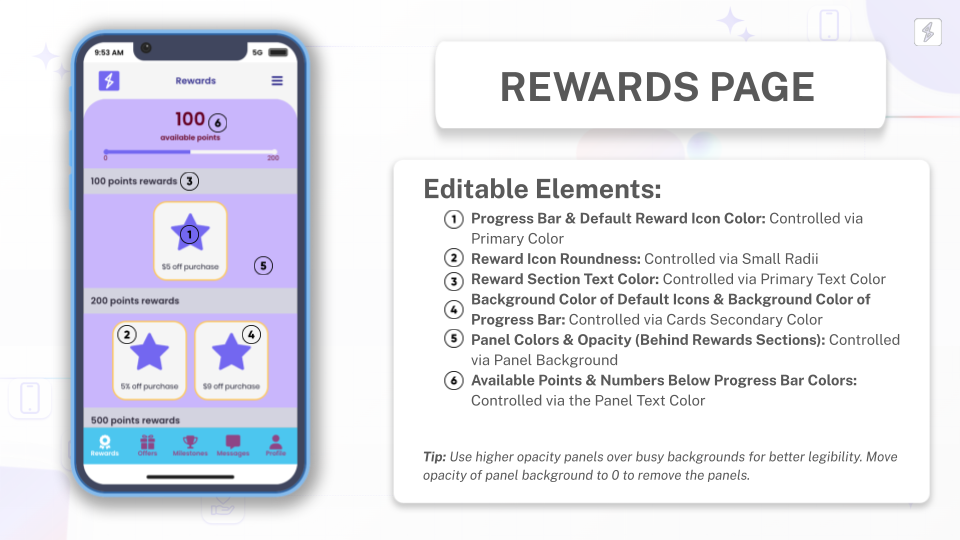
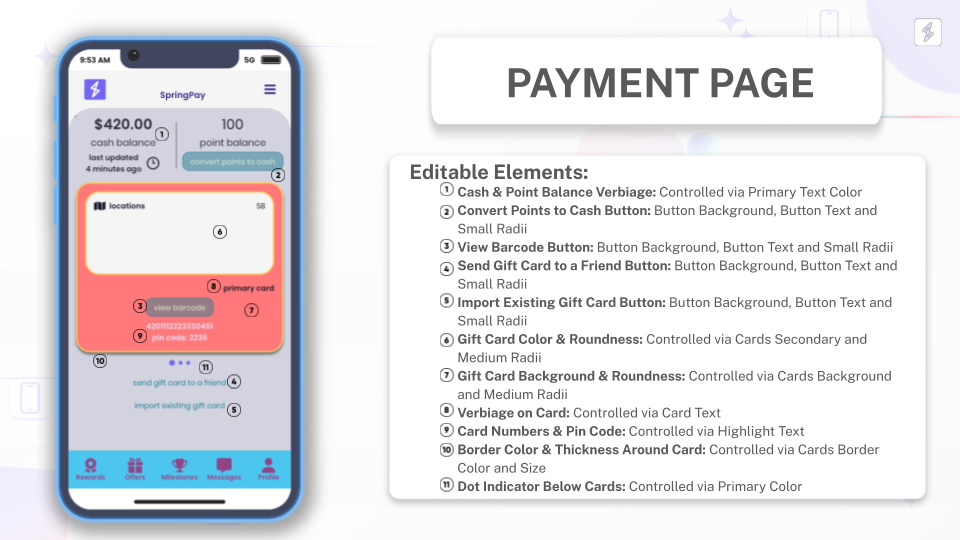
With more retailers implementing custom apps, making your custom native app stand out is incredibly important. Use the unique customizable features of the Springbig custom native app to attract customers. Ensure that all your branding and images align with your logo and background for the best appearance.
Include elements such as:
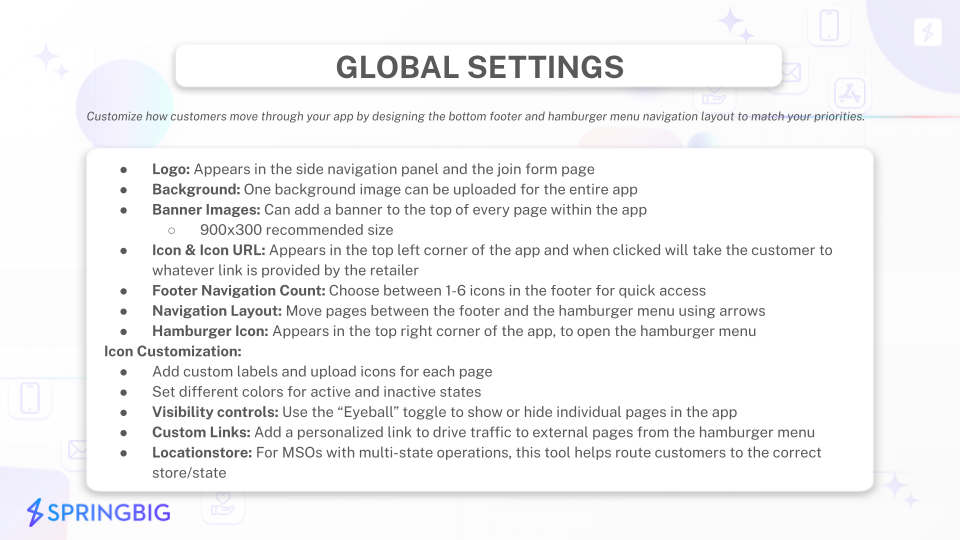
- Custom Footer Icons
- Banner Graphics
- Graphics for rewards, offers, and interests
- A unique custom app icon
- A linked left icon
- This icon appears in the top left corner of the custom app on every page and can be linked to a website of your choice.
Make sure your website is set up to be loaded into an iFrame, allowing for easy shopping directly within the app!
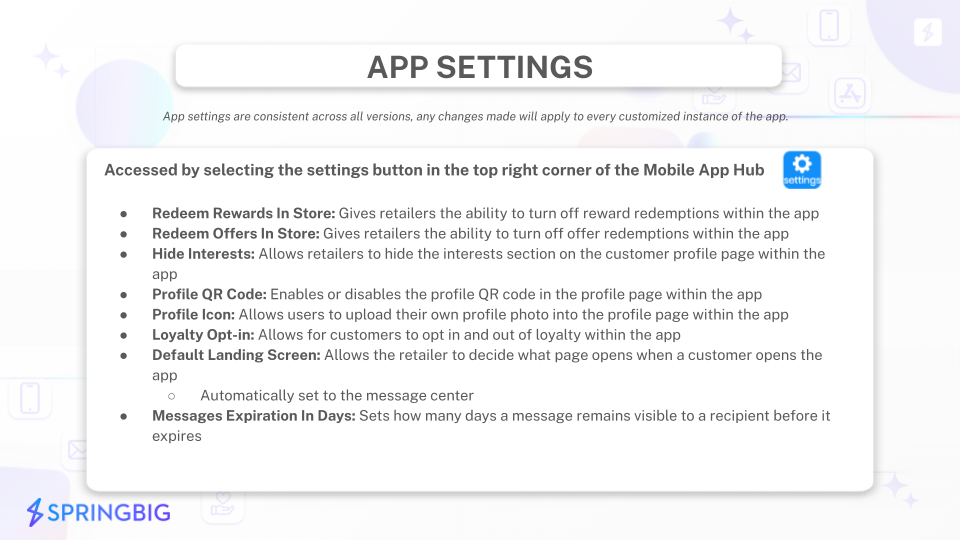
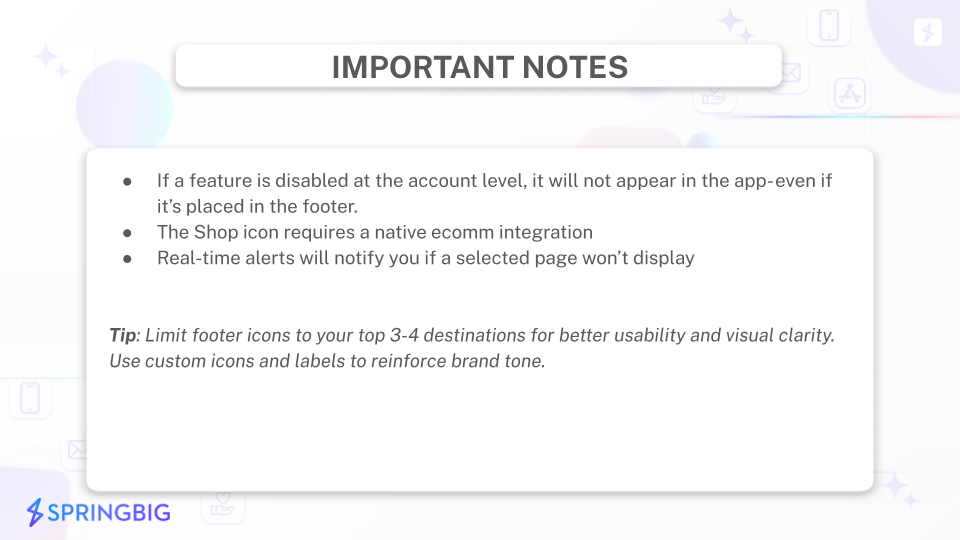
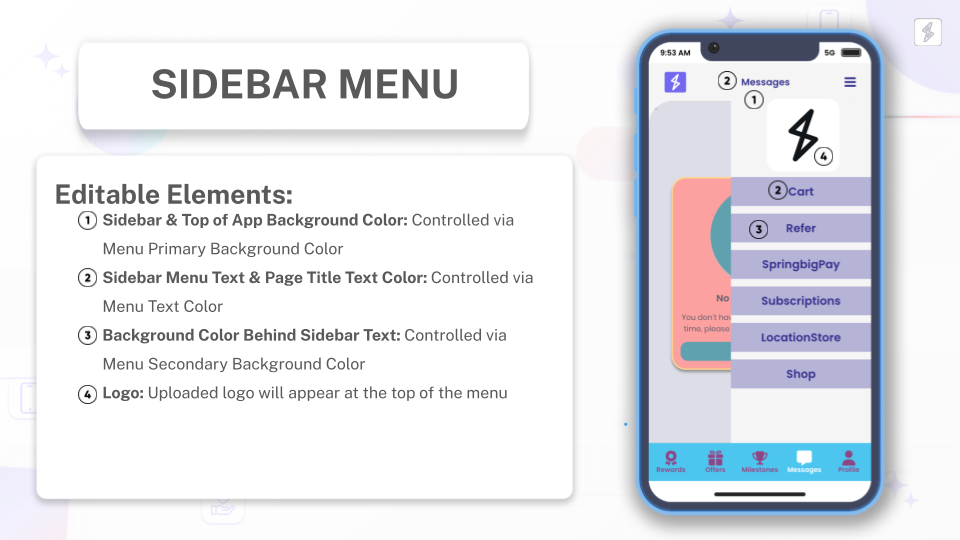
The custom app includes a slide drawer menu in the top right corner. To have pages appear in that menu, ensure you have a few Springbig features enabled:
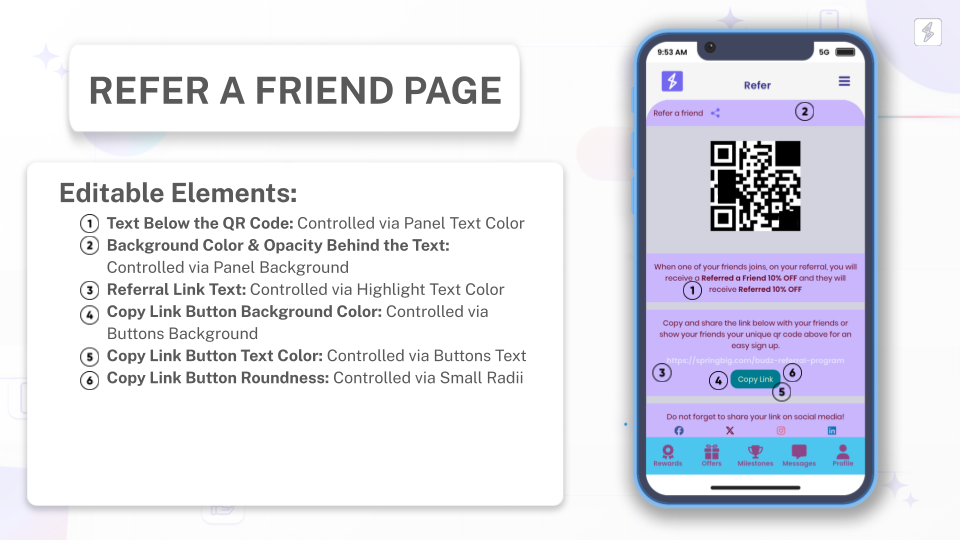
- Referrals: To have a referrals tab in the slide drawer menu, ensure Budz by Springbig is configured and enabled.
- Milestones: To have a milestones tab in the slide drawer menu, ensure you have at least one Spend milestone Autoconnect configured and enabled.
If you have multiple Springbig merchant accounts, you can connect them all within the same custom app. This will add a “Select Store” page in the slide drawer menu, allowing customers to view all the connected stores within the app.
You also have the ability to add any other URL to the slide drawer menu. For example, you can link to specific pages within your website, like a blog or contact page.