When your credits are running low, it’s easy to add more to ensure uninterrupted service. This guide walks you through the steps to recharge your platform’s credits. Need a visual? Click below for a tutorial that will guide you through the process step-by-step, making it even easier to keep your store’s operations seamless.
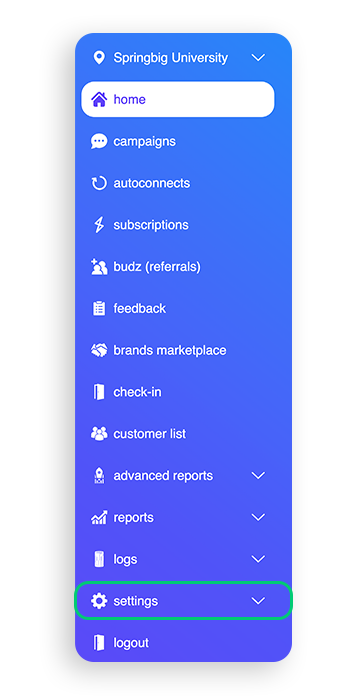
Step 1: Log into the Springbig platform and click on settings located in the menu on the left of the page.
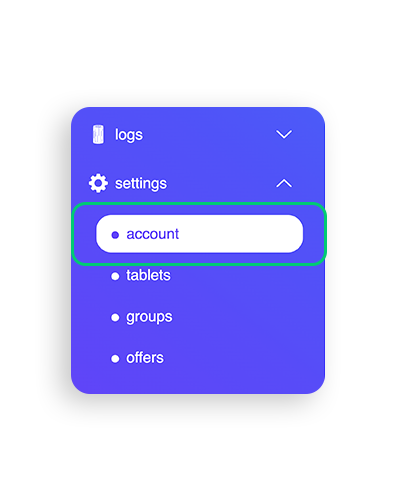
Step 2: From the settings drop down, select account.
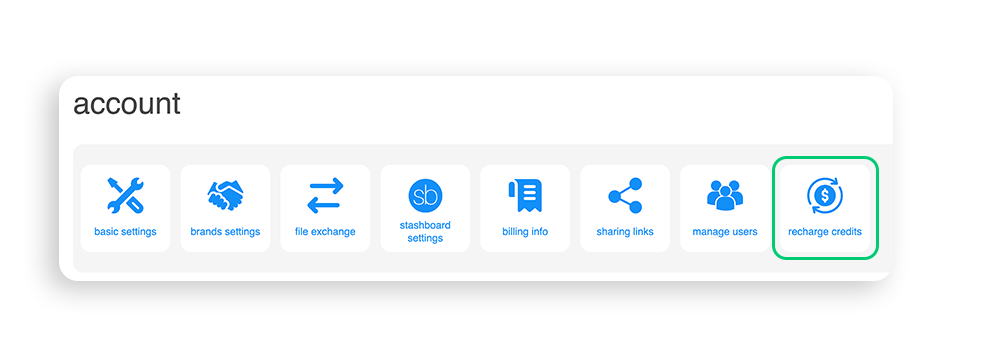
Step 3: On the top of the page you will see recharge credits, select recharge credits.
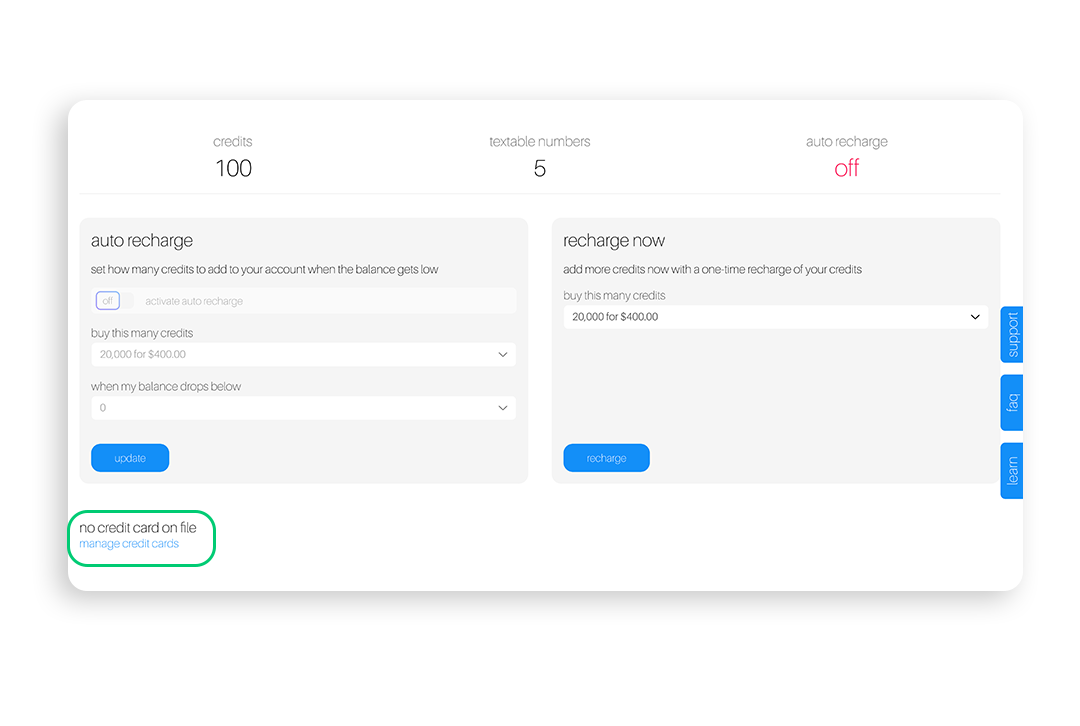
Step 4: You will be brought to the recharge credit screen where you will have the ability to select from two options.
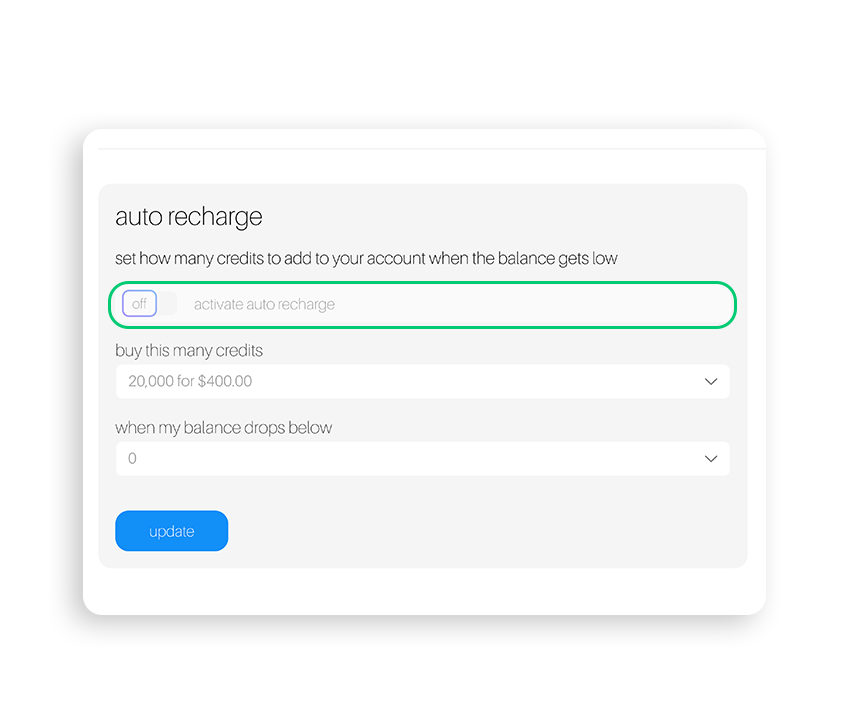
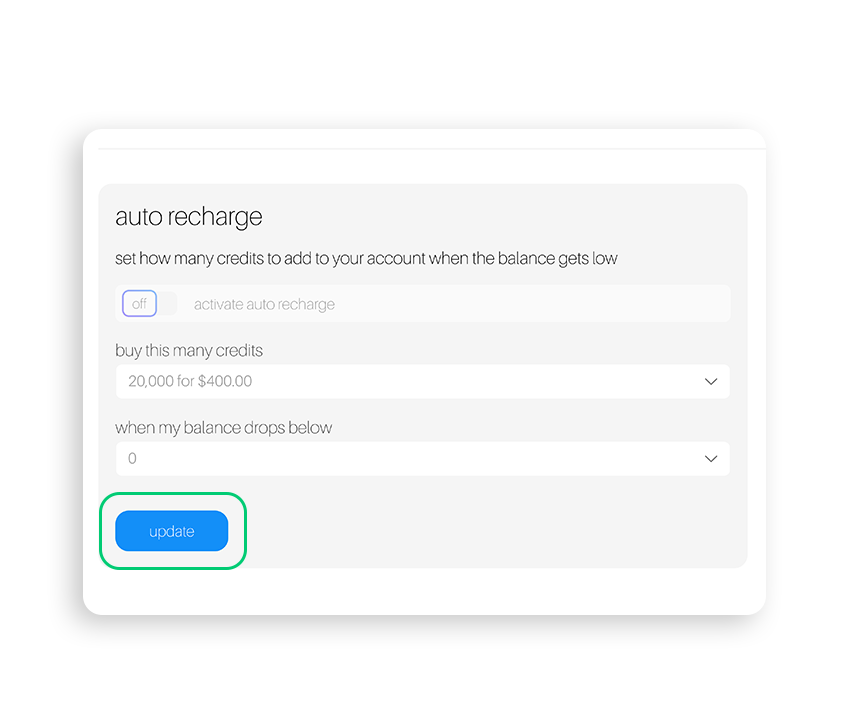
Auto recharge: With auto recharge, you will have the ability to set the amount of credits you wish to purchase along with the criteria of when the recharge will occur
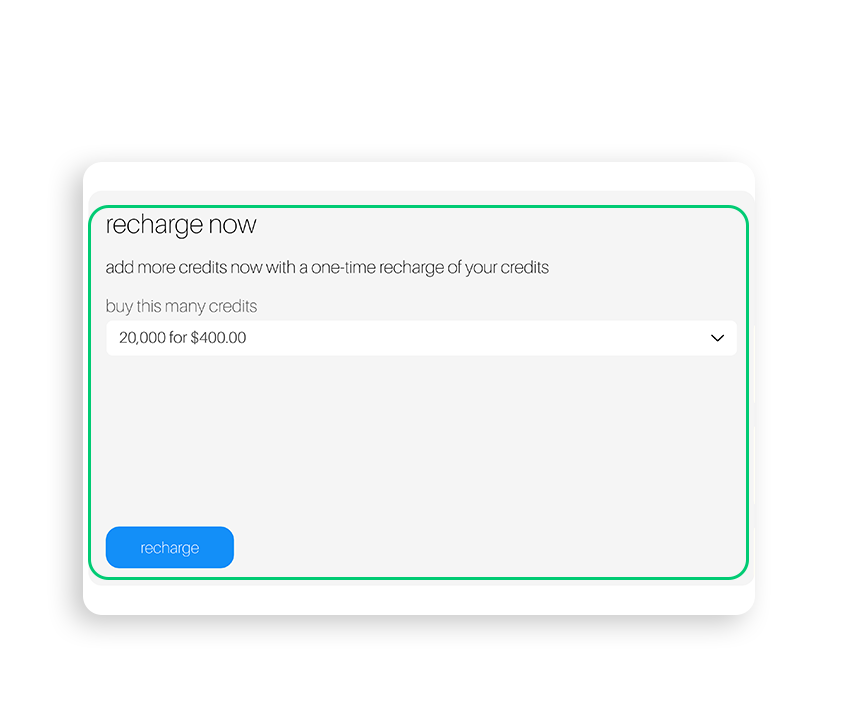
Recharge now: With recharge now, you will simply replenish your credits with however many credits you select. It is important to note that this is a one time recharge of your Springbig credits.
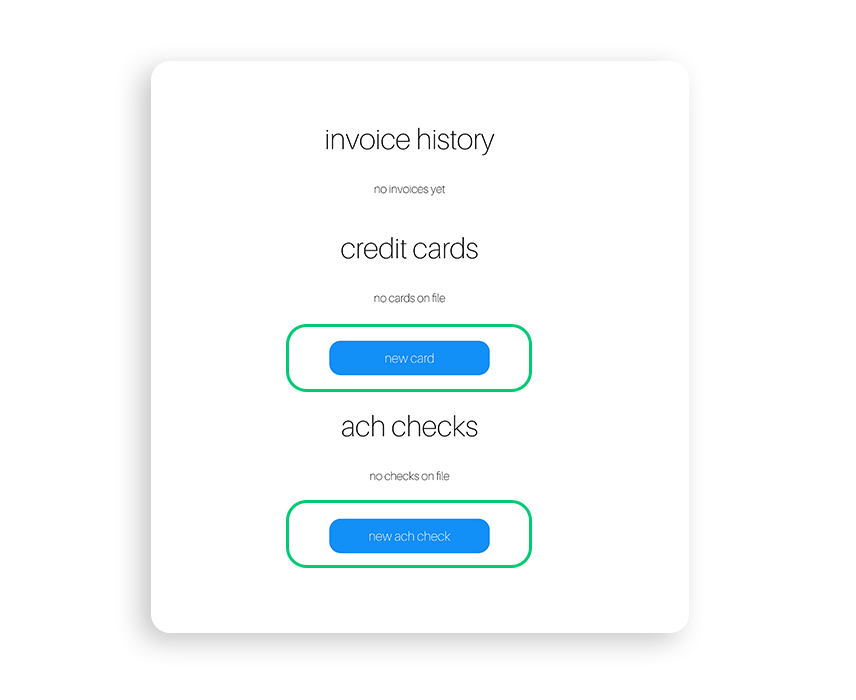
Step 5: On the bottom of the page you will need to confirm that you have a credit card on file, if not click on manage credit cards.
Note: If you do not have a card on file, clicking this will navigate you to the billing tab to add a credit card.
Step 6: Once a credit card is on file, you will be able to select to either turn on and customize your auto recharge, or recharge now to purchase additional credits.
HOW TO SET UP AUTO-RECHARGE
Step 1: To turn on auto recharge toggle the activate auto recharge toggle to on.
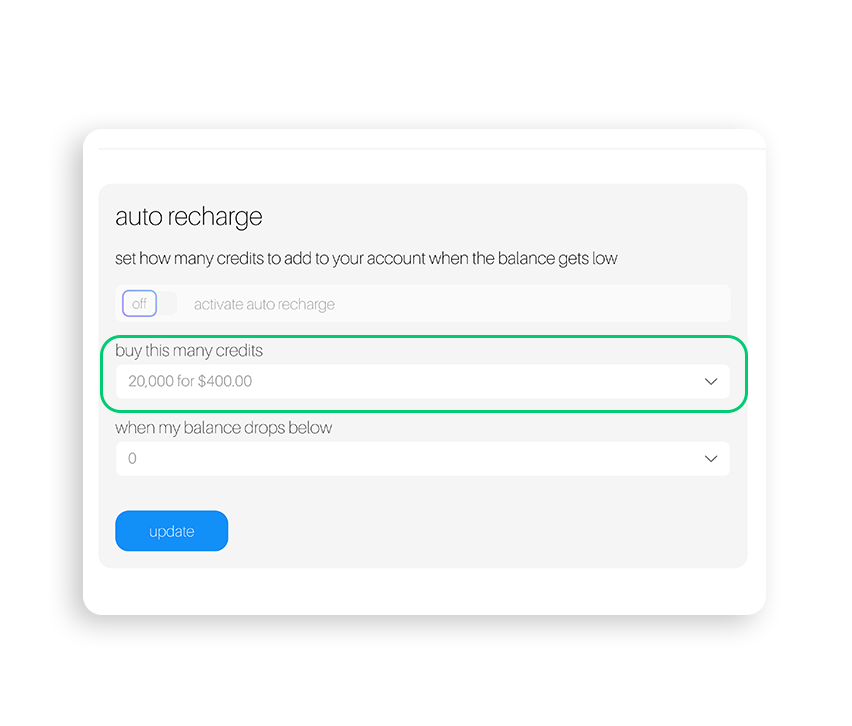
Step 2: Select the amount of credits you wish to have automatically recharged from the many credits dropdown.
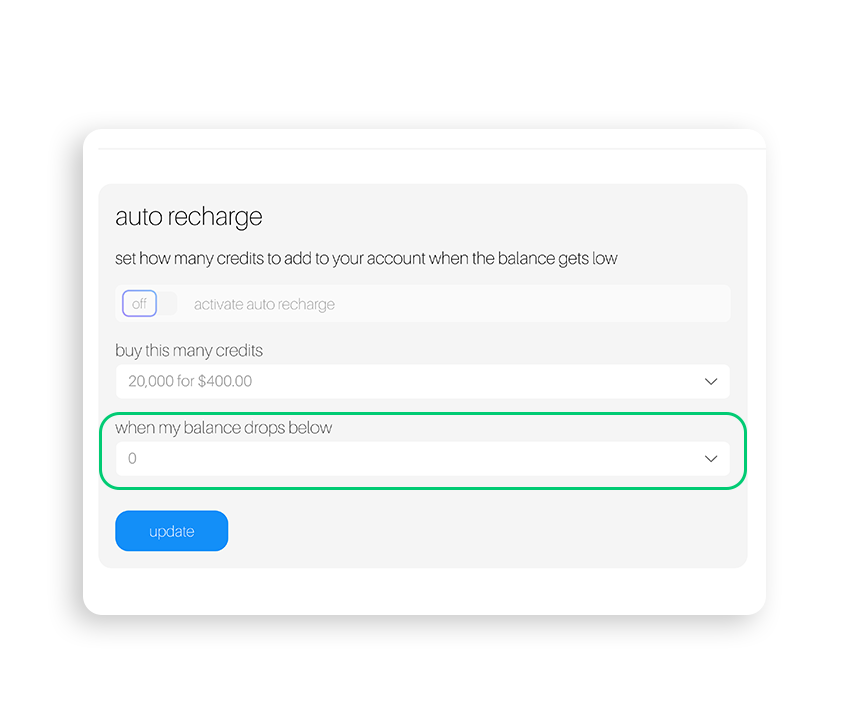
Step 3: Set the when my balance drops below the number from the dropdown menu.
Note: This will automatically replenish your credits anytime your credit count drops below the number you select.
Step 4: Once you are satisfied with the criteria you set, select update.
HOW TO RECHARGE CREDITS NOW
Step 1: Select recharge now to manually add credits to your account.
Note: This is a one time credit recharge.
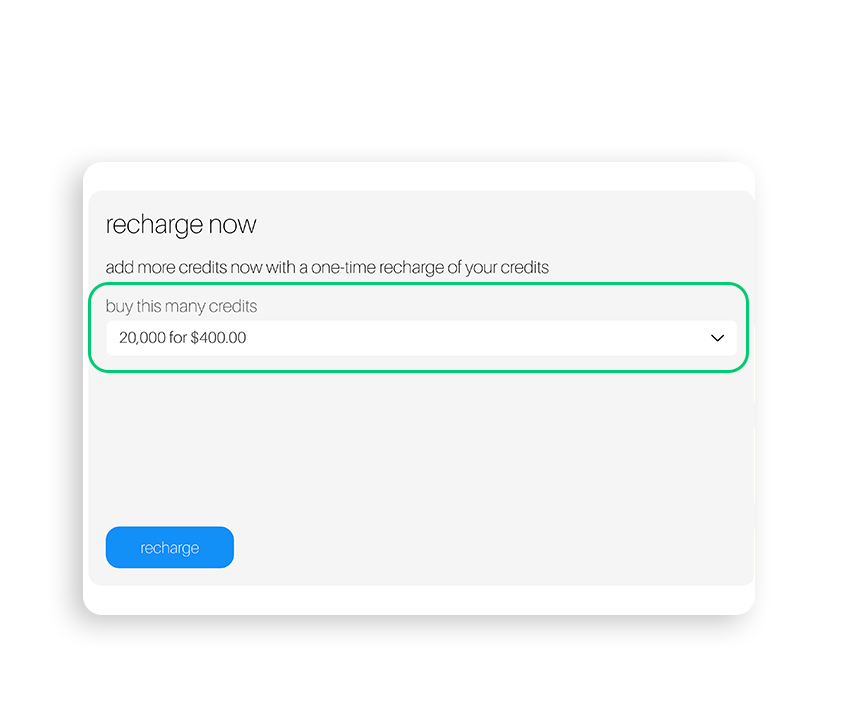
Step 2: Select the amount of credits to purchase by clicking on the buy this many credits dropdown.
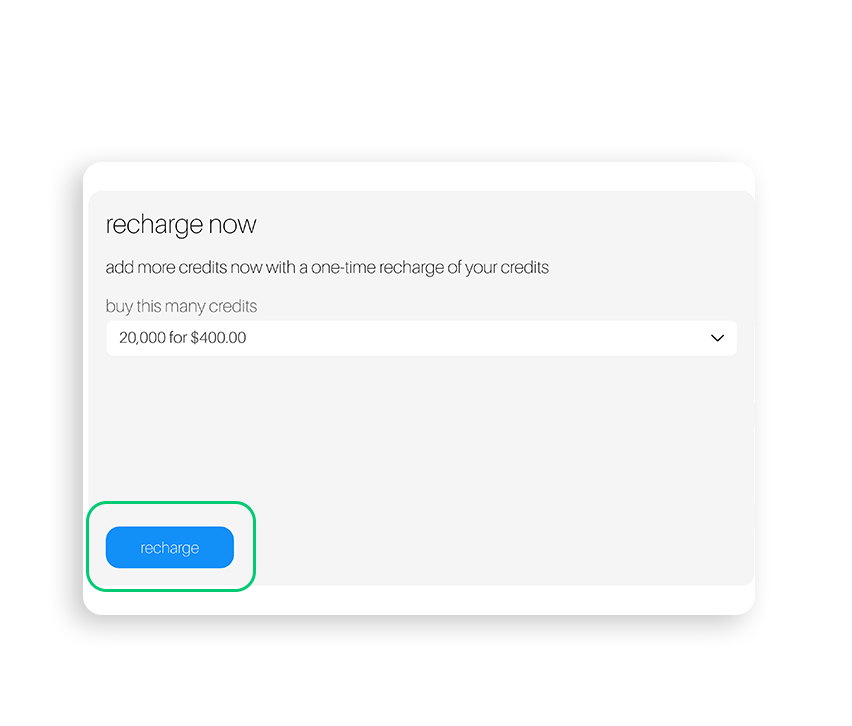
Step 3: Select recharge to purchase the additional credits.