
SPRINGBIG'S CHECK IN GUIDE
MANUALLY ADD OR REMOVE LOYALTY POINTS
The manual check in feature gives you the ability to add or take away points from a member’s profile, track the user that is checking in points, and allows you to customize the Check-In reason for tracking purposes.
The Check-in feature will also allow you to run manual loyalty if you are not integrated and wish to run a loyalty program with Springbig.
Check-in will add / remove points based on the loyalty program you have set up. For example, if you have 1 point per visit set up- each check in will be for 1 point, regardless of the transaction total. If you have 1 point per dollar set up, the points will match the transaction (unless the customer has an offer with a reward multiplier.)
Tip: Loyalty must be enabled to utilize Check-in.
COMPLETING A MANUAL CHECK-IN
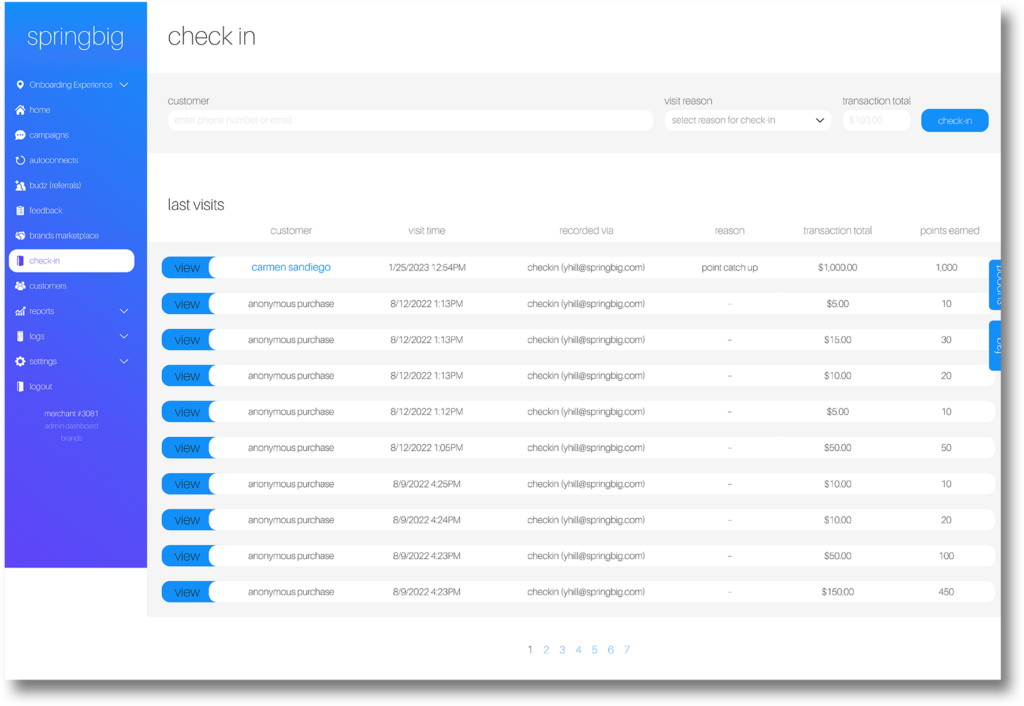
Step 1. From the main menu, navigate to Check-in
Step 2. Enter in the member’s phone number in the first field, the point value in the second field and select the check-in reason.
Tip: Use a phone number or email, a unique identifier is required (you can not use names).
Note: If you are taking points away, make it a negative number (-100).
Reach out the the Springbig team if you have any questions about check-in.
View this breakdown video of the Check-in process.
CHECK-IN POINTS ONLY
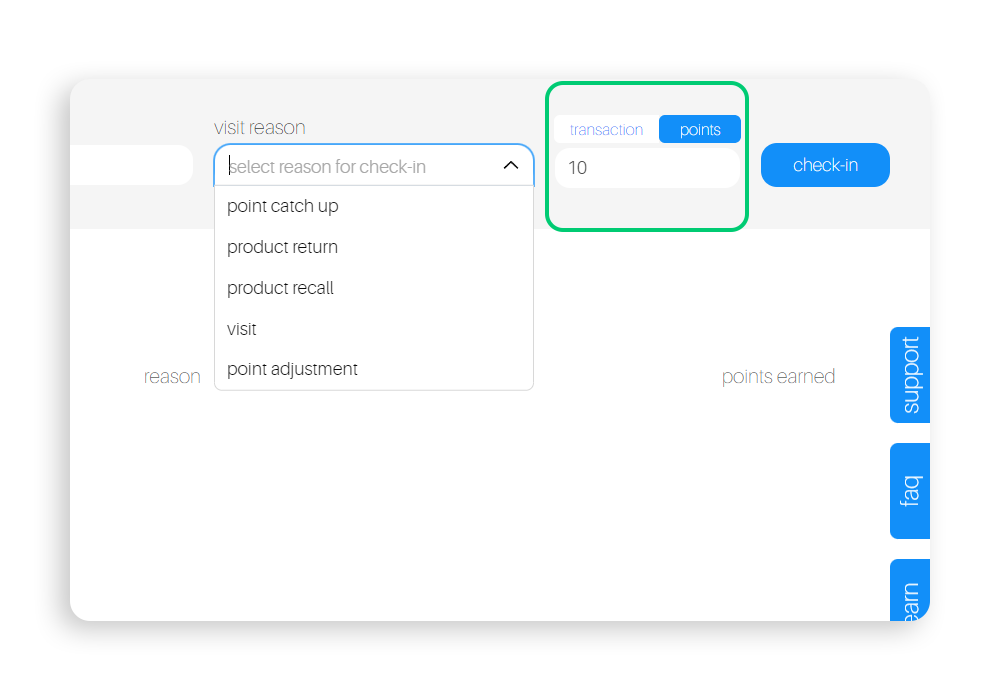
In the event that you need to issue additional points to a customer’s profile, without impacting their transaction history, there is the availability to complete a check-in for customer’s points, without impacting their transaction history, spending totals, or visiting totals.
To complete a check-in for points only, navigate to the check-in page, and toggle the transaction/points toggle to points.
Once toggled, complete the steps for the check-in as normal.
Reach out the the Springbig team if you have any questions about check-in.