Unlock new possibilities in your loyalty program with the Bonus Engine. This guide walks you through configuring special rewards, allowing customers to earn extra points based on different purchasing patterns. The Bonus Engine is designed to keep customers engaged and reward them in exciting ways beyond your standard loyalty offerings. Explore the guide and tutorials below to start building out your Bonus Engine feature and maximize the impact of your program.
Step 1. From the main menu, navigate to Settings, and select Account
Step 2. From the Account page, select the Program Settings button to be brought to the program settings configuration page.
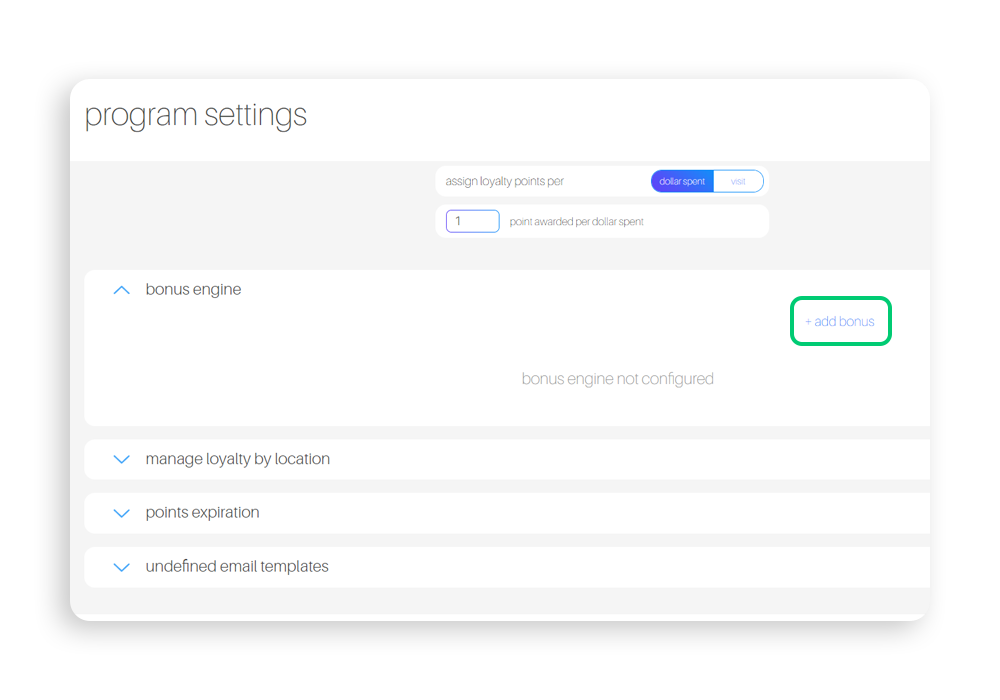
Step 3. Open the Bonus Engine drop down, and select +Add bonus
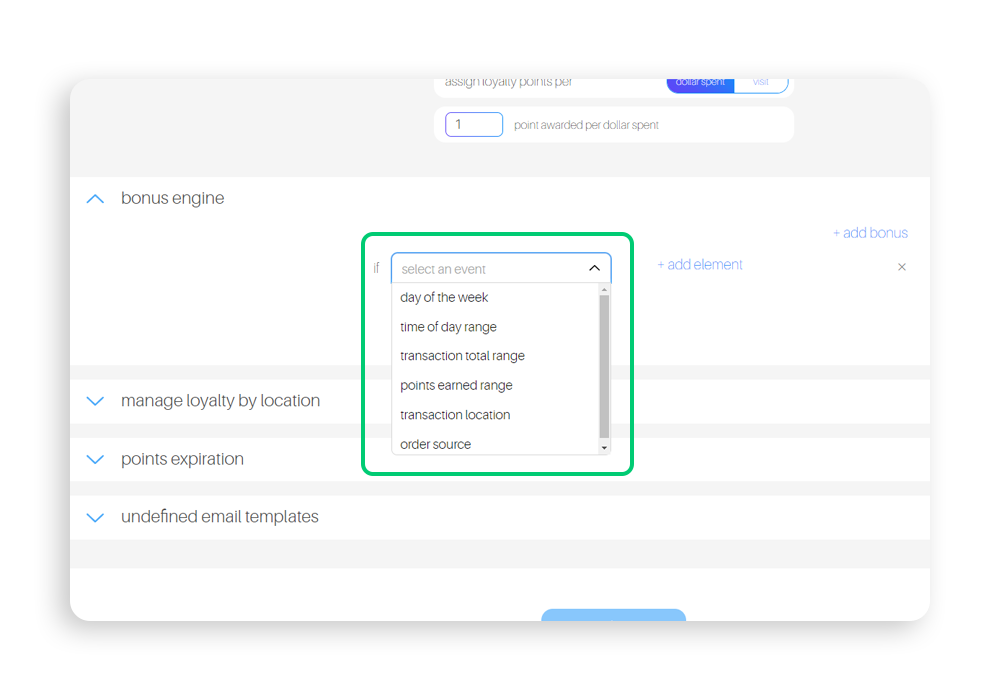
Step 4. Select your first event from the Select Event drop down menu.
Ex.: If you want to give bonus points to members who visit on a specific day, choose the day of the week option
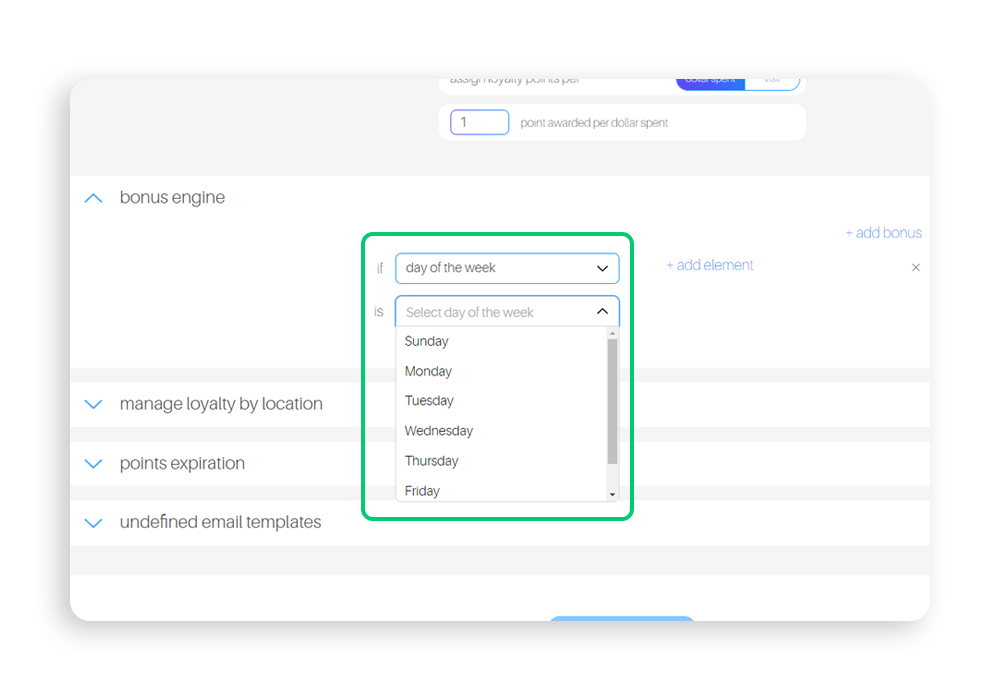
Step 5. Depending on your first event, you will have different options for choosing the next part of the event to activate a bonus
Ex.: Since you aregiving bonus points for a day of the week option, you must select which day you want to activate the bonus.
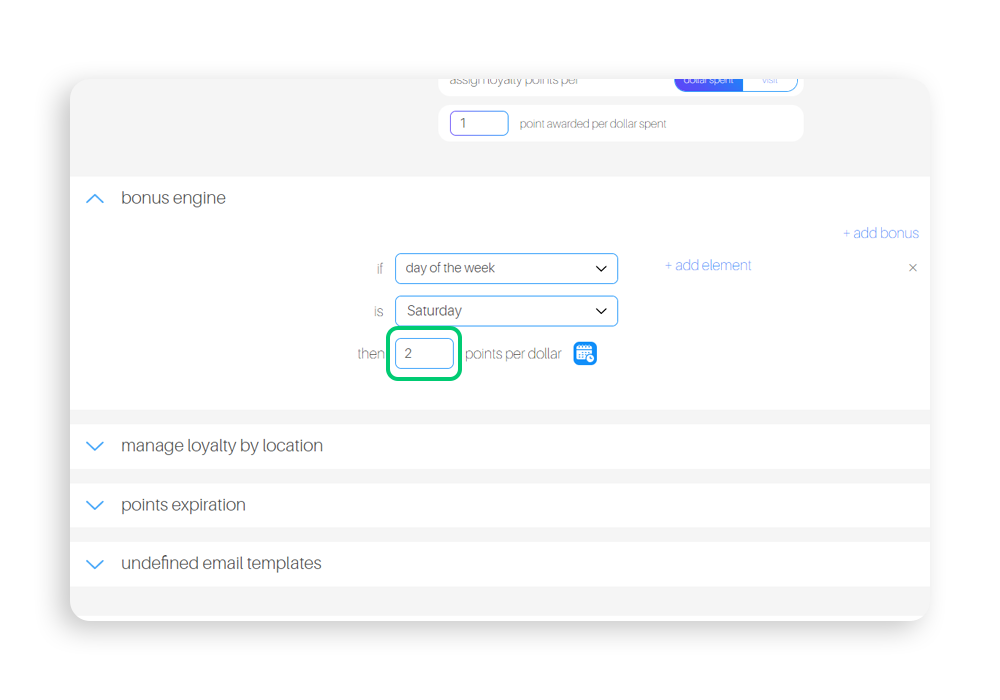
Step 6. Now you must determine the amount of points you would like the member to earn for taking the action you just set. Enter the number into the box provided.
Note: you also have the option to set up expirations for your points in the points expiration section (optional).
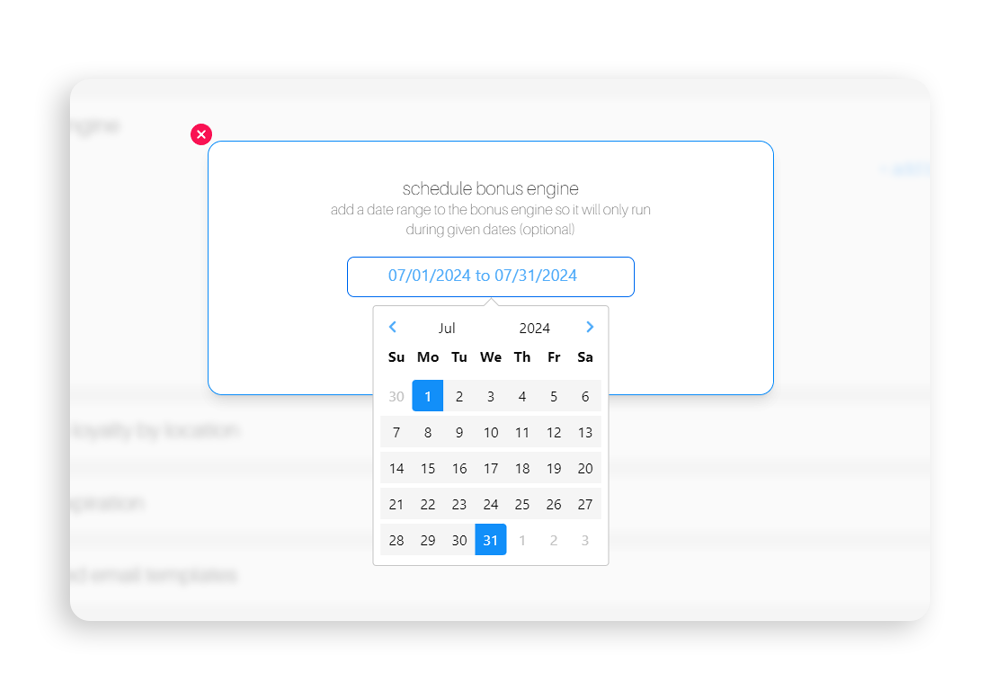
Step 7. Below every bonus event, there is a calendar icon. The calendar icon can be used to schedule a date range for the bonus event to be ran. If you would not like to set a date range around the event, you do not need to select a date range from the calendar icon pop up. If you would like your bonus event to run for a specific calendar period, select the dates from the calendar pop up.
Ex.: Only wanting your bonus event to run in the month of July.
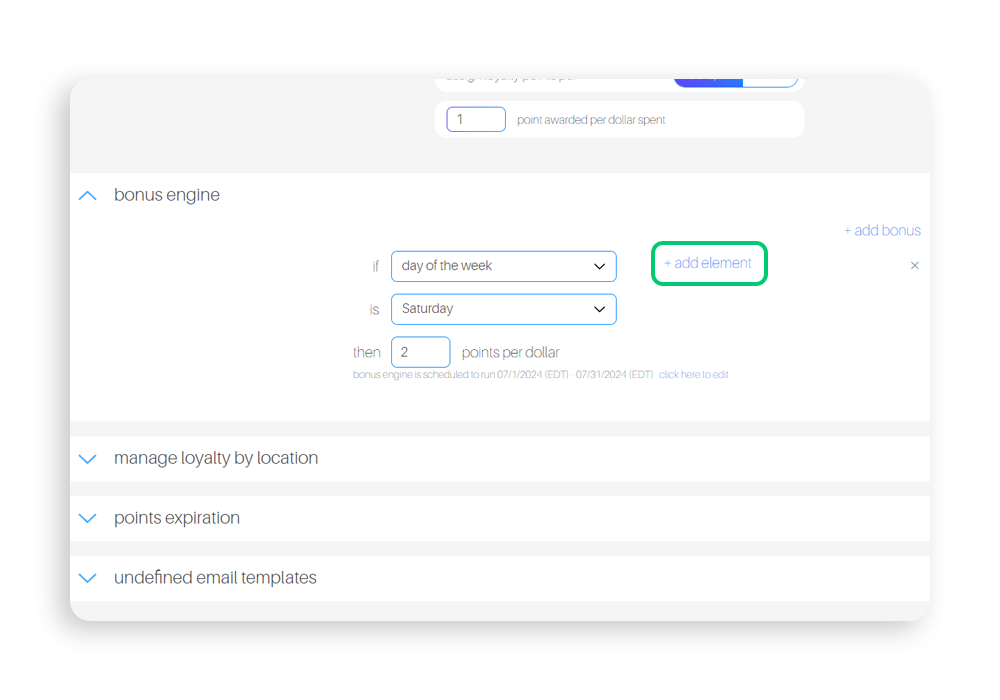
Step 8. If you’d like to add additional or alternative events to activate this bonus, you can click +add element, which will provide a dropdown for you to choose between and/or
And- this logic will require both events to occur
Or- using this logic, only requires one of the events to occur
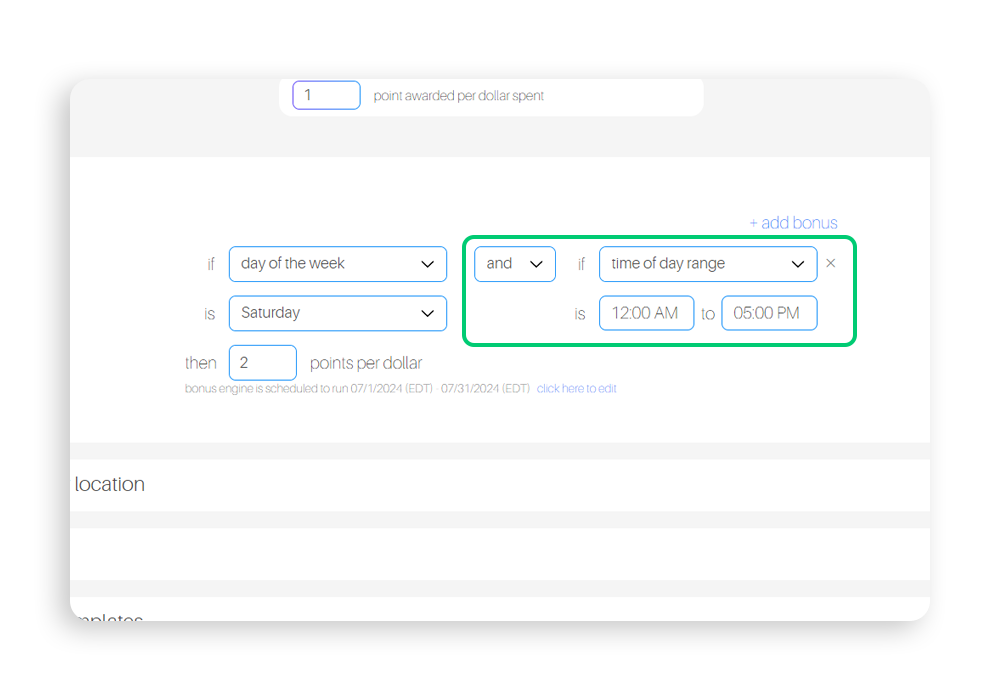
Step 9. For the second element, follow the above steps.
Example: If the day of the week is Saturday and it is between 12pm and 5pm then the member will earn double points.
Note: To delete an event within your bonus offer, simply hover your curser over the if logic, and an x will appear in the top left corner of the event. Click on the x to delete.
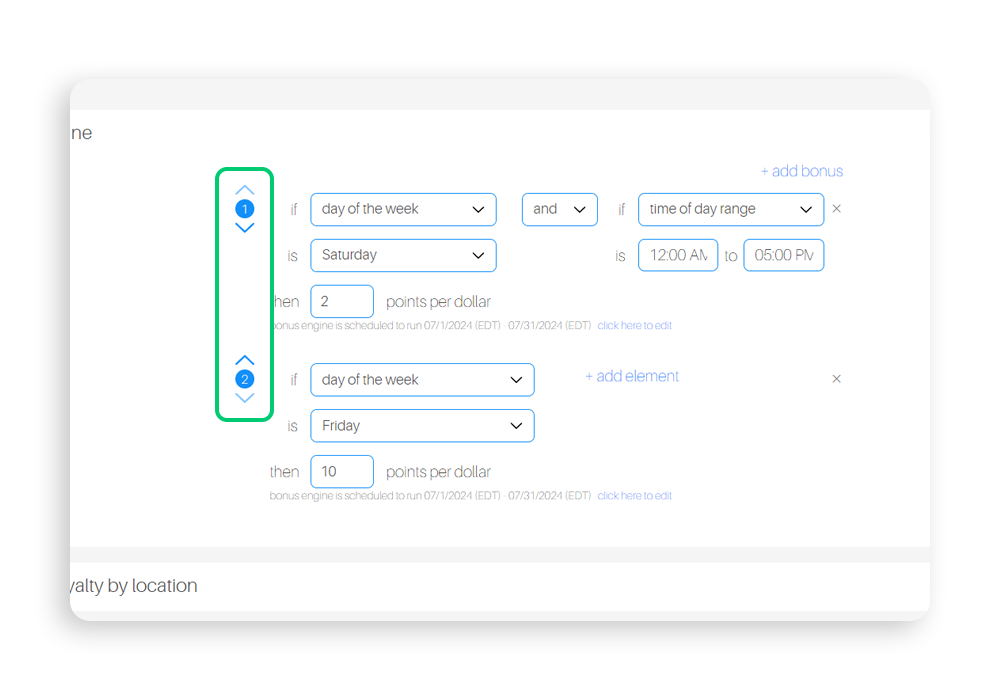
Step 10. You can easily create multiple bonuses through the bonus engine, you will have the option to prioritize each bonus using the arrows to the left of each bonus, so if a member qualifies for more than one during a visit, the first bonus they activate on the list will be the points they receive.
Step 11. When you are done creating a new bonus, remember to click the Update button to save.