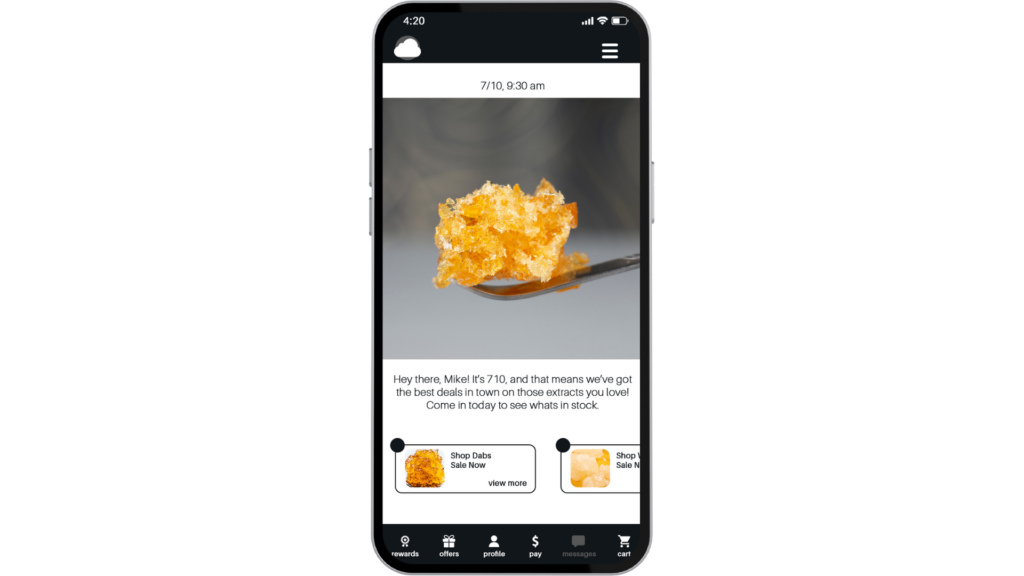
Springbig’s Wallet is an incredible tool for Dispensaries and Customers alike! Springbig’s V3 wallet has the same look and feel as the Springbig apps!
Springbig gives you a wallet for your customers to use to access their points and rewards, view and redeem exclusive offers that they receive from campaigns / autoconnects, update their profile preferences, and even shop directly on your menu!
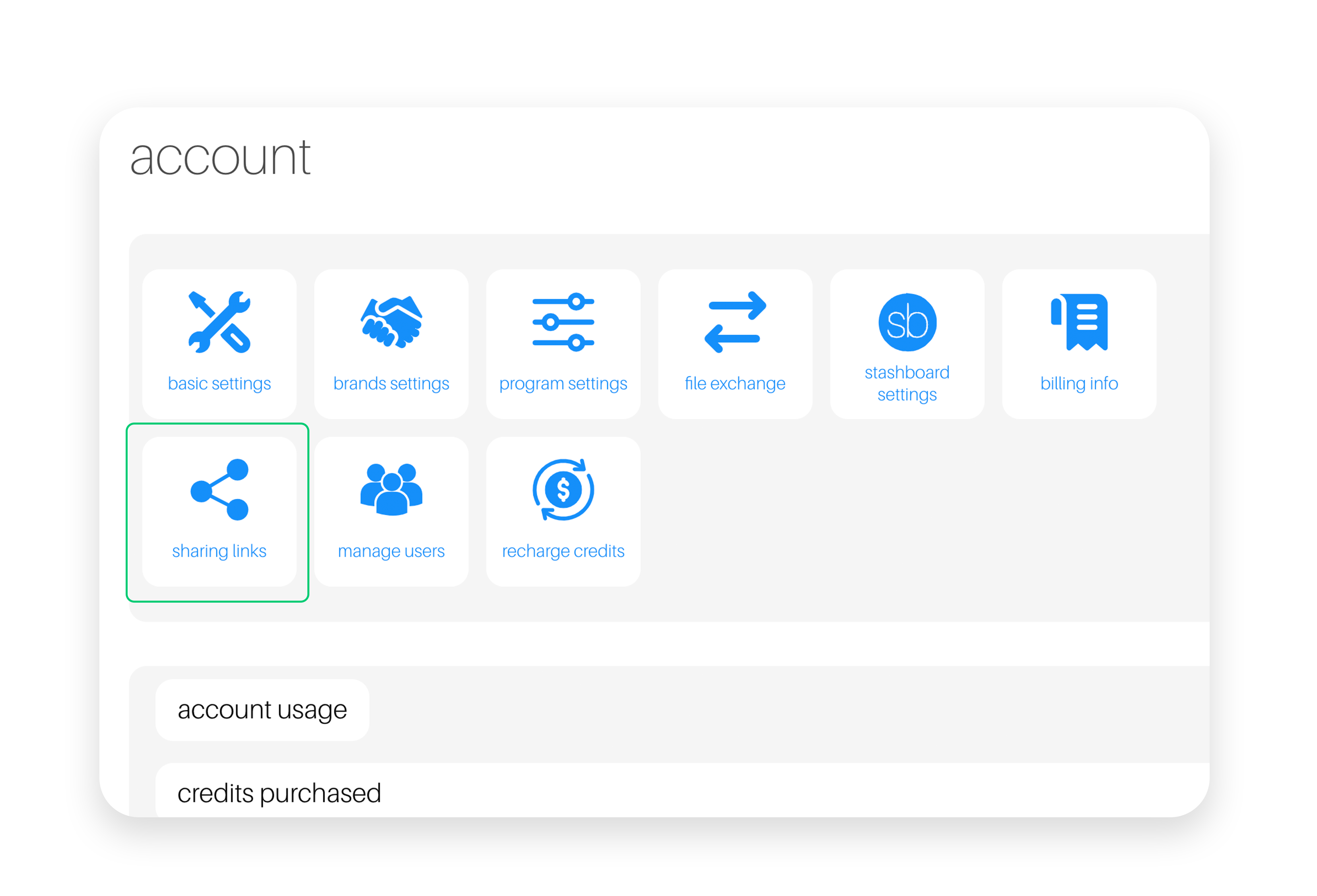
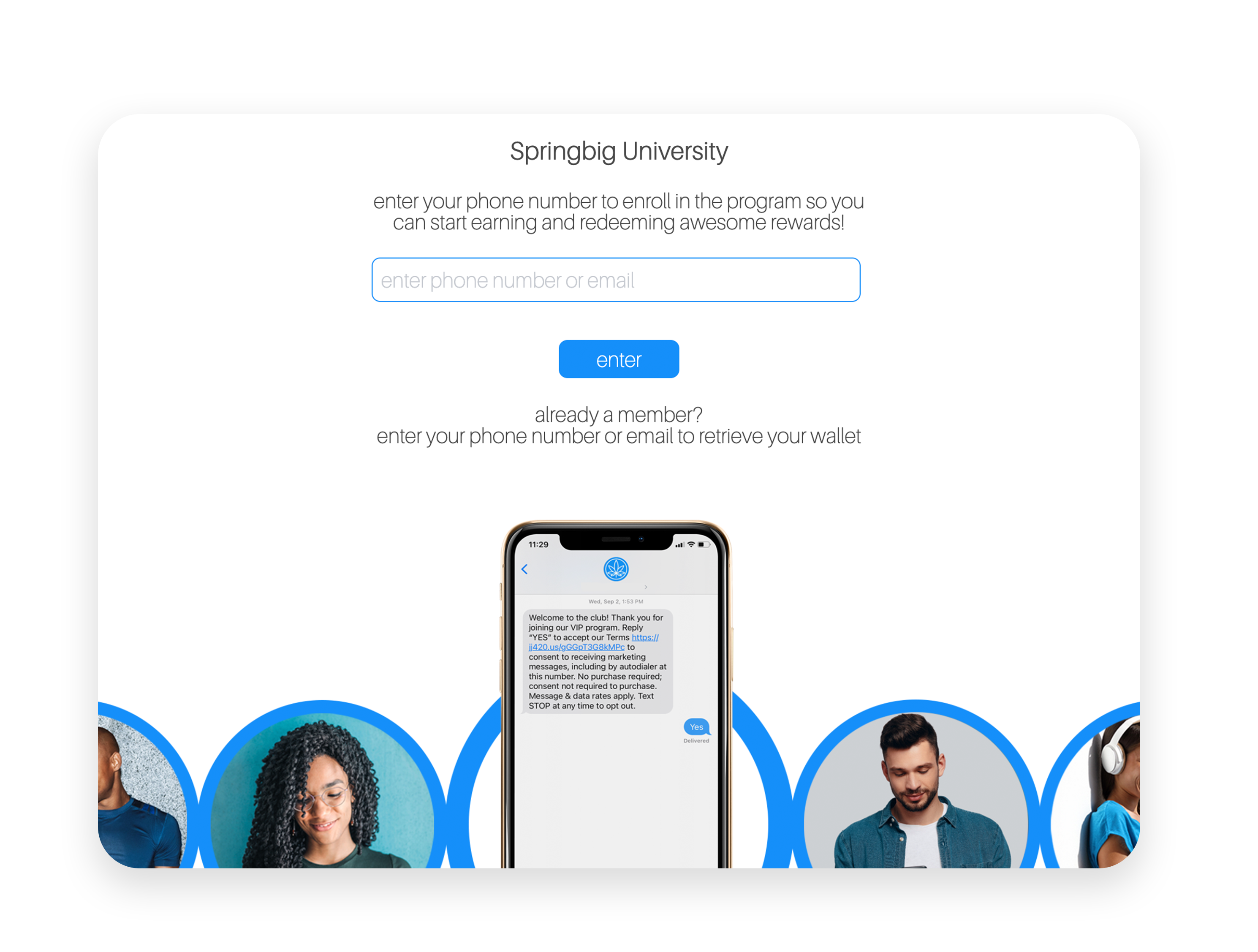
The customer wallet can be accessed via the same sharing links pages as your join form.
If you are not on the enhanced wallet, but would like to be, please reach out to your point of contact at Springbig and request for this to be enabled.
ACCESSING A CUSTOMER WALLET AS A RETAIL STAFF MEMBER:
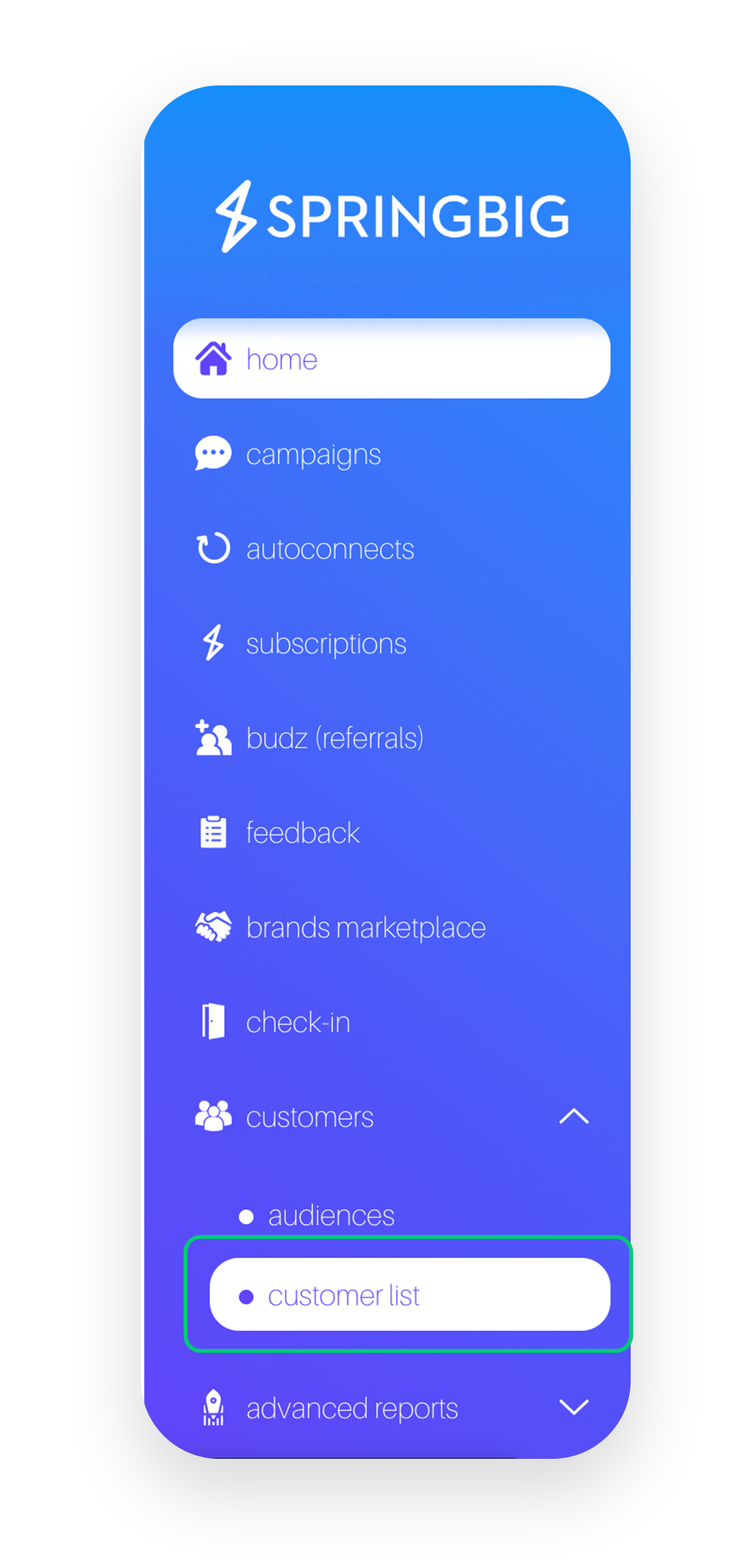
Step 1. Navigate to the Customer List page in Springbig’s UI
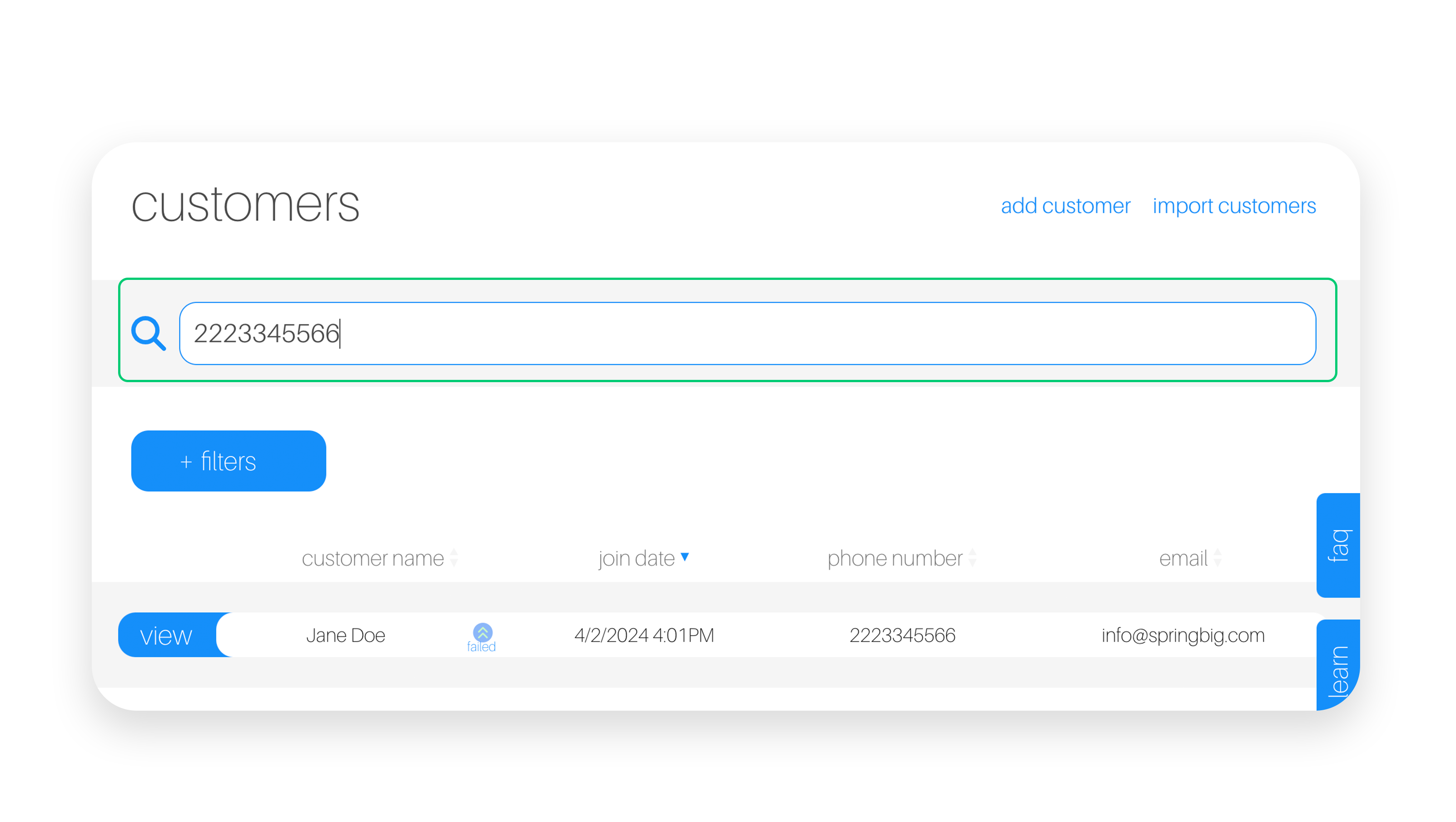
Step 2. Search for the customer in question by either phone number or email address
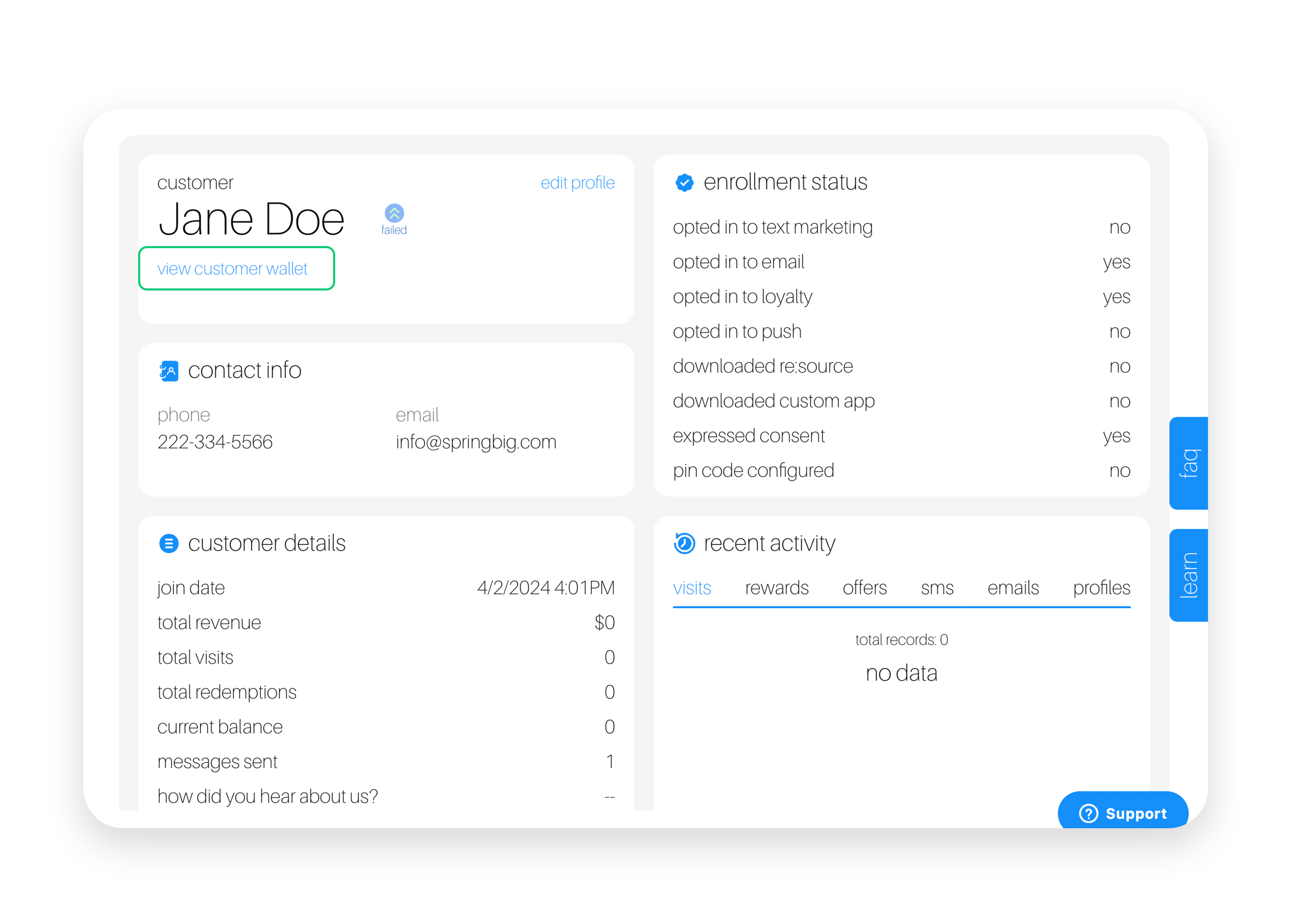
Step 3. Select view to view the customer’s profile details, then select view customer wallet to access the customer’s secure wallet
Pro Tip: Encourage the customer to save their wallet to their homepage, for easy access to this wallet moving forward!
ACCESSING A CUSTOMER WALLET AS A CUSTOMER:
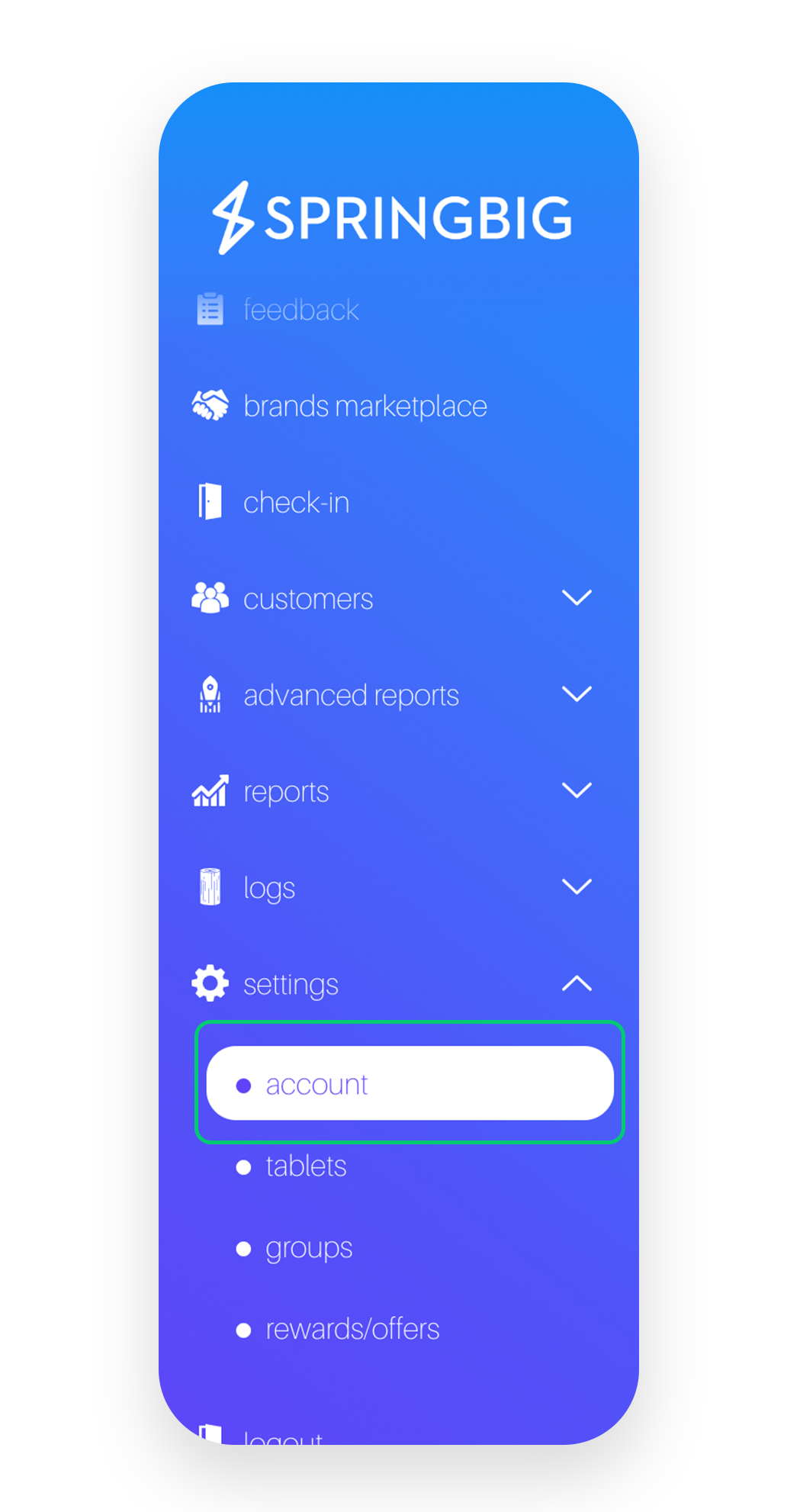
Step 1. Navigate to the Sharing Links page in Springbig’s UI (Settings –> Account –> Sharing Links)
Step 2. Select the Login Link and have the customer enter in their phone number and pin or have the customer scan the QR code for the Login Link to access the wallet on their device.
Pro Tip: Encourage the customer to save their wallet to their homepage, for easy access to this wallet moving forward!
THE REWARDS PAGE
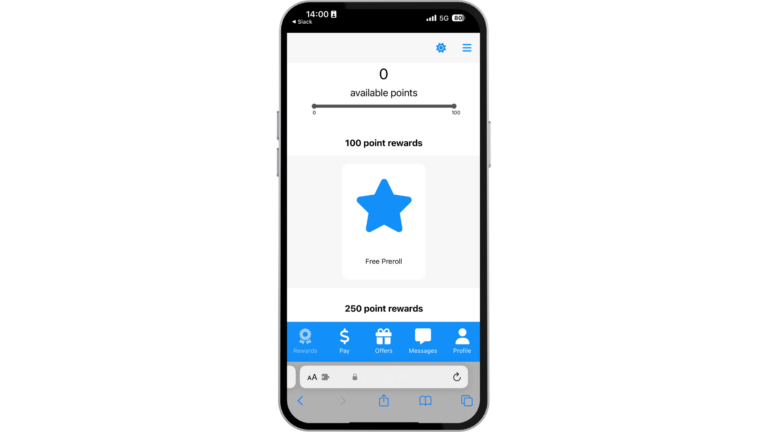
Springbig’s Reward Page offers a glimpse into your store’s loyalty program. Showing the customers what reward tiers you have available, and how many points customers need in order to redeem at your store.
At the top of the Rewards page, the customer’s point balance will be shown, allowing them to see how many points they have available the redeem. Below the available point amount, there are prompts to incentivize customers to provide additional information in their profiles: interests, email and birthday. These prompts will only appear if the Birthday Add, Interest Add or Email Add autoconnects are set up and enabled. To learn more about these Desired Action Autoconnects, click here.
On the top of the Rewards page, there is a spend status bar that is associated with any Spend Milestone Autoconnects set up in the store’s account. For more information around the Spend Milestone Autoconnect, please view the Autoconnects: Customer Milestone Reached course here.
Within the rewards page, you will see all of the reward tiers that have been built out in the store’s Springbig account. The rewards will be listed and accompanied by photos, which are called “display images” in the Springbig platform. If no image is added for the reward, a standard Springbig Star will appear in its place.
In Wallet Reward Redemptions
Customers are able to redeem rewards directly through the wallet, depending on the POS that is integrated with the store. For certain POS’, disabling the redemption in the wallet is the best work flow.
When a customer selects the “redeem” button, they will first receive a pop up, letting the customer know that the reward should be redeemed in store and in front of staff. From there, if the customer selects “proceed to offer”, the reward will be redeemed. The customer’s points will be removed from their profile, and they will be shown a confirmation page, with a ticking time stamp to confirm that no customers can fraudulently redeem. Each redemption is accompanied by a reward redemption confirmation code, in case more investigation is needed for the merchant.
Below is the list of POS’ that allow for in-wallet redemptions.
In wallet redemption POS’:
Greenbits
Treez
Growflow
THSuite
MJ Freeway
Cannapoint
Profitek
IndicaOnline
Dispense First
IN WALLET REWARD REDEMPTIONS
THE OFFERS PAGE
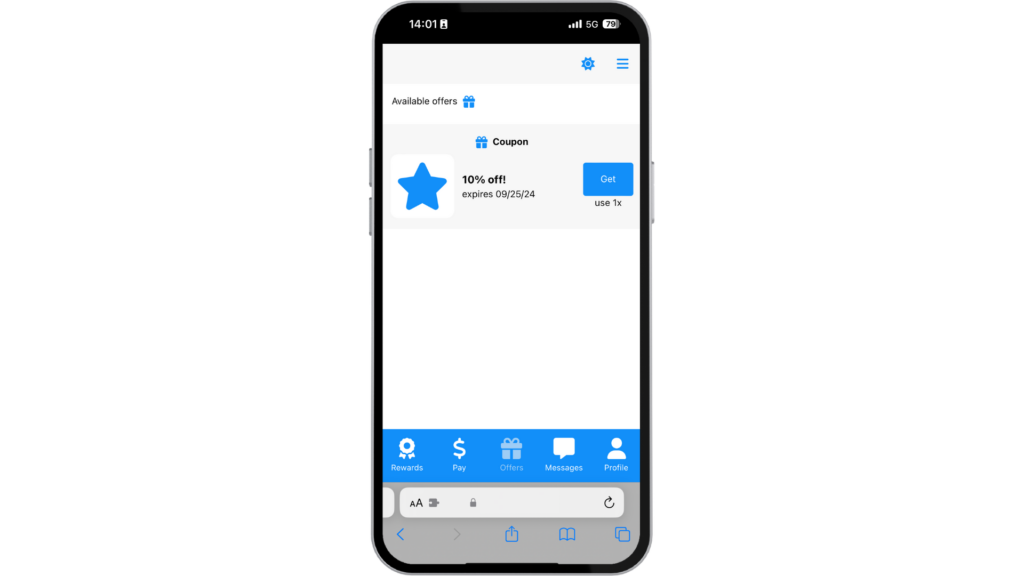
Springbig’s Offer Page shows the customer any individualized offers they have available in their account.
Customers are able to redeem offers directly through the wallet for added convenience. The customers will be able to view how many times the offer is available to them, along with when the offer will expire.
The offers will be listed and accompanied by photos, which are called “display images” in the Springbig platform. If no image is added for the reward, a generic Springbig Star will appear in its place.
When a customer selects the “redeem” button, they will first receive a pop up, letting the customer know that the offer should be redeemed in store and in front of staff. From there, if the customer selects “proceed to offer”, the offer will be redeemed. The offer will be removed from the customer’s offer page, and they will be shown a confirmation page, with a ticking time stamp to confirm that no customers can fraudulently redeem. Each redemption is accompanied by a offer redemption confirmation code, in case more investigation is needed for the merchant.
IN WALLET OFFER REDEMPTIONS
THE MESSAGE CENTER
Springbig’s Message Center is an all inclusive page where the most recent marketing messages from the store are highlighted.
Customers will be able to view the stashboard messages sent to them through the standard wallet.
All previous messages sent and extensions will be available in the message center, for customers to come back to!
THE PROFILE PAGE
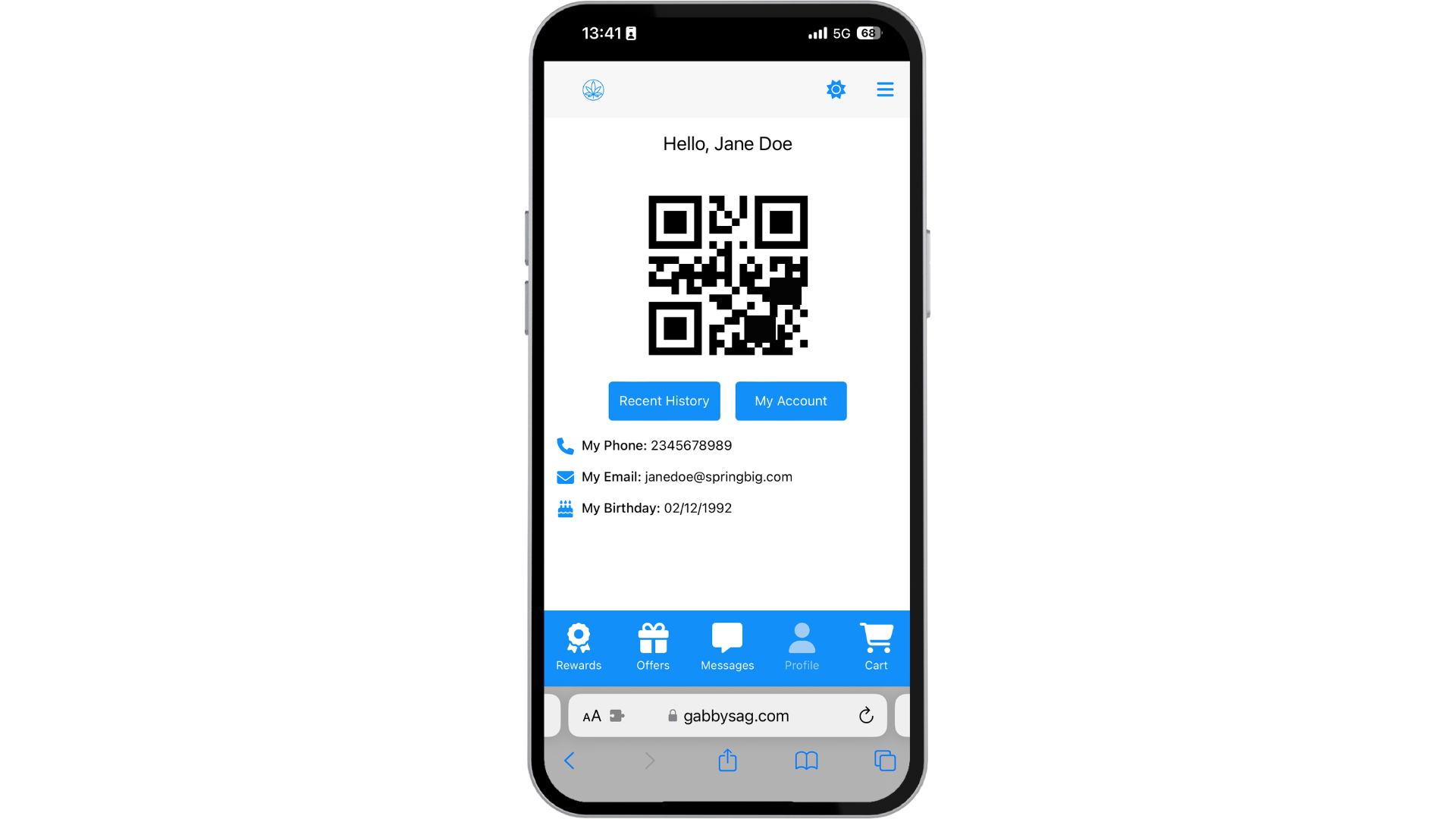
The Profile Page in the standard wallet is where your customers can go to view their own information.
Within the profile page, customers can view the contact info they’ve provided, including phone number, email address, birthday and interests.
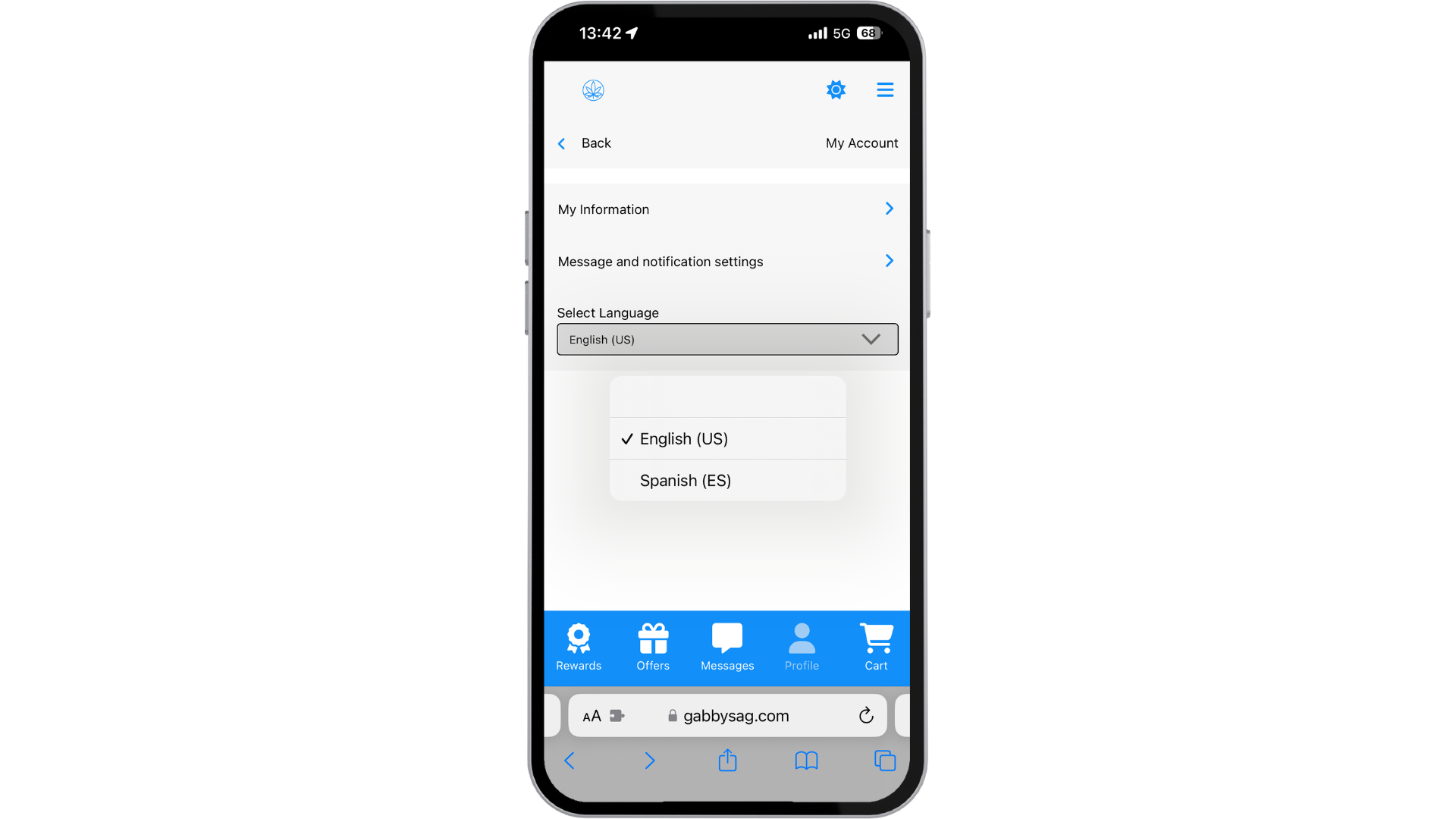
By clicking on My Account, the customer is brought to a menu where they can view their information, message and notification settings and language preferences.
Within My Information, the customer will see their full profile, where they can fill out or edit their existing information.
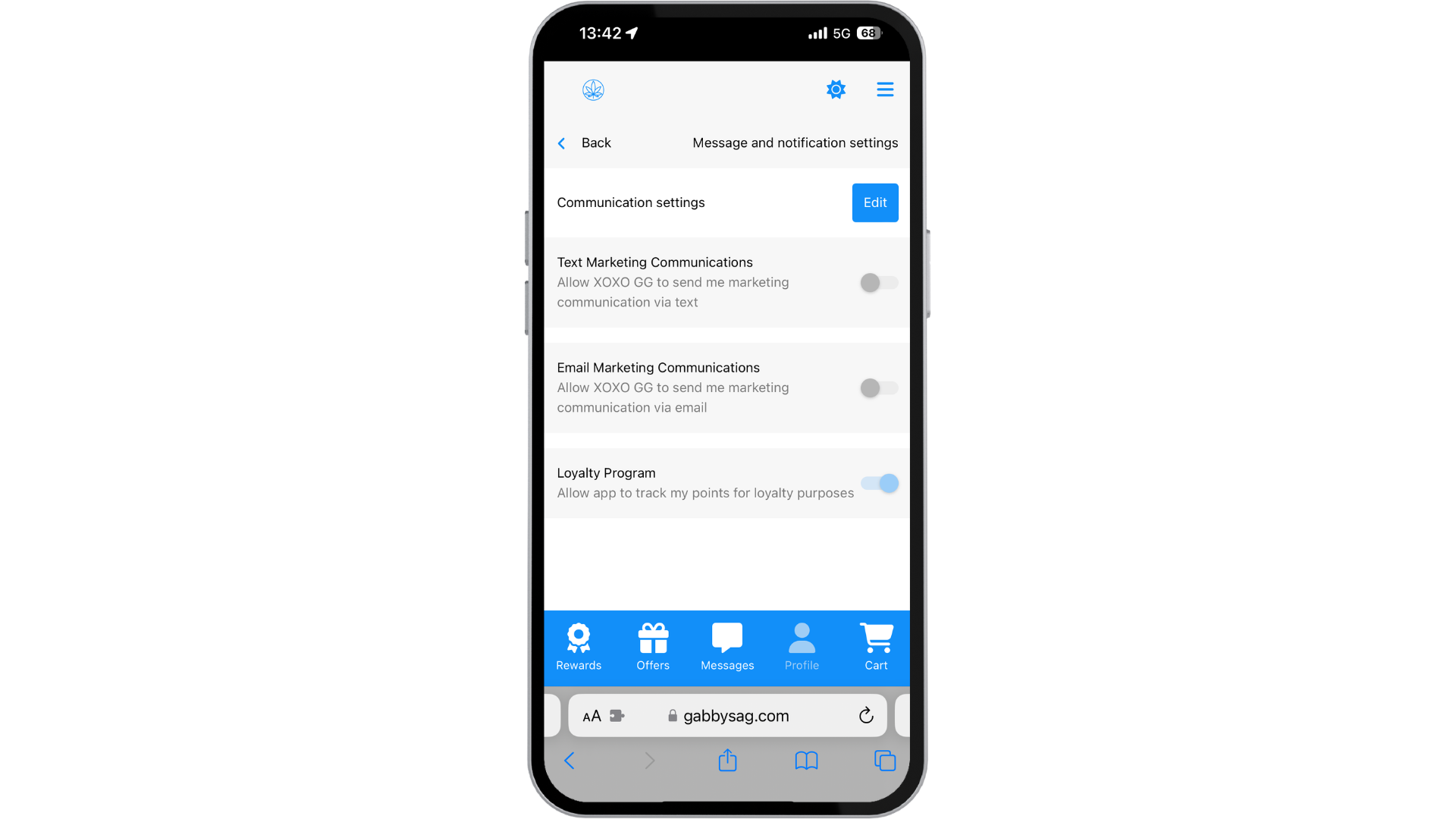
Within Message and Notification Settings, customers can select their communication preferences. They are able to opt in or out of Text Marketing, Email Marketing and the loyalty program. These settings are editable at any time for the customers.
Within the language preferences, customers have the option to view the wallet in English or Spanish, and this can also be changed at any time.
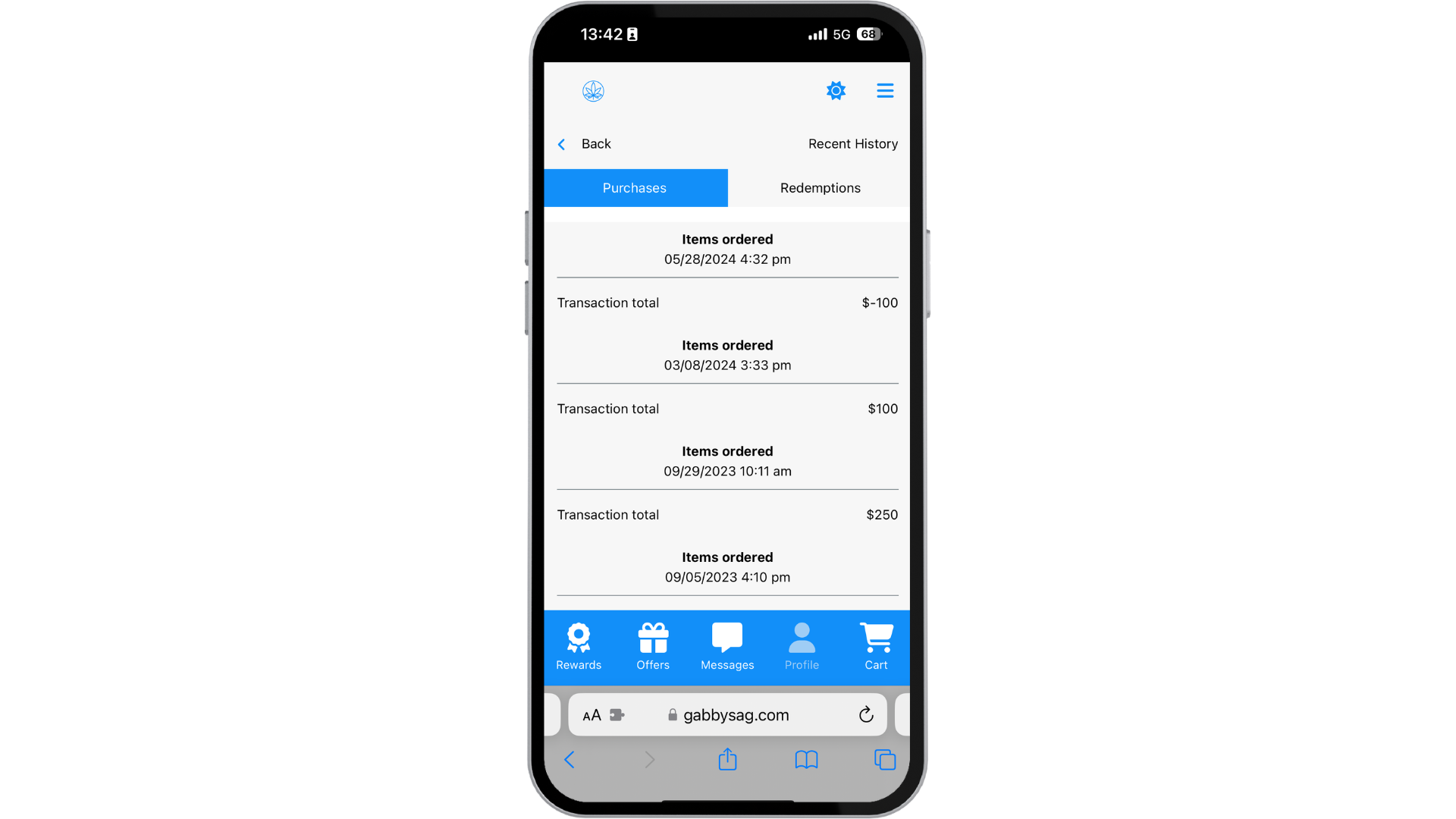
Next to the My Account section, there is a Recent History purchase and redemption section as well. The recent purchase section of the standard wallet will highlight the customer’s recent transactions, including the date and time the transaction occurred on and the transaction total. The recent redemption section of the standard wallet will highlight the customer’s redemption history, with the reward/offer name and value and the time and date of when the redemption was processed.
THE CART PAGE
The Cart Page in the standard wallet is where your customers can go to view your online store, or website. In the enhanced wallet, the cart page brings you out of the existing iFrame, and into a new page within the device’s browser.
To Set Up the Cart Page:
Step 1. Navigate to the Springbig UI.
Step 2. Select the account page under the settings drop down.
Step 3. Select basic settings.
Step 4. In the profile box that appears in the basic settings page, select the edit button.
Step 5. Enter the website that you would like to appear in the online menu field.
Step 6. Be sure to press the save changes button to lock in the online menu link.
ADDITIONAL WALLET PAGES
THE SUBSCRIPTIONS PAGE
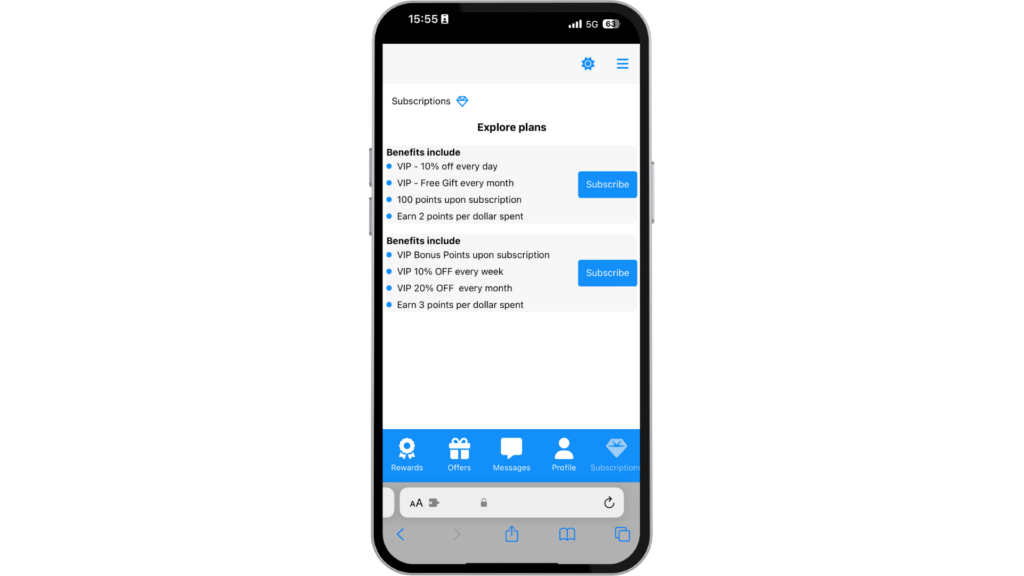
The Subscriptions Page within the wallet allows for your customers to view the subscription programs you have set up and enabled in the account.
The Subscriptions Page gives your customers an overview of the subscriptions available, and also allows for customers to make edits to their subscription selection, if applicable.
For more information around building out a subscriptions program within the Springbig system, check out the Subscriptions course here.
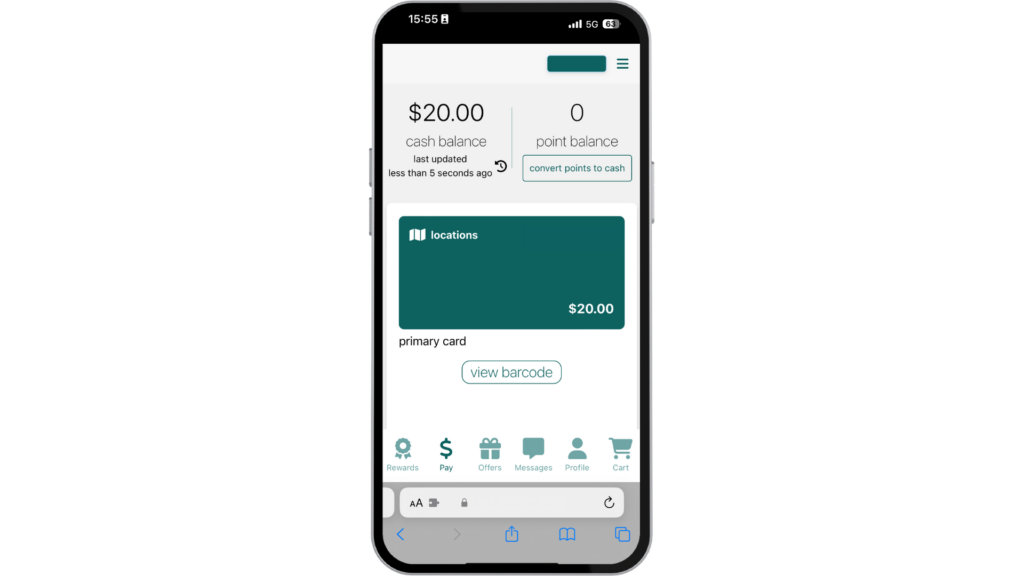
The Payments Page within the wallet allows for your customers to view their digital gift card funds directly within their wallets.
The Payments Page gives your customers the ability to add funds to their digital wallet, set up an auto-reload on funds, send gift cards to friends or family, and even convert their loyalty points into cash (if applicable).
For more information around building out Payments by Springbig, check out the Payments by Springbig course here.