Welcome to the Springbig + Marijuana Software Integration Guide!
In this course you will learn about:
Installing the Marijuana Software integration
Configuring loyalty in Marijuana Software
Creating new customers in the Marijuana Software system
Completing visits in Marijuana Software
Let’s get started!
Springbig + Marijuana Software Integration Guide
User interface is subject to change at the discretion of your POS provider. For the most accurate and up-to-date information, please consult your POS provider directly.
Part 1: Installation
Please reach out to your onboarding specialist / Client Success Manager regarding issuing auth token(s)
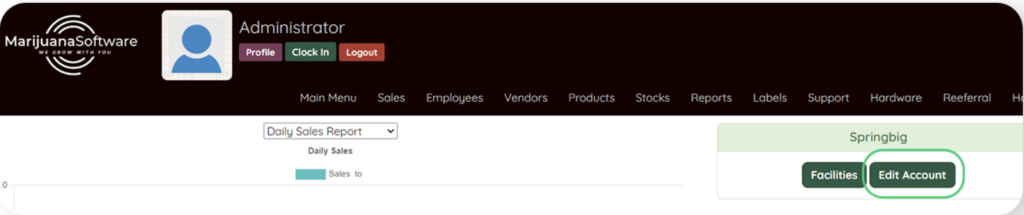
Step 1: Navigate to the Main Menu tab and click Edit Account
Step 2:
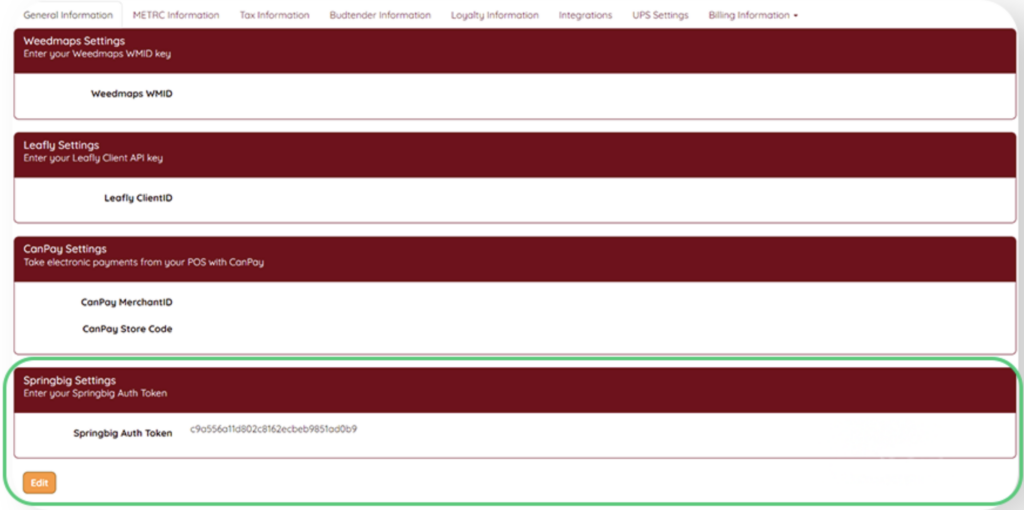
Direct to the Integrations tab
Click Edit
Direct to the Springbig Settings
Input the Springbig Auth Token
Click Update Store Account to save
Note: Ensure there are no edits such as spaces before or after the auth token. If there are multiple Springbig accounts being used, do not use the same auth token from the other account.
Part 2: Loyalty
Note: Rewards are only created in the Springbig platform
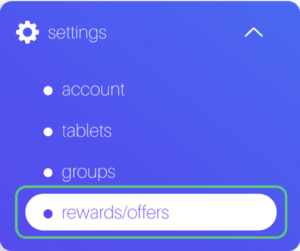
Step 1: Navigate to the Springbig main menu, and click on settings and then rewards/offers
Step 2: Fill in the required fields on the offer setup:
Reward name
POS reward value
POS reward type (%) Note: Only percent off is respected, not dollar off. This must be filled out, if left blank the reward will not show.
POS discount amount
Note: Do not fill in the discount id/ pos string field
Step 3: Click the Active checkbox
Step 4: Click Update
Part 3: Customers
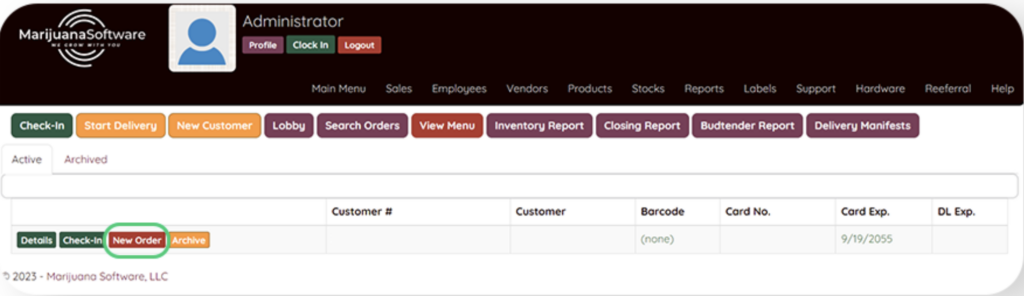
Step 1: Navigate to the Sales tab
Step 2: Click New Customer
Step 3: Under the Customer Profile page fill out the following:
Fill in the members full name, phone number, email address
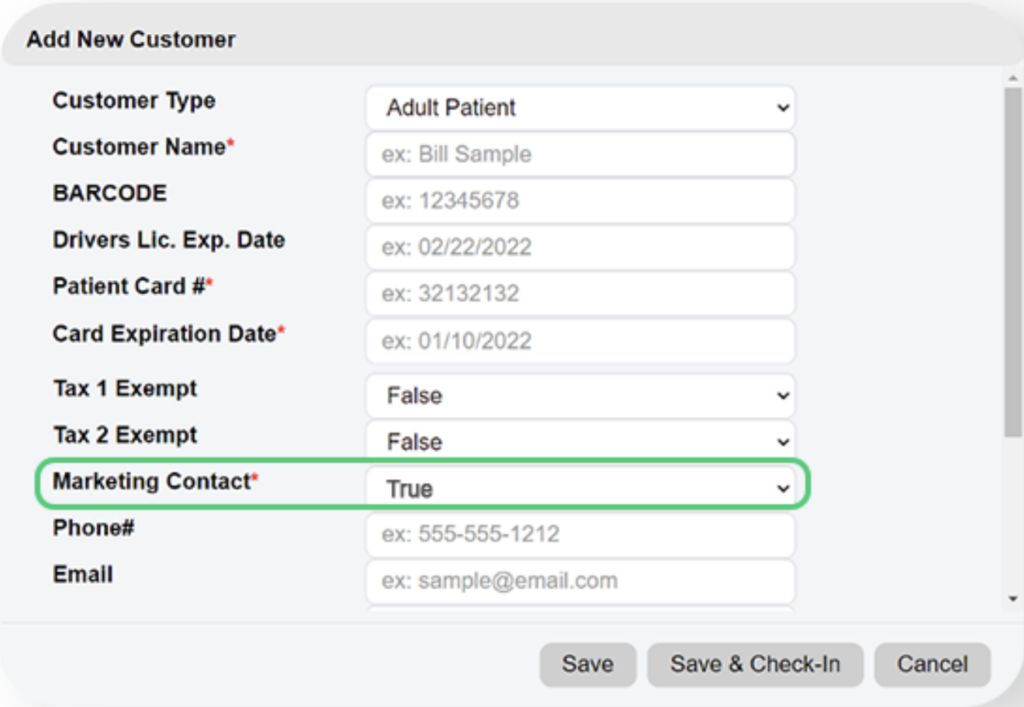
Set Marketing Contact to true Note: If Marketing Contact is set to false, then the customer will not be enrolled into Springbig loyalty. Additionally, their profile and visit history will not be sent over to Springbig.
Fill in remaining required fields Note: Springbig uses phone number or email address as the profiles main identifier, if you omit adding one or the other, there could be a potential merge issue or duplicated profiles with different point balances.
Click Save
Step 4: Customer attributes that are sent to Springbig are:
First name
Last name
Phone number
Email address
Address1
Address2
City
Region
Zip
Birthday
Med/Rec status
Note: Customer profile updates are sent after a processed transaction
Part 4: Visits
Step 1: Navigate to the Sales tab
Step 2: Search for the customer
Step 3: Click New Order on intended customer
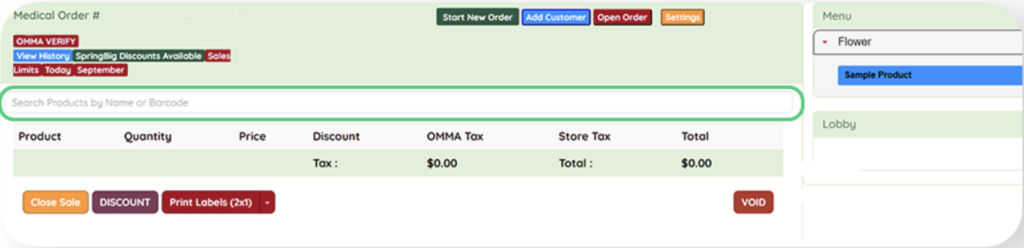
Step 4: Add item(s)
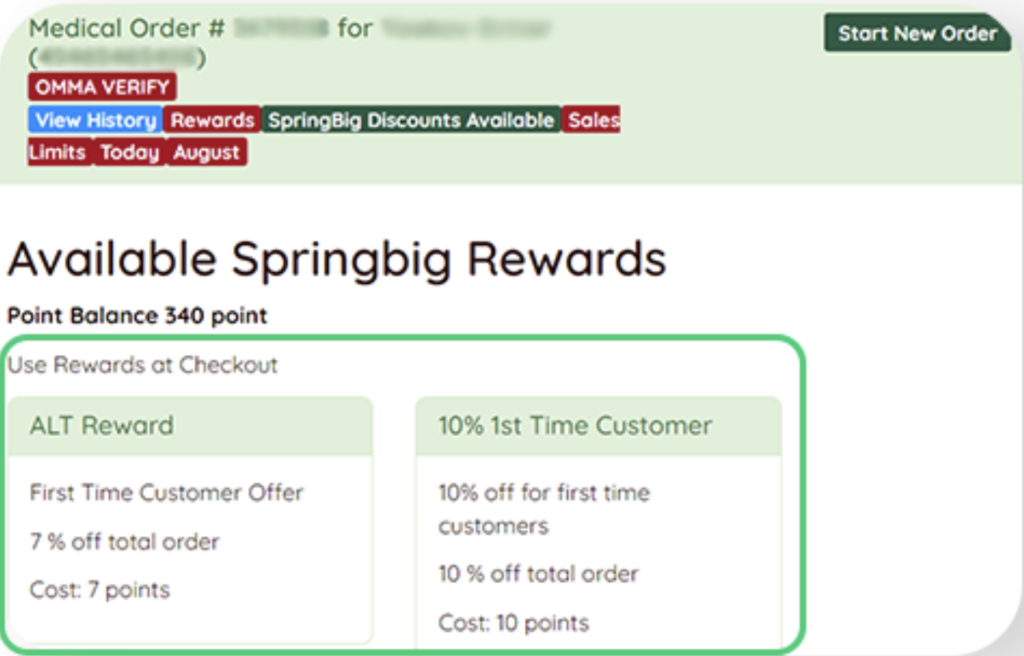
Step 5: Click Springbig Discount Available to view rewards/offers before the checkout
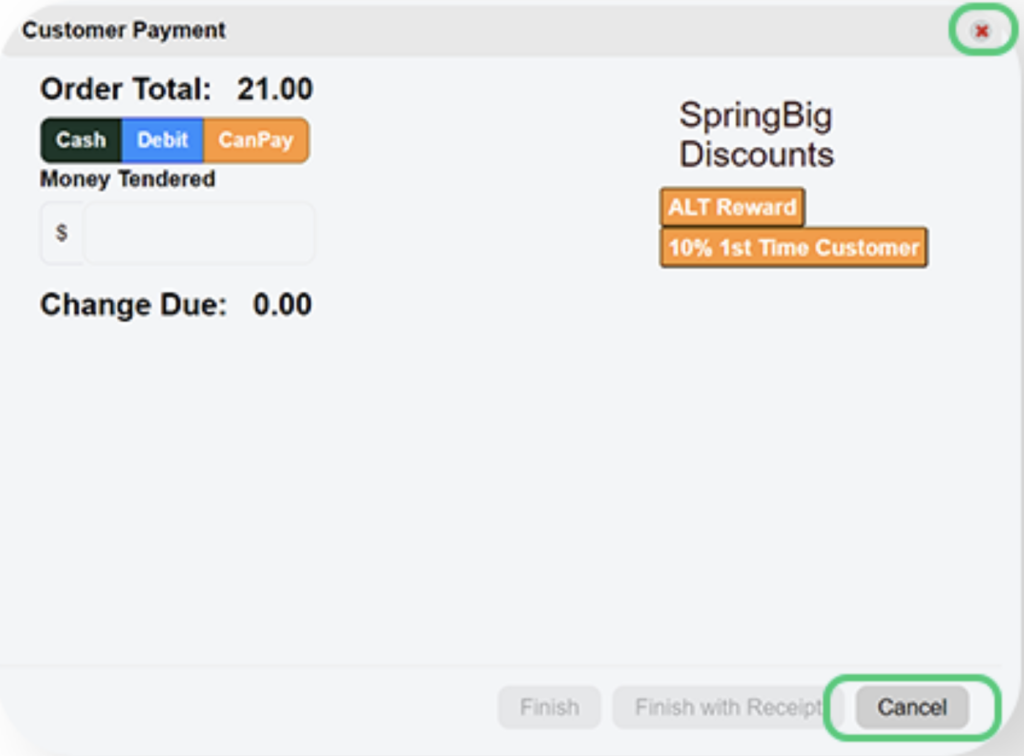
Step 6: Click Close Sale to checkout:
Select payment method
Enter amount
Click reward
Discount is applied to the final total
Not stackable i.e., one redemption per transaction
Discounts are cart level, not by line item
Cannot cancel a redemption
Once completed, click Finish
If the customer wants to cancel a redemption before processing a transaction, either click Cancel or click the X button on the checkout popup.