
Springbig + Dispense First Ecomm
Dispense First Ecomm Integration Guide
Welcome to the Springbig + Dispense First Ecomm Integration Guide!
In this course you will learn about:
- The Dispense First Ecomm onboarding and configuration steps
- Customer Creation process in Dispense First Ecomm
Let’s get started!
User interface is subject to change at the discretion of your POS provider. For the most accurate and up-to-date information, please consult your POS provider directly.
Part 1: Installation
Dispense First Ecomm Integration Guide
Please reach out to your onboarding specialist/customer success manager regarding issuing an auth token.
Springbig will provide the auth token to Dispense First who will set up the integration internally.
Part 2: Customer Creation
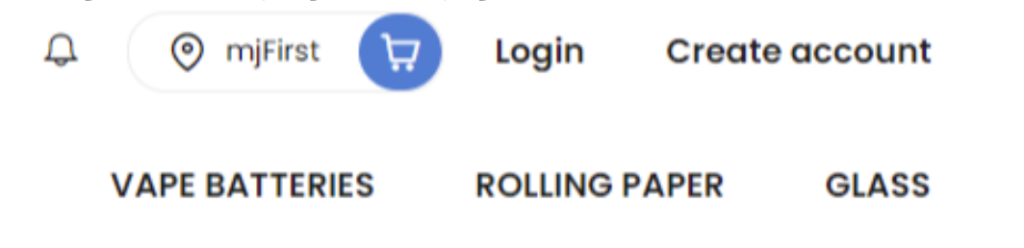
Navigate to the top-right of the page and click Create Account.
2. Fill in the required fields:
First name
Last name
State
Country
Email
Password
Checking the first consent box
NOTE:
1. Checking this required box will send the profile to Springbig upon clicking Sign up.
2. Checking the second consent box (not a requirement) will send an explicit email enrollment opting into Springbig email marketing. This dos not opt them into SMS.
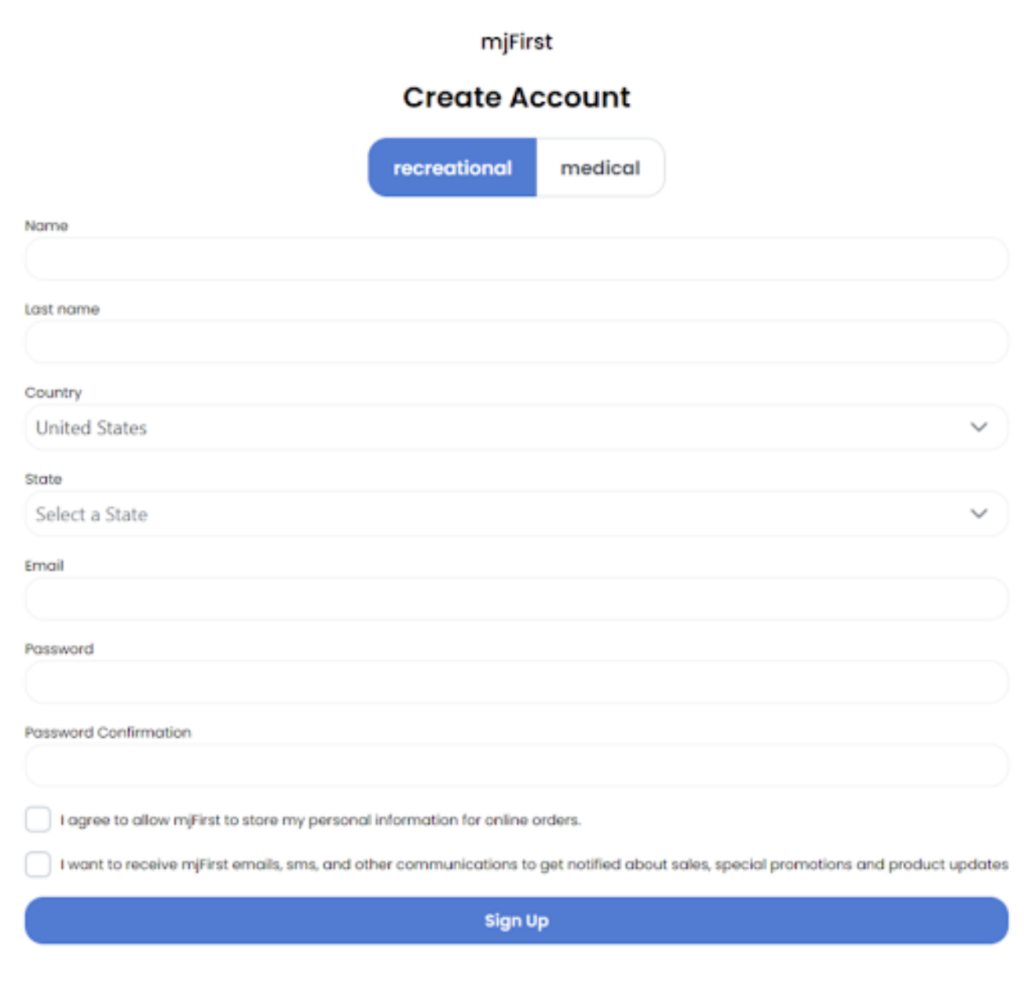
3. Click Sign up.
4. Springbig receives these fields immediately upon creation:
First name
Last name
Email
Email enrollment
Purpose (med/rec)
POS User ID
NOTE: Redemptions are not support via the ecommerce experience, only the POS.