
Navigate to the left-hand menu
Click Store
Click Integrations
Enable the Springbig toggle
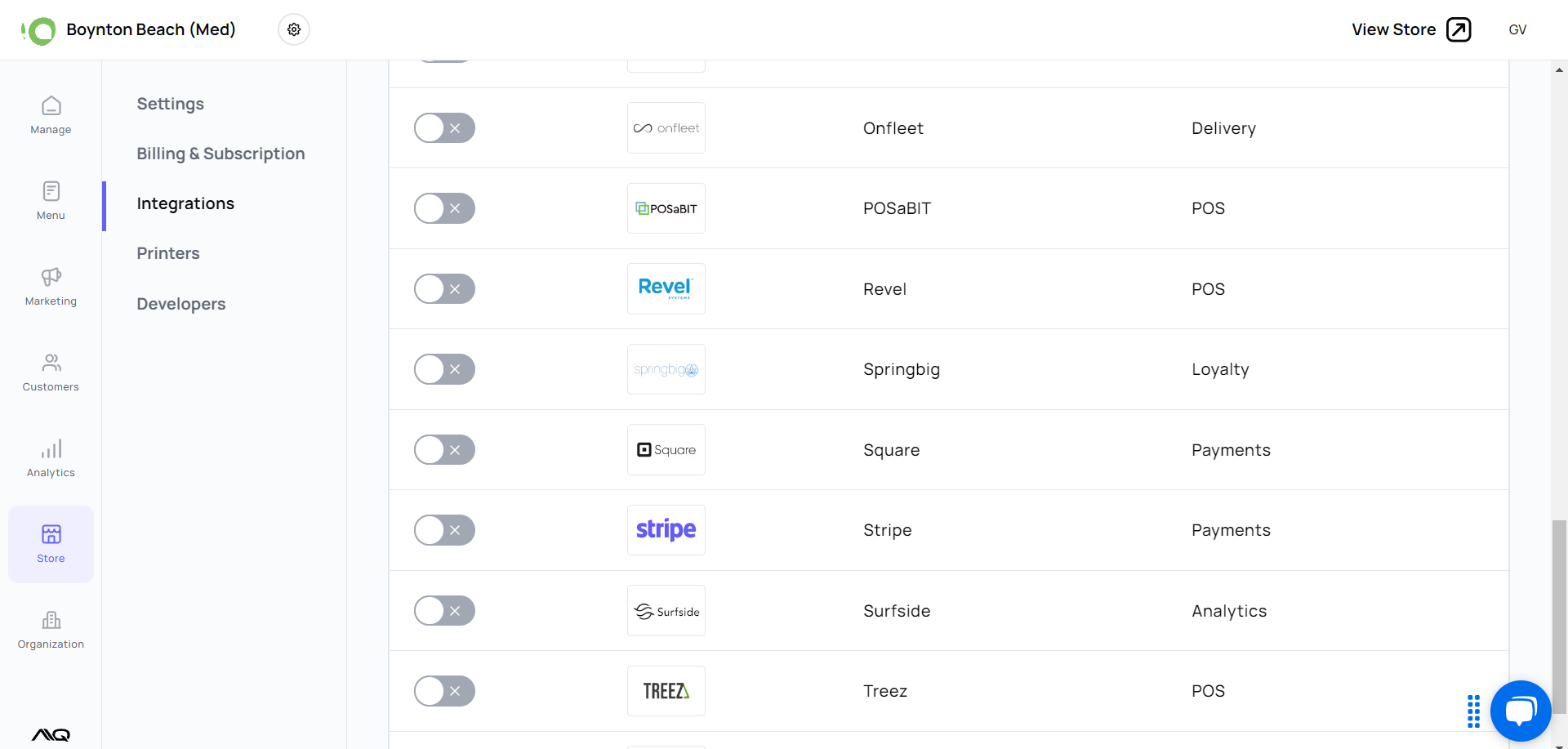
Enable the toggle
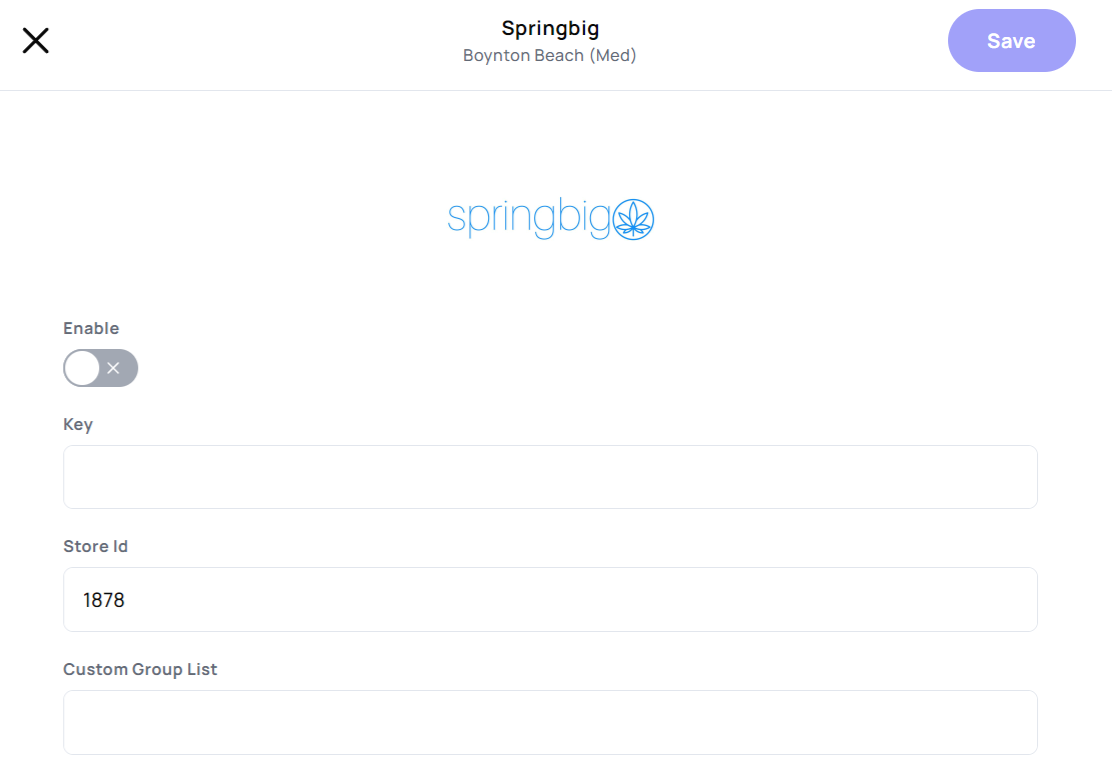
Enter the Springbig auth token
Ask a Springbig account manager for the auth token.
Please ensure there are no edits such as spaces before or after the auth token.
Click Save
Navigate to the left-hand menu
Click Customers
Click the + button on the top right
Enter phone number, email, name and other desired information
NOTE: Phone number or email are required since Springbig uses either or as a customer main identifier.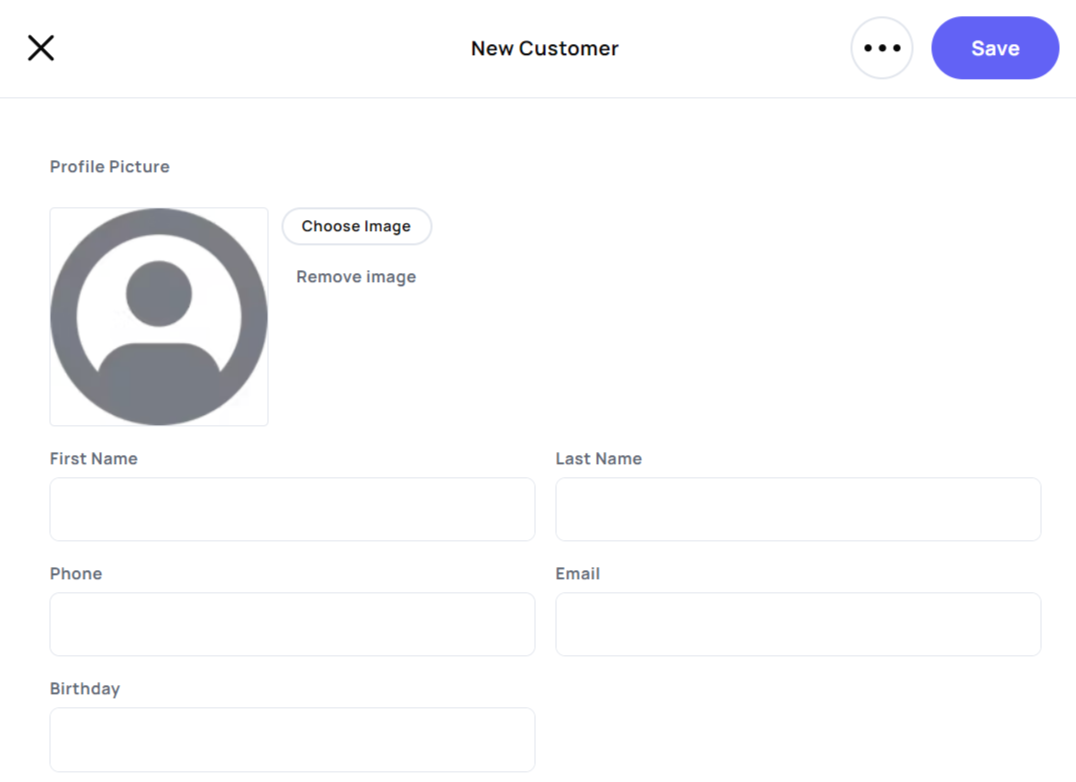
Click Save
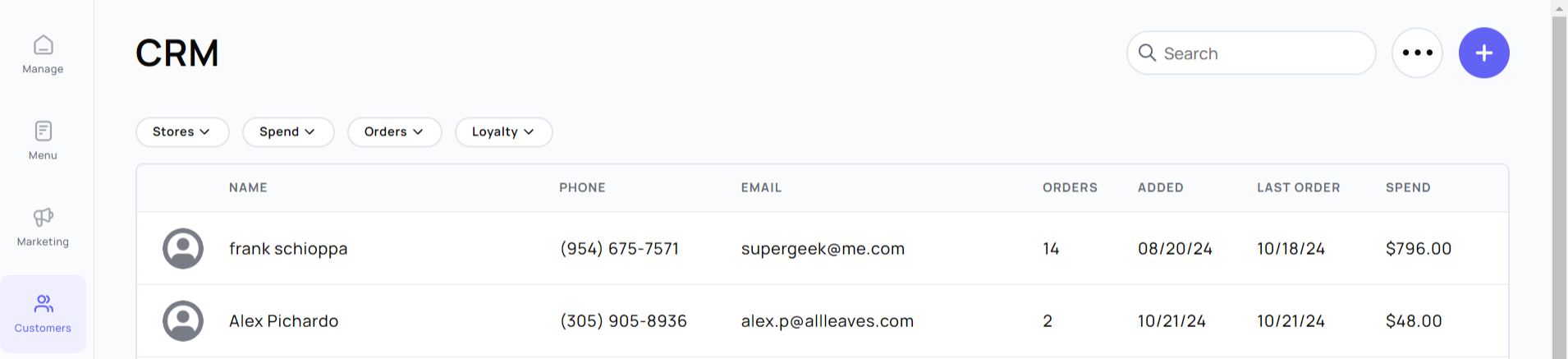
Identify whether customers opted into Springbig loyalty by clicking on a profile and viewing if a customer has a signature included in the loyalty section.
NOTE: Opting into loyalty entails consenting sending a customer profile to Springbig to receive points. This is not explicit marketing consent.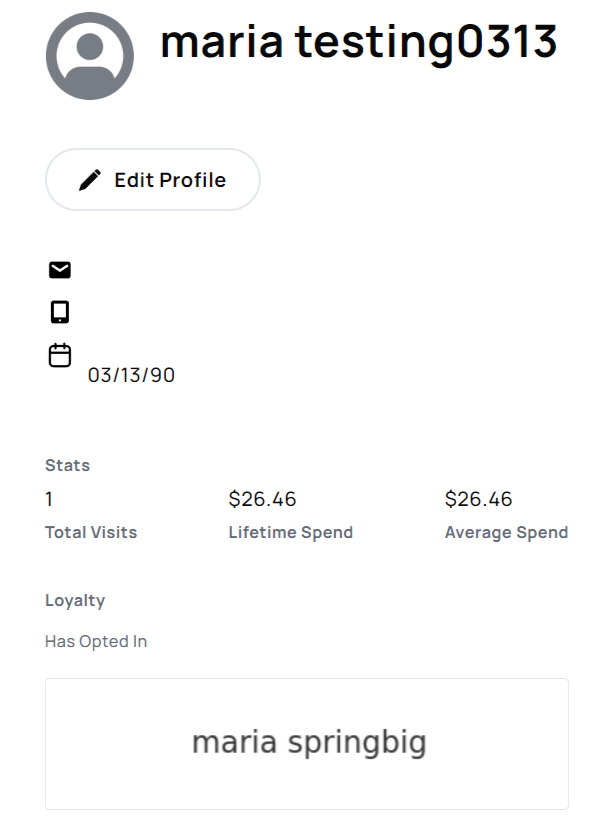
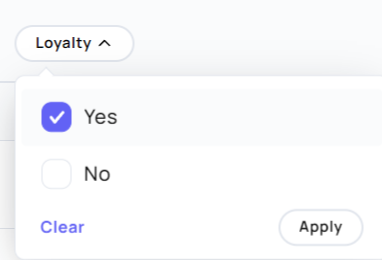
Another method to view loyalty customers is by navigating to the Customers tab and filter by loyalty.
Select customer, navigate to the top right and click View Store.
Add items
Click View Cart in the bottom right
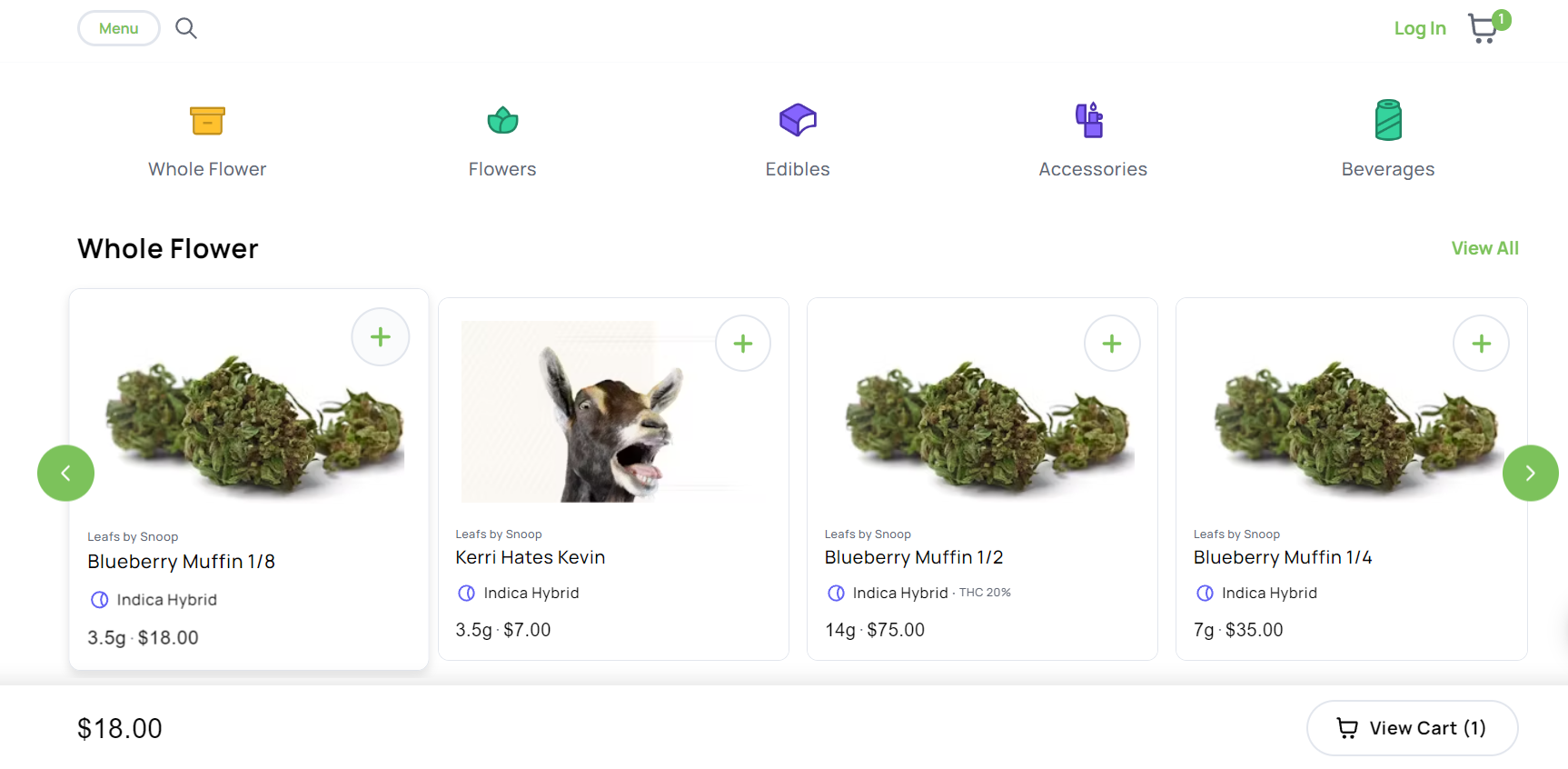
Click Check Out on the bottom right
Either continue as a guest, log in, or create a new account
Enter the desired information if wanting to save customer information to the order
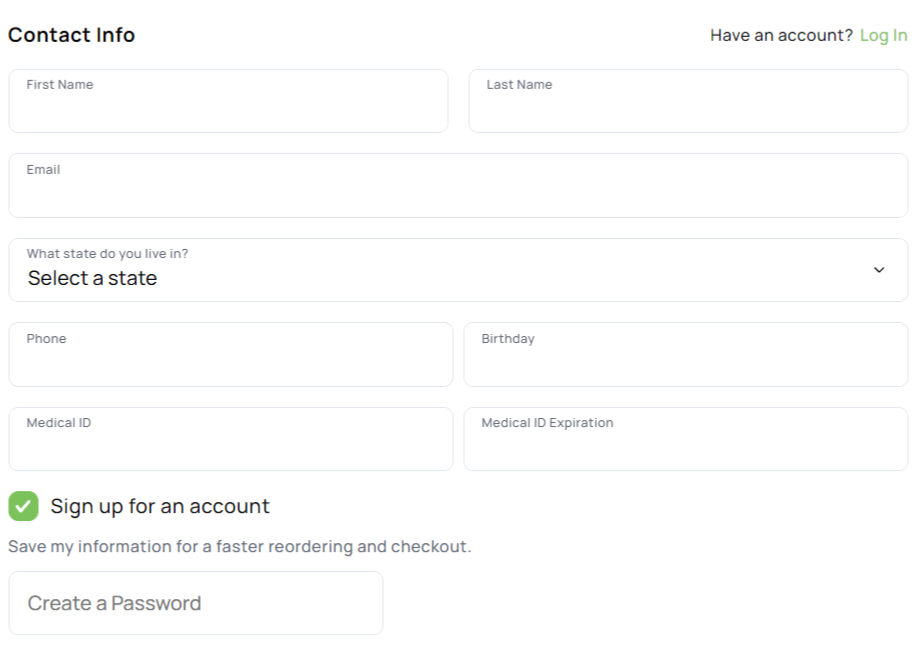
Click Sign Up For An Account to create a login
Email is required
Enter password
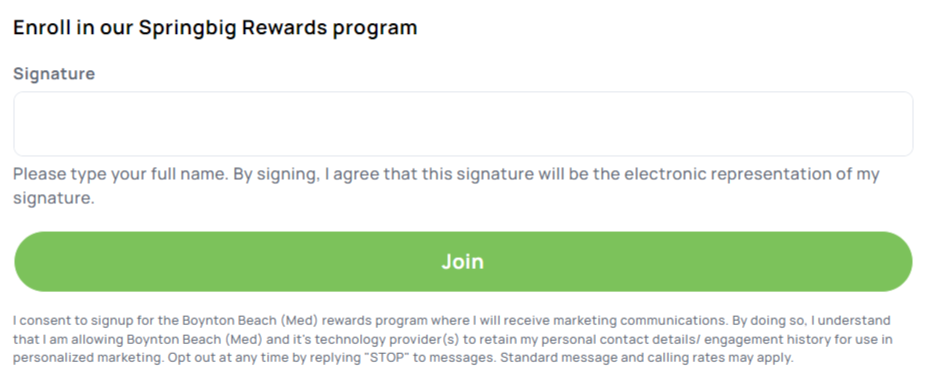
On the bottom of the page, click Join to enroll in Springbig loyalty

Enter name and click Join
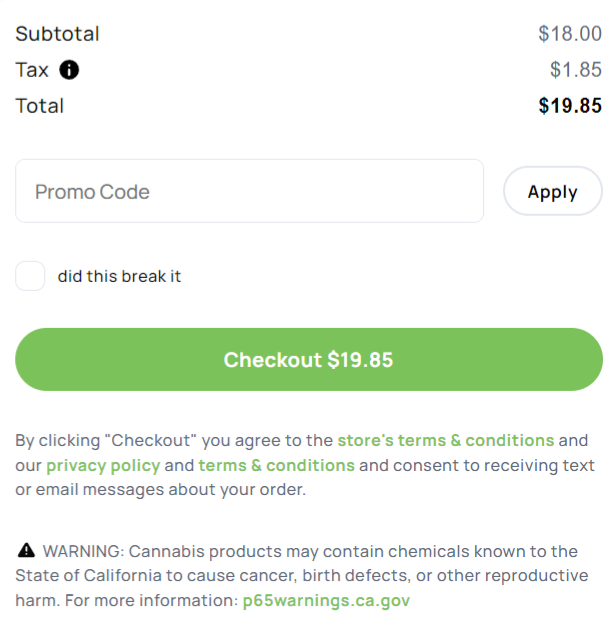
Once ready, click Checkout
After the order is placed, Springbig then receives the customer profile, which includes this data:
First name
Last name
Phone number
Email
Birthday
Med/Rec
Region
POS ID AKA Customer ID
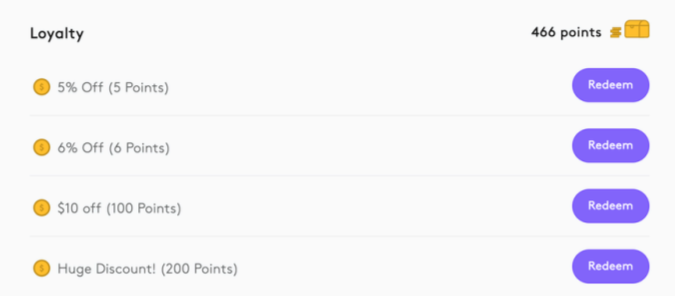
Only customers who enrolled into loyalty and signed in will see their points balance, rewards and offers at the checkout page.
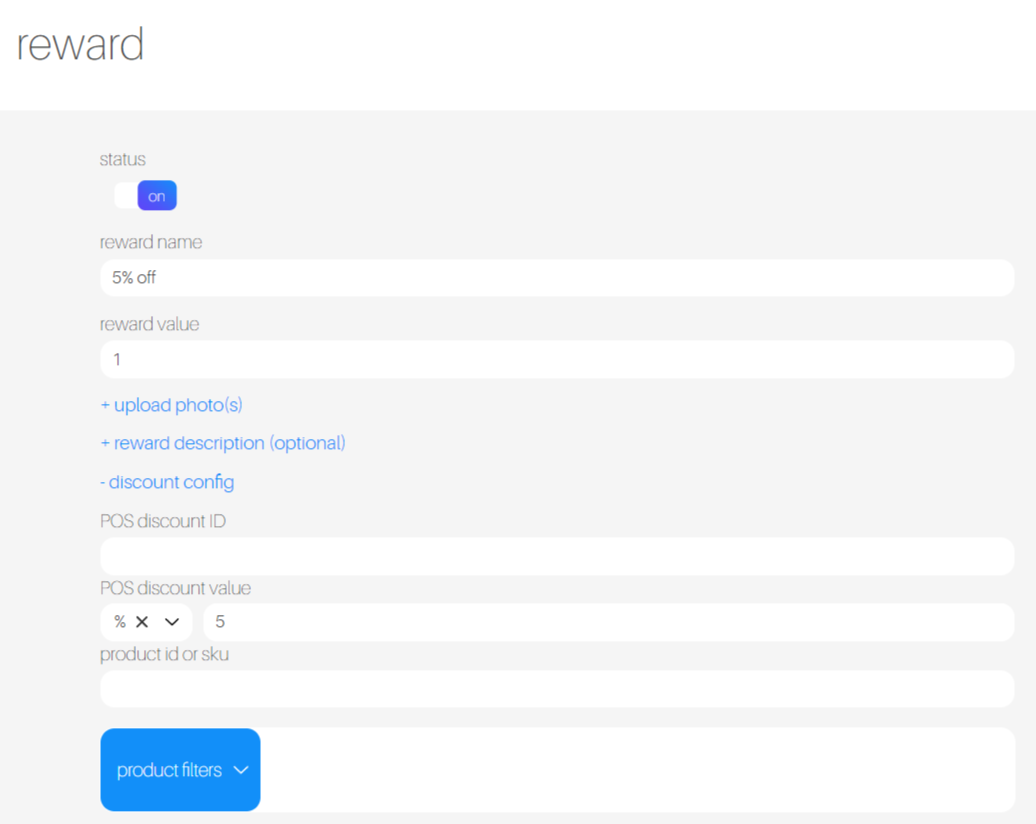
Be sure to have your Springbig loyalty points configured correctly. The reward should have both discount type and discount value filled in so the discount can be applied to your cart.
Only one reward can be applied to the cart. (Although we will see later that one reward and one offer can be applied)
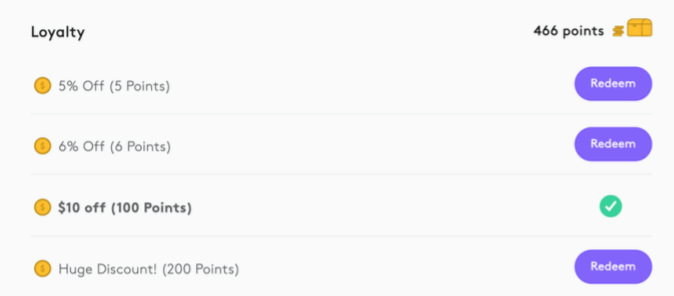
The reward will be applied as a line item to the cart.
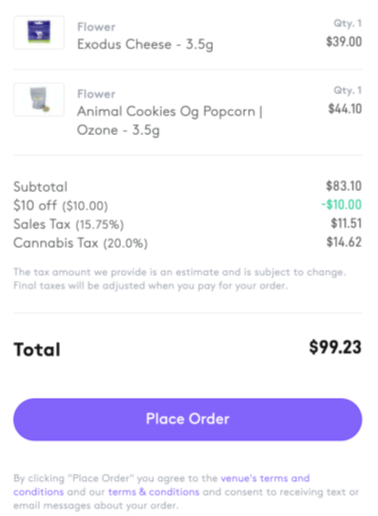
NOTE: Dispense does not process rewards (deduct points) but rather sends a note to the POS indicating what reward to redeem and process.
Same as rewards that they have to be configured correctly with discount type and discount value in order to properly be applied at the cart.
There is a limit of one offer and one reward that can be applied to your cart. Offers are not point costly therefore do not display a point cost next to it. (The first reward is an offer)
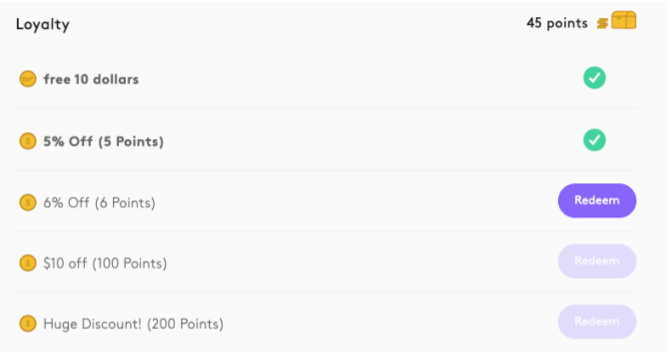
The is an example of the cart with both a reward and an offer applied.
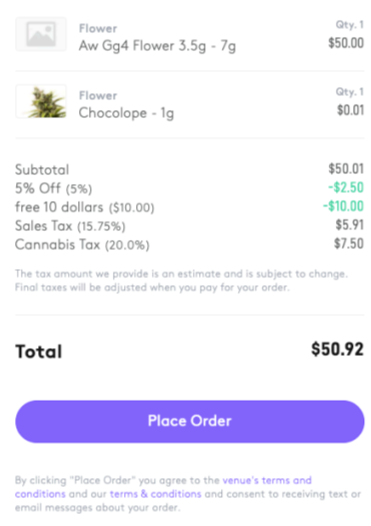
NOTE: Dispense does not process the offer but rather sends a note to the POS indicating what offer to redeem and process.