
SPRINGBIG'S GROUP SETTINGS
SEGMENT YOUR CUSTOMERS
Group settings allow you to view all and edit some of the segments and filters you can utilize when creating campaigns, autoconnects, member offers, etc.
This section on groups settings will define the available group settings and how to utilize this page. After completing this section, you should be able to:
- Know which groups need to be built and how to set them up
- Know which groups are automatic, and how to edit / add new parameters to existing segments.
GROUP SETTINGS
Here you can view / edit group settings for segments that can be utilized in campaigns, autoconnects, reports, member offers, and more.
You can not use these groups on this page, this page is for setting the parameters that can be used in different sections of the platform. Some segments can be added / edited directly from this page and others populate via integration and organically grow data that can be utilized.
Other segments on this page are created for you by Springbig and will organically group data based on your customer engagement and / or integration. You can always add to the parameters by clicking the arrow and expanding on the group. This allows you to edit the specified group or to build new groups. For example: you can add a 10+ visit total segment to campaign to members that have more than 10 visits.
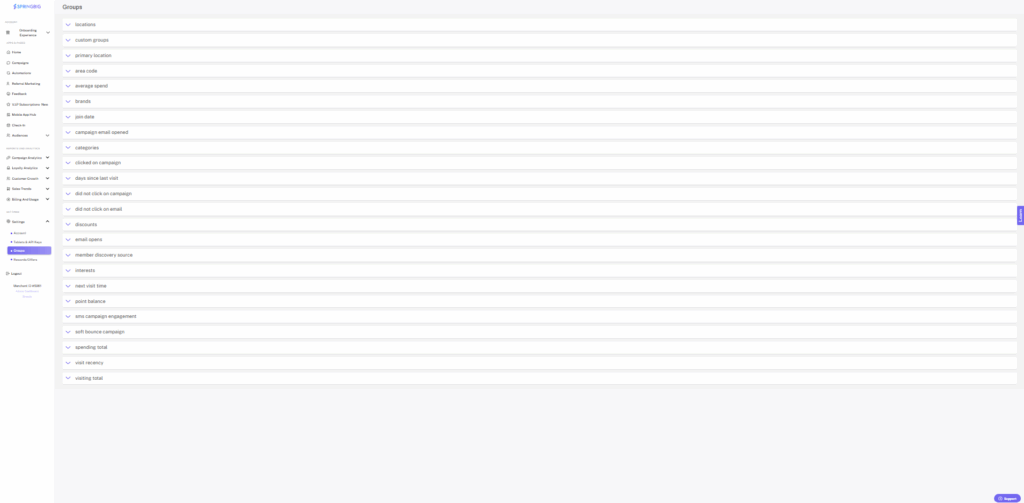
Locations refer to physical, integrated locations. These have to be built by the springbig integration team and can not be edited but can be used to segment to customers that visit those locations.
Build your own custom groups, interests, discount plans, ‘how did you hear about us’ segments, and area codes on this page to utilize these segments.
Click the drop down arrow for each group to view existing segments, edit, delete, or add new segments.
GROUP SETTINGS TO BUILD
Groups that need to be manually built out include:
- Custom groups
- Interests
- Discounts (some POS will send us this value – see your guide)
- How did you hear about us segments
- Area codes
Custom Groups are ‘virtual’ location groups that customers can join by creating a ‘custom group’ specific join form / QR code in Sharing Links page (Settings –> Account –> Sharing Links). These groups can be created for events, conferences, individuals (create a group for a budtender, team, or even rideshare driver) or other segmenting / tracking purposes. You can also create groups like a ‘test’ location and add other customers to that group via a custom group specific join form or by editing their profile and adding the custom group to their profile.
Interests added here will pop up in the join form, tablet, and wallet / app. You can add an interest name and optionally include an image, title, and description (only the name will appear on the join form, the image will pop up in the wallet / app, and the title and description will pop up on our esig color tablet app.) Customers have to manually select their own interests to fall into these segments, however we can import interest lists for you if you have existing data from your POS. While we do collect brand / category information from some POS, we do see merchants frequently list categories as interests as well as interests like vendor days, product updates, top shelf products, and even interests like cooking with cannabis, movies, music, etc.
Discounts can be added here to correspond with your POS. *Select POS integration support this segment, ask your Client Success Manager to confirm your integration.
How did you hear about us allows you to create segments based on how your customers heard about your program. These segments will pop up in the join form. To gain this information from existing customers, you can send them a join sharing link (not a login link) to allow them to add more information on the join form (these customer profiles will merge with existing profiles with the same phone / email.)
Area codes allows your to create new segments based on area codes that exist within your platform. For example, if you have members with your local area code you can create a segment and title it the area code or something like ‘local ###’
GROUP SETTINGS VIDEO
Check out this video reviewing the Group Settings page.