These flows are designed to ensure your messages are delivered quickly and compliantly, while also creating a seamless experience for customers accessing their messages and rewards. Springbig supports both standard 10DLC message access as well as enhanced Face ID flows for faster, frictionless entry.
For users with a birthday on file, there are 3 steps to the flow: Link Click, Birthday Verification, Welcome page to view the message.
For users without a birthday on file, there are also 3 steps: Link Click, 4-Digit Pin, Welcome page to view the message.
With Face ID enabled, returning users can bypass verification steps for a faster, more seamless experience.
FOR USERS WITH A BIRTHDAY ON FILE
10DLC FLOW FOR CUSTOMERS WHO HAVE A BIRTHDAY ON FILE
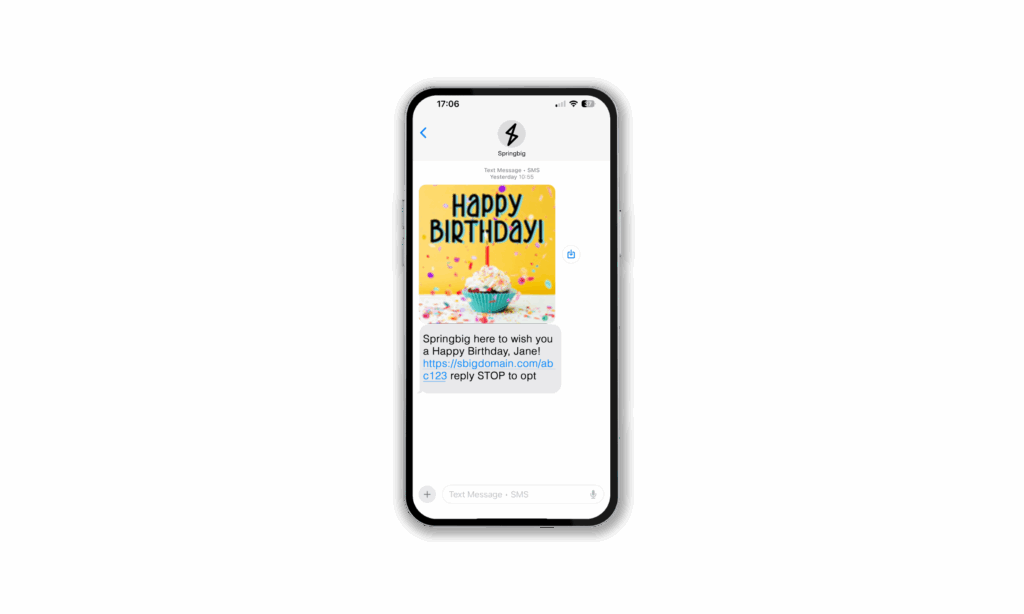
Step 1: Click the link within the message
The customer will receive a link within the message they received. They will click this link to take them to the stashboard.
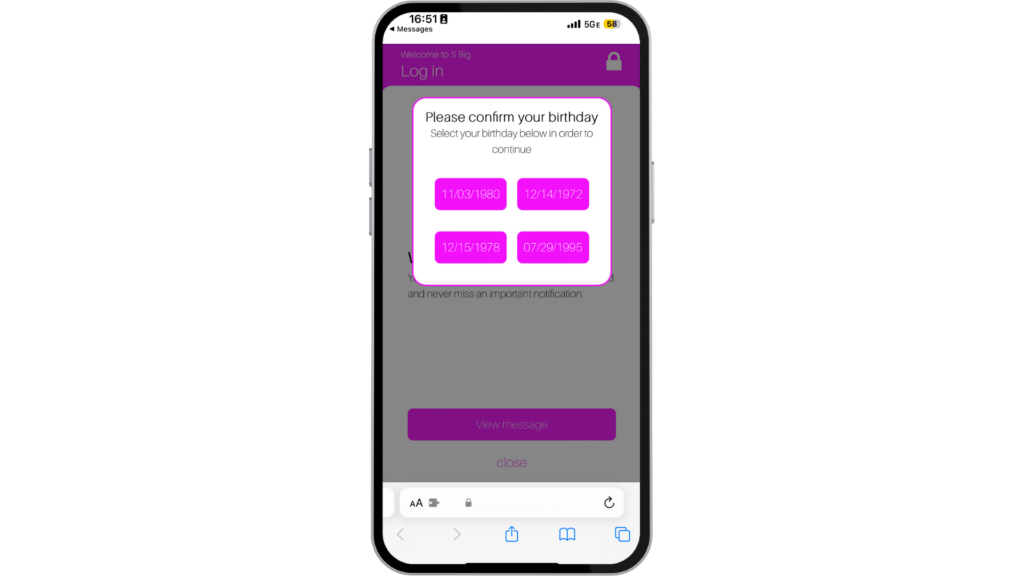
Step 2: Birthday verification
The customer will be given 4 options of birthdays to select from. They will select the birthday they have on file in their profile.
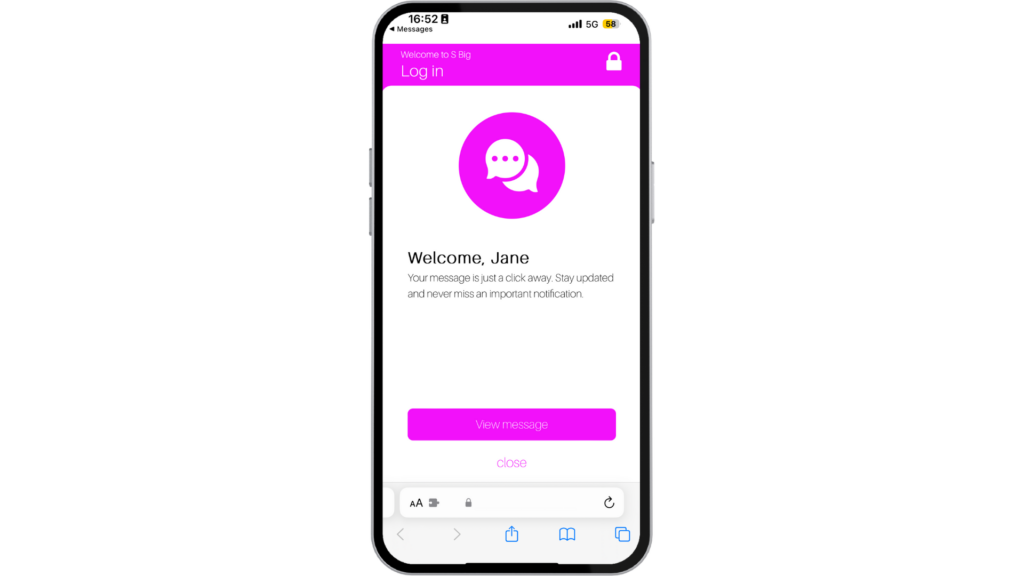
Step 3: Welcome page
Next, the customer will be taken to a welcome page where they’ll be given the option to “view message,” “see menu,” or “close.”
Within the welcome page, Springbig will upload the retailers logo to appear on that screen.
Step 4: Message
Once the above steps have been taken and the customer selects “View Message”, the customer will be able to view and interact with your message.
FOR USERS WITH NO BIRTHDAY ON FILE
10DLC FLOW FOR CUSTOMERS WHO DO NOT HAVE A BIRTHDAY ON FILE
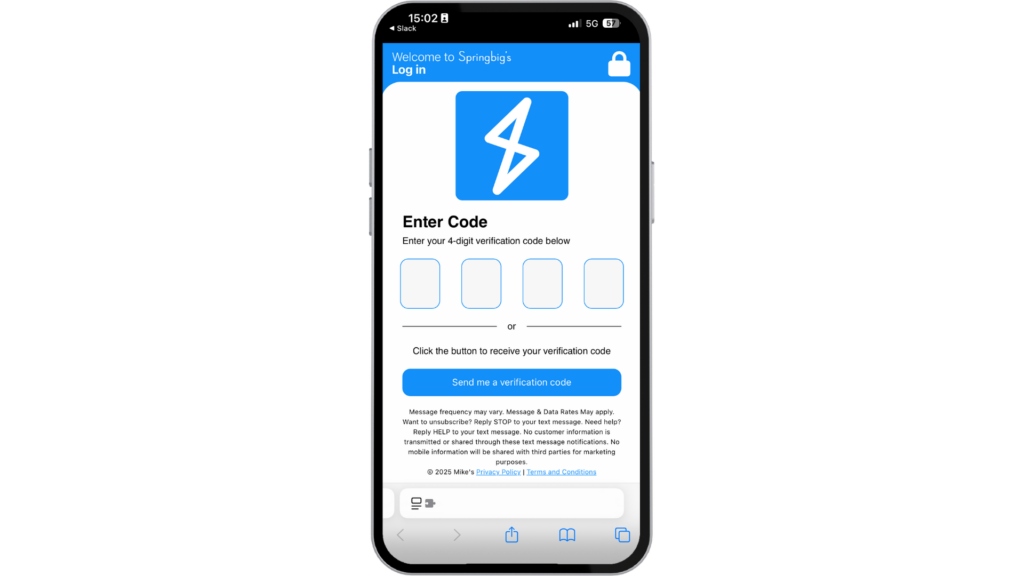
For users who do not have their birthday on file, they will still click on the link in the message, but they will not have the birthday selection.
Instead, they will simply select the “Send me a verification code” button to receive and enter a 4-digit pin code.
This will be the same 4-digit pin code every time they receive a message from the retailer.
Once the pin is entered, they will select “View Message” on the stashboard welcome page to view the message.
INITIAL BIOMETRIC VERIFICATION FLOW
10DLC FLOW WHEN CUSTOMERS ARE ENABLING FACE ID
Step 1: Click the link within the message
The customer will receive a link within the message they received. They will click this link to take them to the stashboard.
Step 2: Birthday verification
Before the customer can set up their biometric verification (Passkey), they must first select their correct birthday to trigger the Passkey notification.
The customer will be given 4 options of birthdays to select from. They will select the birthday they have on file in their profile.
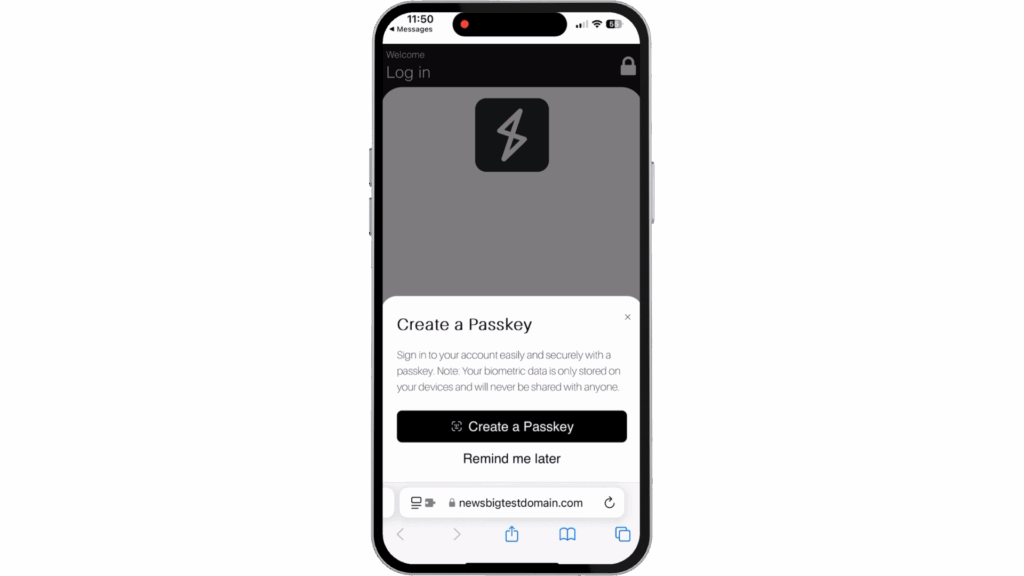
Step 3: Creating a Passkey
Once the customer selects the correct birthday, the Passkey notification will appear, prompting the customer to Create a Passkey for easy access in the future.
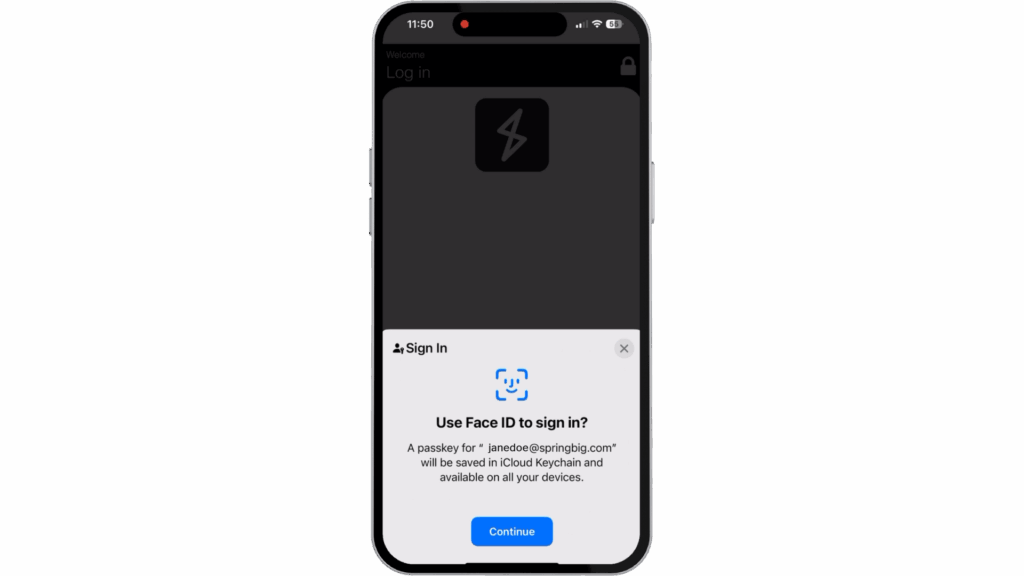
Step 4: Use Biometric Verification Selection
Once “Create a Passkey” is selected, the customer will be prompted to use biometric verification for future stashboard viewing. The customer should select “Continue.”
Step 4: Message
Once the above steps have been taken the customer will be able to view and interact with your message.
RETURNING BIOMETRIC VERIFICATION FLOW
10DLC FLOW FOR CUSTOMERS WHO HAVE FACE ID ENABLED
Step 1: Click the link within the message
The customer will receive a link within the message they received. They will click this link to take them to the stashboard.
Step 2: Use Biometric Verification
Once a customer has face ID enabled, they will simply select “Continue” to utilize the biometric verification and will be brought directly to their message.
Step 3: Message
Once the above steps have been taken the customer will be able to view and interact with your message.